This page brings together our Instant Audiences for Klaviyo help articles into one reference. Each section below is a complete, standalone article — scroll to browse everything, or to find something specific, press Ctrl+F (Cmd+F on Mac) and search for a keyword like “skipped emails”, “UTM” or “duplicate”.
Why are my Klaviyo flow emails being skipped due to "Fails Flow Filters"?
Failed flow filters means that one or more of the configured trigger or profile filters against the flow prevented a profile from entering a flow.
For example, a profile may not enter an add to cart abandonment flow because they have since placed an order.
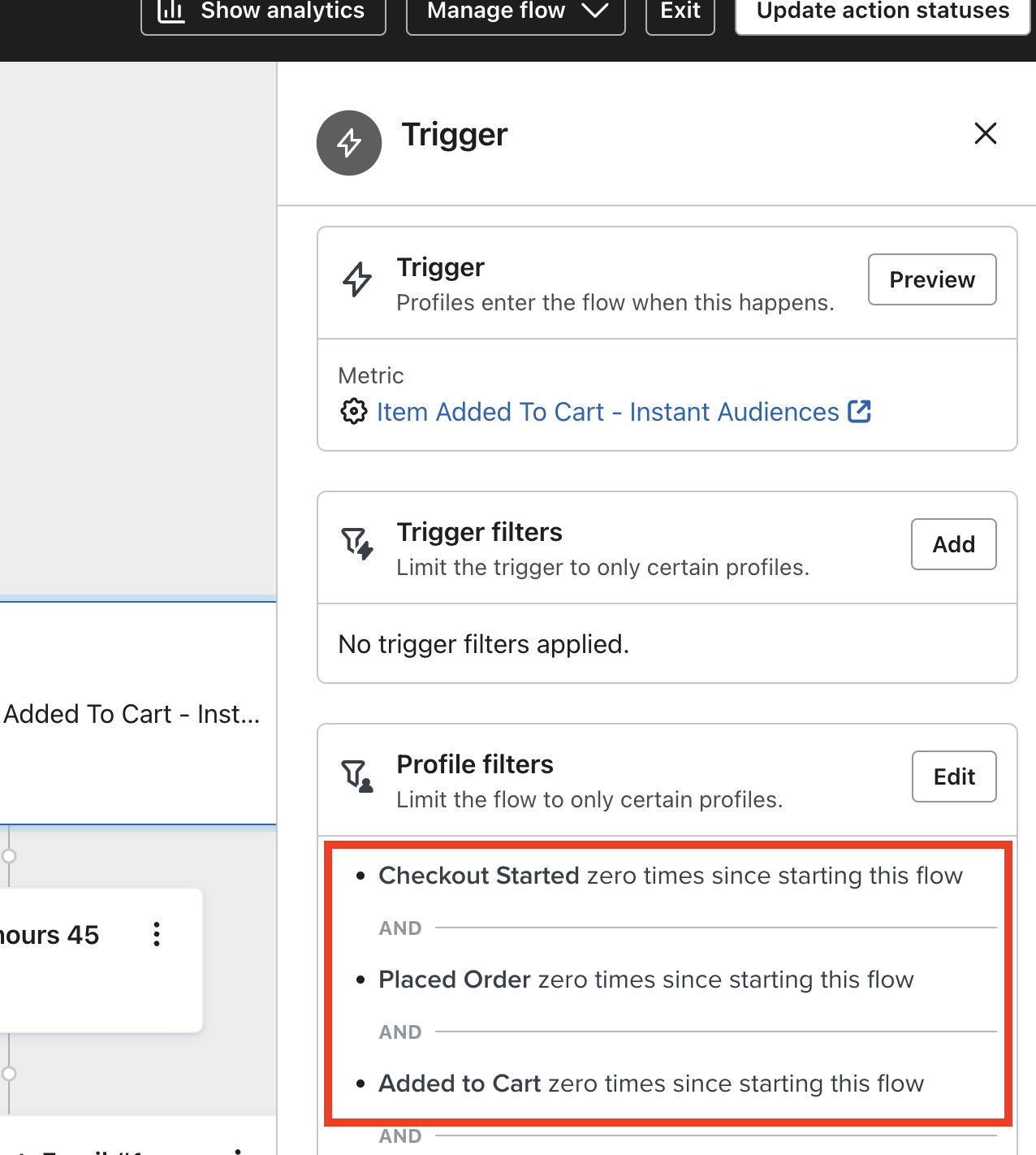
Or, a profile might not enter a browse abandonment flow because they have since added to cart or started checkout.
If you click into "Fails Flow Filters", you can identify the failed filters.
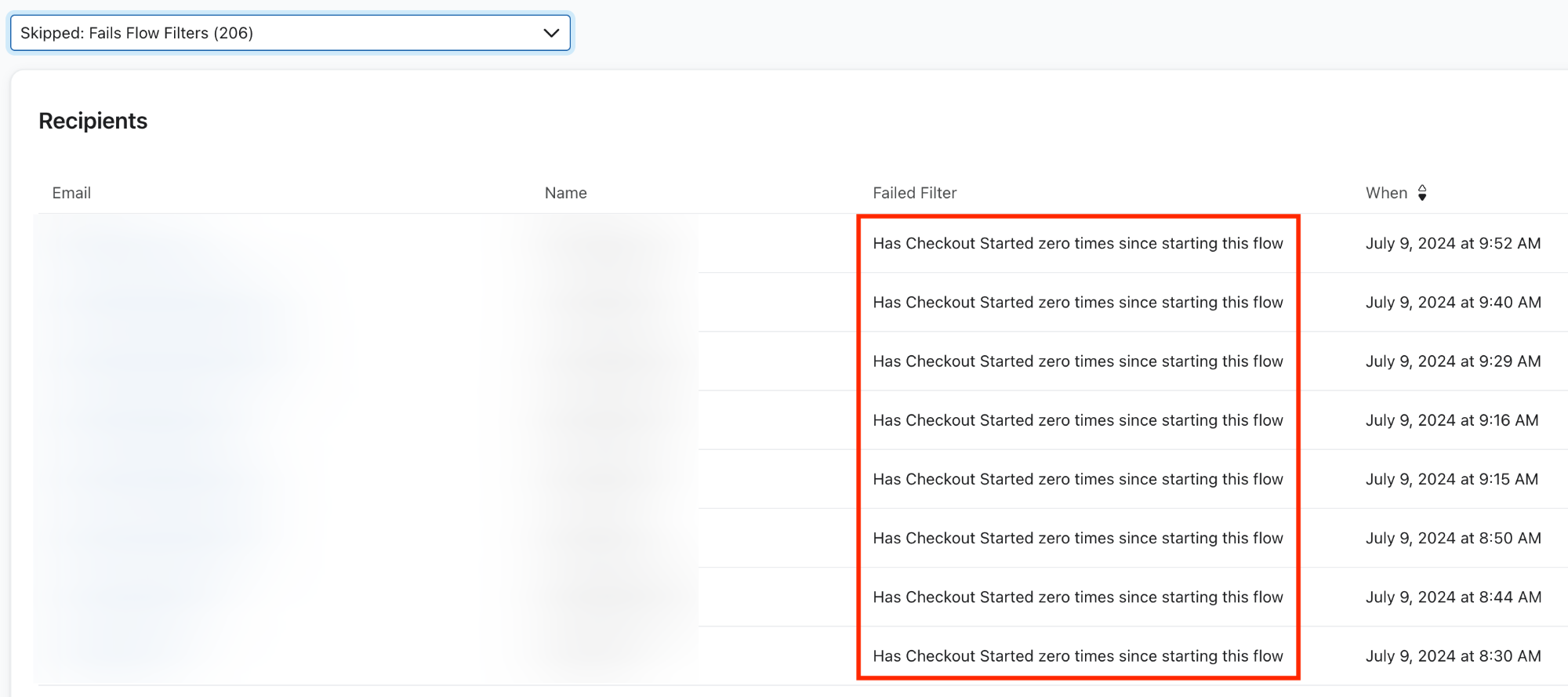
If you identify any flow filters that look inaccurate, consider removing the flow filter.
How do you send custom events to Instant Audiences?
Warning:If you are looking to integrate Audiences into a headless store, please proceed here.
This guide will walk through how you can send custom events to Instant Audiences.
It is common that even while using Instant's native integrations into platforms like Shopify and BigCommerce, that modifications to a product page, such as dynamic DOM rendering (without refreshing the page) may result in the native integration not sending through event such as product viewed, or add to cart events.
You may also want to track additional add to cart events from upsell pop-ups, or other locations that are custom built and not picked up by our native integrations.
Please contact your customer success manager if you run into any issues - we are happy to guide you or your developers through this implementation.
Steps to send custom events to Audiences:
To send custom events to Audiences, please complete the following:
- Locate where you would like to send a custom event to Audiences.
- Copy and paste the below snippet of code to the location to where you'd like to send the custom event.
window.InstantJS.track("EVENT_TYPE", [{
    provider: "KLAVIYO",
    event: EVENT_DATA
}]);
- Replace EVENT_TYPE with the type of event you wish to send.
- Replace EVENT_DATA with the data you'd like to send to Audiences. Audiences will then send this data through to your marketing integrations such as Klaviyo.
Note that the available events are as follows:
- PAGE_VIEWED, COLLECTION_VIEWED, PRODUCT_VIEWED, ITEM_ADDED_TO_CART, CART_VIEWED, CHECKOUT_STARTED, CHECKOUT_ADDED_PAYMENT_INFO, CHECKOUT_ADDED_ADDRESS_INFO, PURCHASE_COMPLETED
Examples:
Example #1: Klaviyo Viewed Product: If you render your product page dynamically (which may interfere with Shopify customer event tracking), then you can send a product viewed event to Audiences directly. See below for an example.
window.InstantJS.track("PRODUCT_VIEWED", [{
    provider: "KLAVIYO",
    event: {
        ProductName: "Expandable Bag",
        ProductID: "12345",
        Categories: ["Bags"],
        URL: "https://example.com/product/expandable-bag",
        Brand: "YourBrand",
        Price: "$199.99",
        CompareAtPrice: "$249.99",
        ImageURL: "https://example.com/images/expandable-carry-on.jpg"
    }
}]);
Why isn't my Instant dashboard displaying revenue from all of my Instant flows?
If you're seeing discrepancies in the revenue displayed on your dashboard, it could be due to recent changes in your Instant Audiences flow setup.
To ensure all revenue is properly reflected in your Instant dashboard, please follow the steps below.
Ensure relevant flows include "Instant Audiences" in their flow name.
For your Audience flow to be included in dashboard reporting, the flow name must include the term "Instant Audiences". This keyword is used to filter and identify relevant flows for accurate reporting.
Double-check that relevant flow are Not Archived.
If you've recently archived a high-revenue flow while adjusting your setup, this could explain a sudden drop in reported revenue. As archived flows do not contribute to dashboard reporting, please ensure that the flows you want to track are not archived.
Verify that the Flow is Live or in Draft Status
Your dashboard will only track flows that are either Live or in Draft. To ensure your flow is tracked, confirm flows you'd like to track either Live or in Draft status.
How do I setup my flows for sale periods?
During the holiday period, your business may decide to run seasonal promotions to boost revenue and generate more activity for your brand. Because these promotions typically run for one day or over the weekend, we recommend adjusting your existing flow to avoid any flow disruption or duplicate emails.
By making small changes to your existing flows, you can ensure timely email delivery and accurate tracking of activity for your seasonal promotions.
Best Practices for Flow Adjustments:
Option #1: Edit the Existing Email or SMS
Modify the current content in your email to reflect the seasonal promotion.
Steps:
- Navigate to your existing flow.
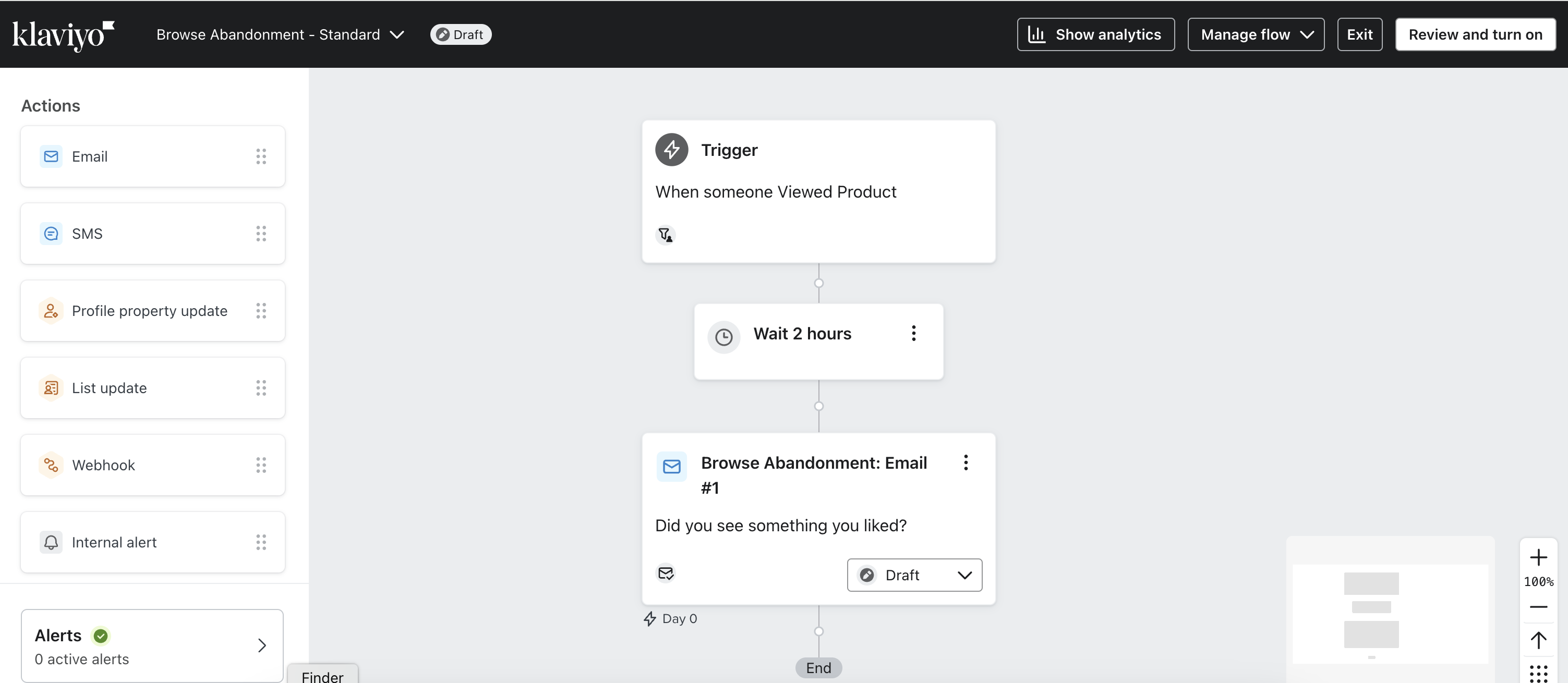
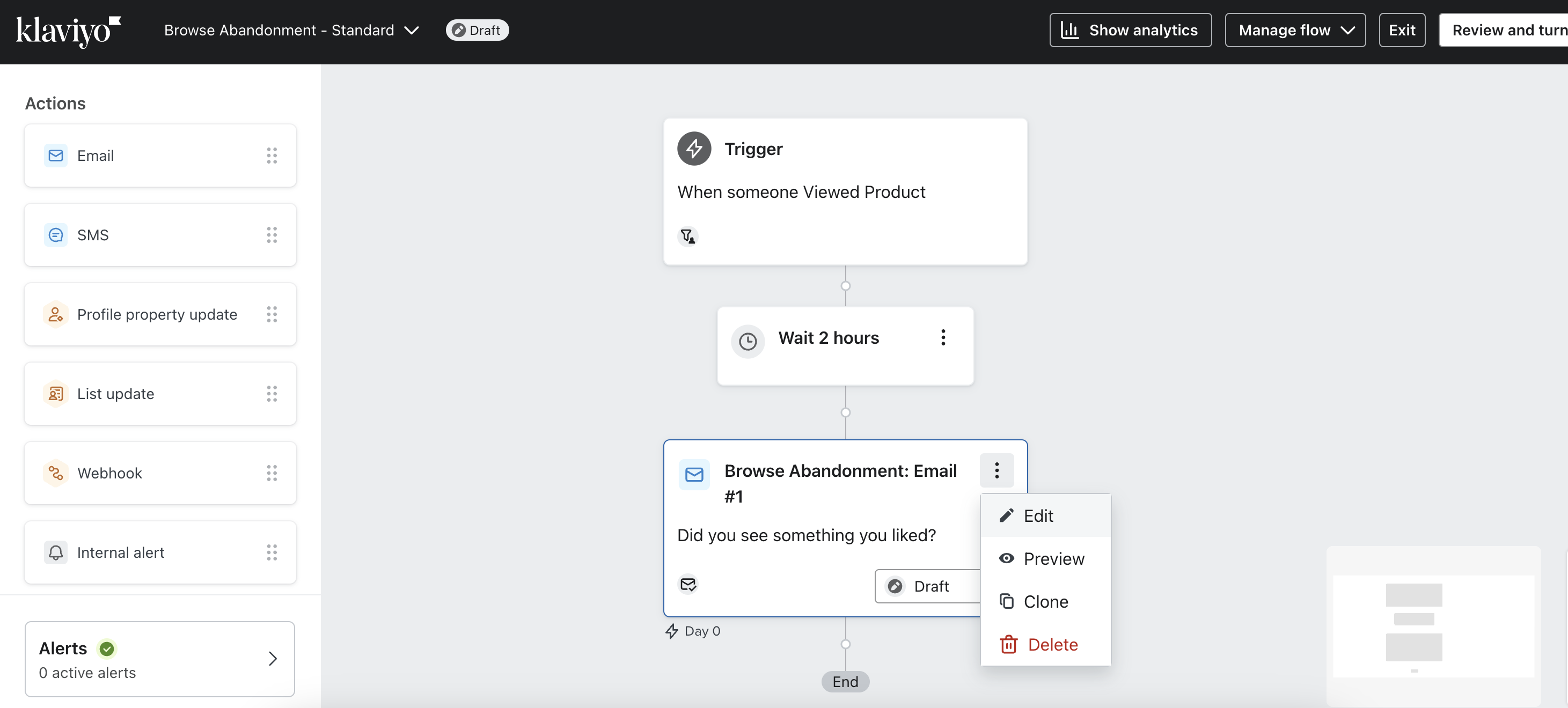
2. In the email box, click on the three dots in the top right corner of the email and select Edit.
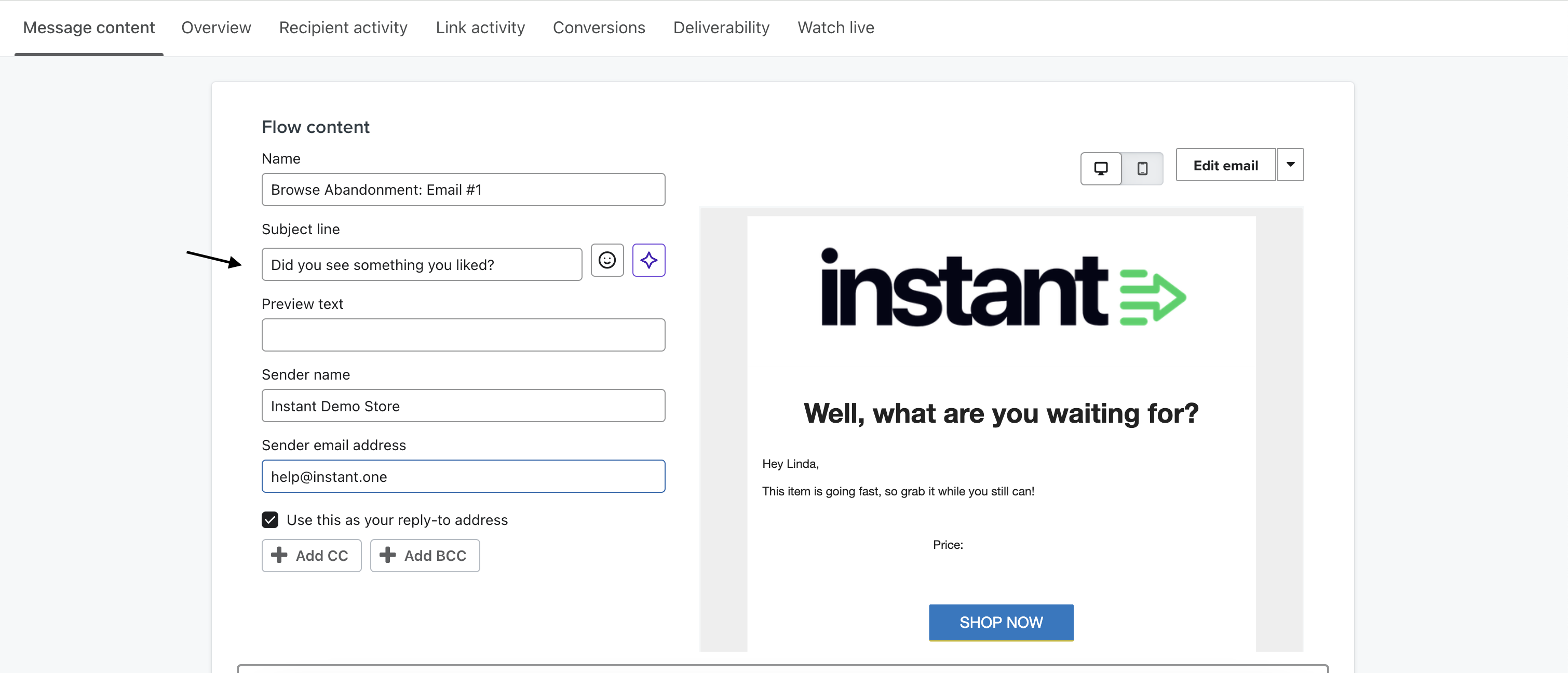
3. On the next page, click the subject line and update the content to reflect your promotion.
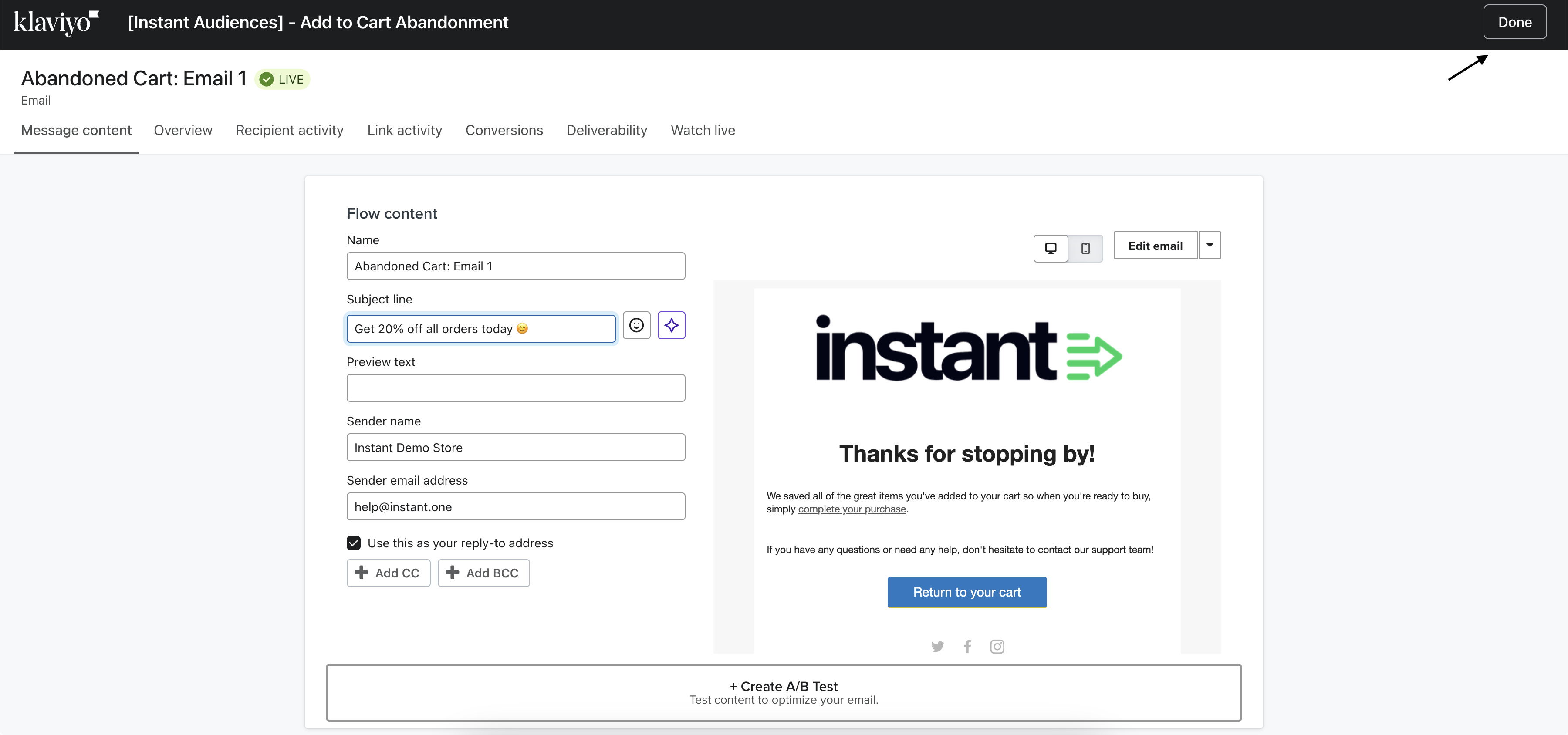
4. Once you've made the necessary changes, click Done in the top right-hand corner.
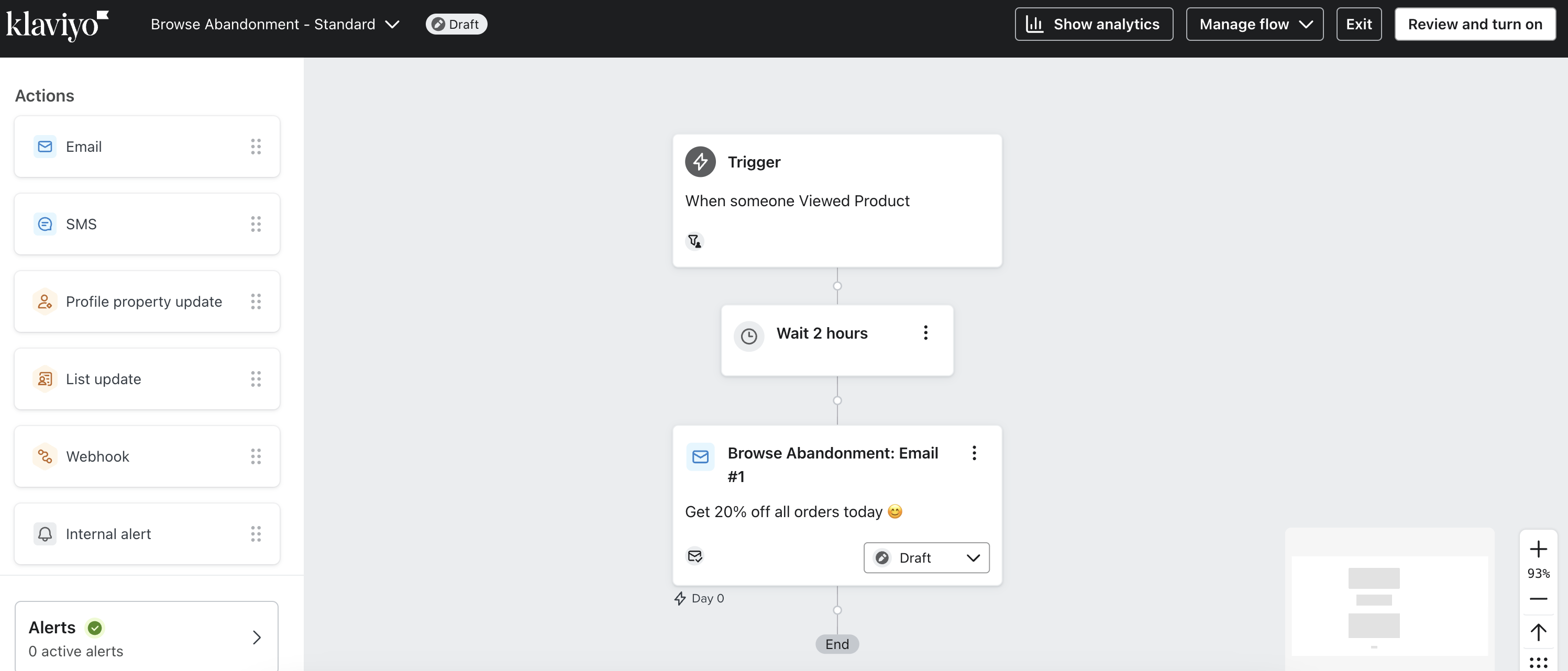
5.Your updated changes will now be reflected in the email.
6. To test the changes, click on your email to open the panel on the right, and scroll down to the subject and sender section.
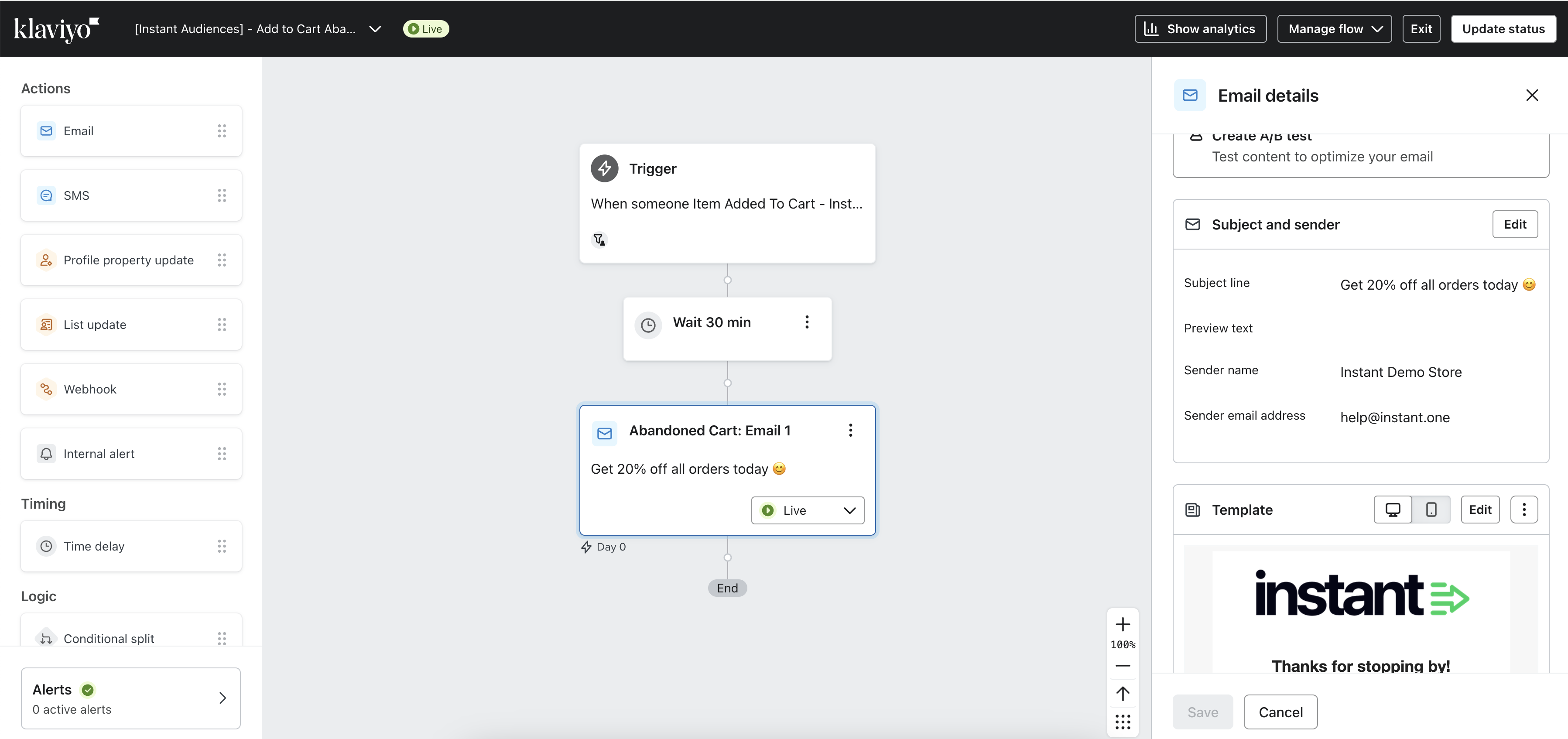
7. Click Edit.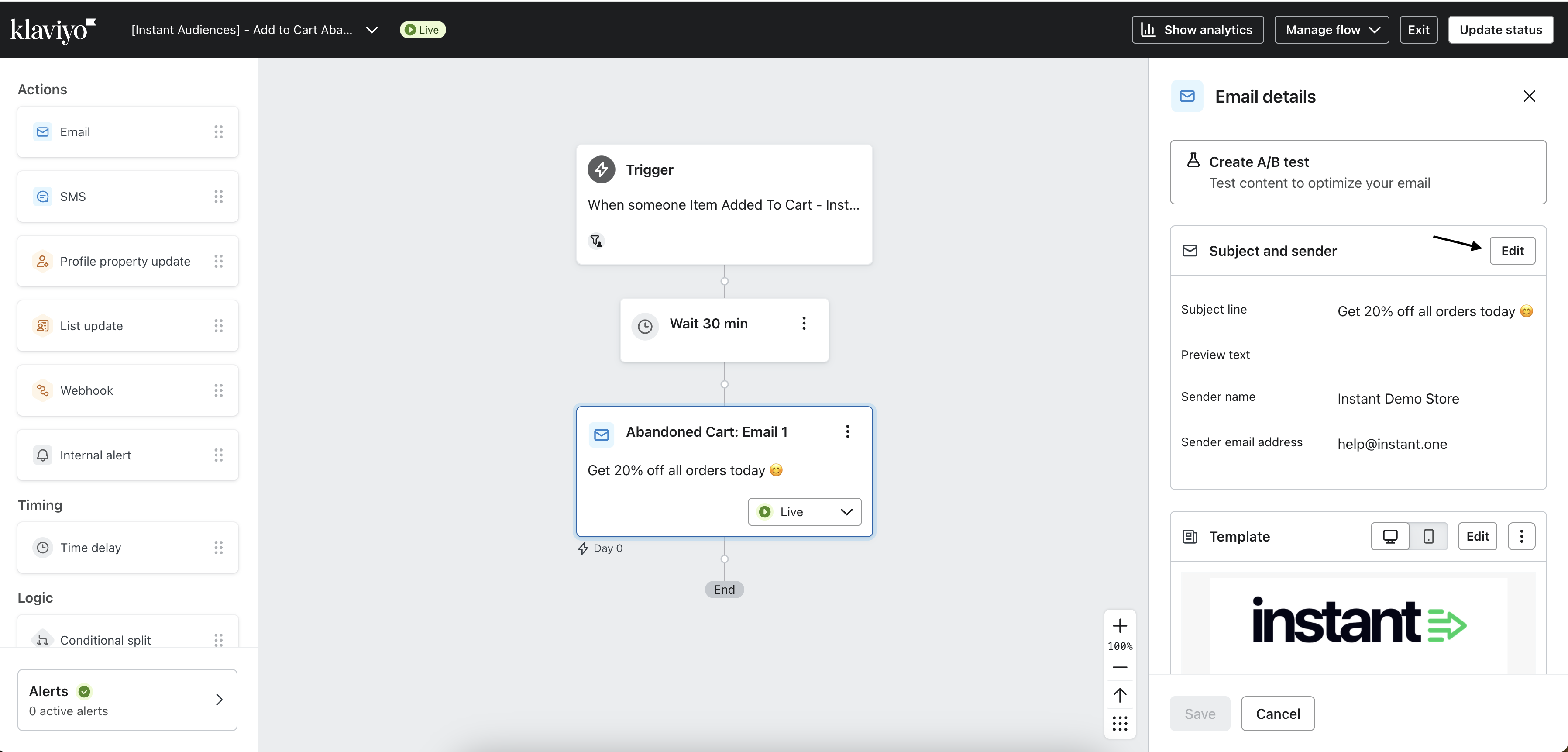
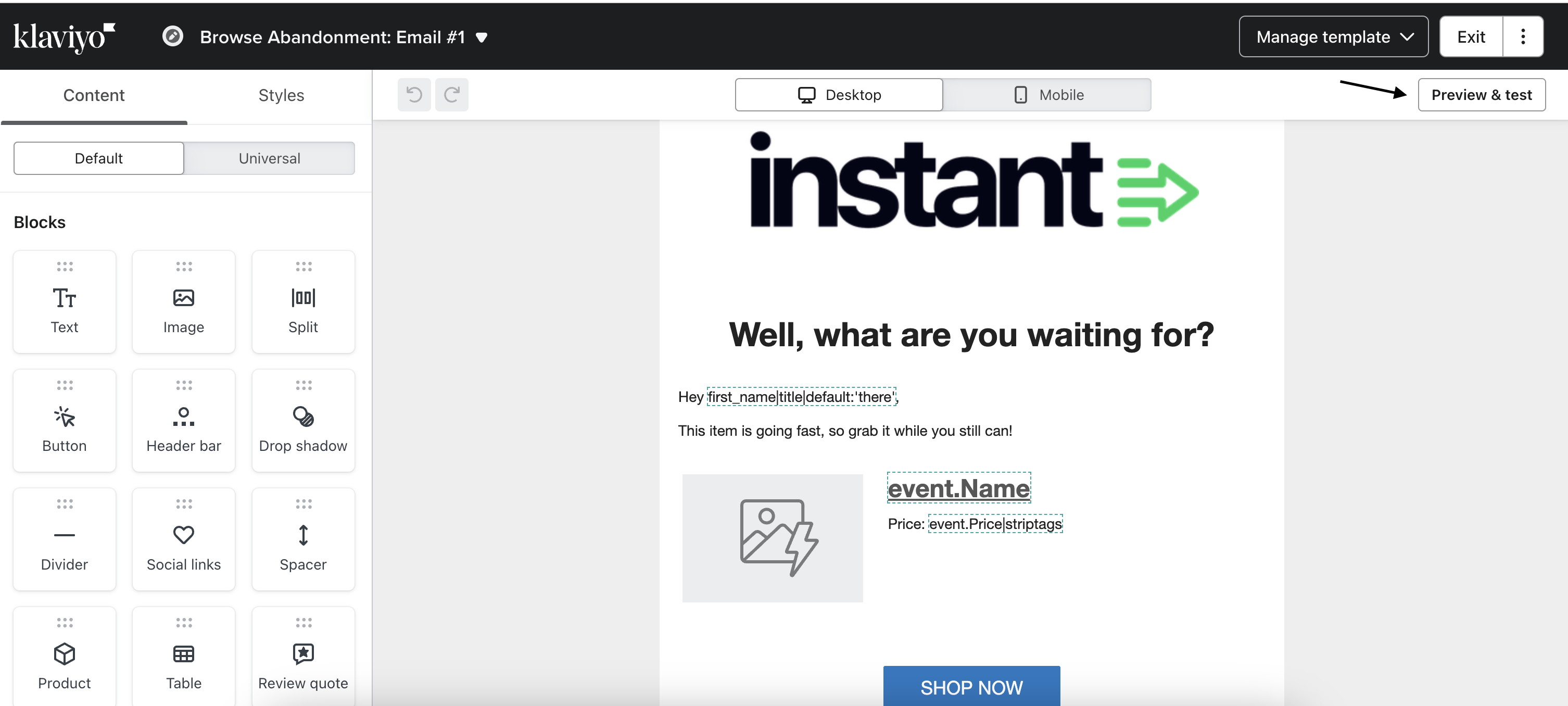
8. On the Manage Template page, click Preview & Test.
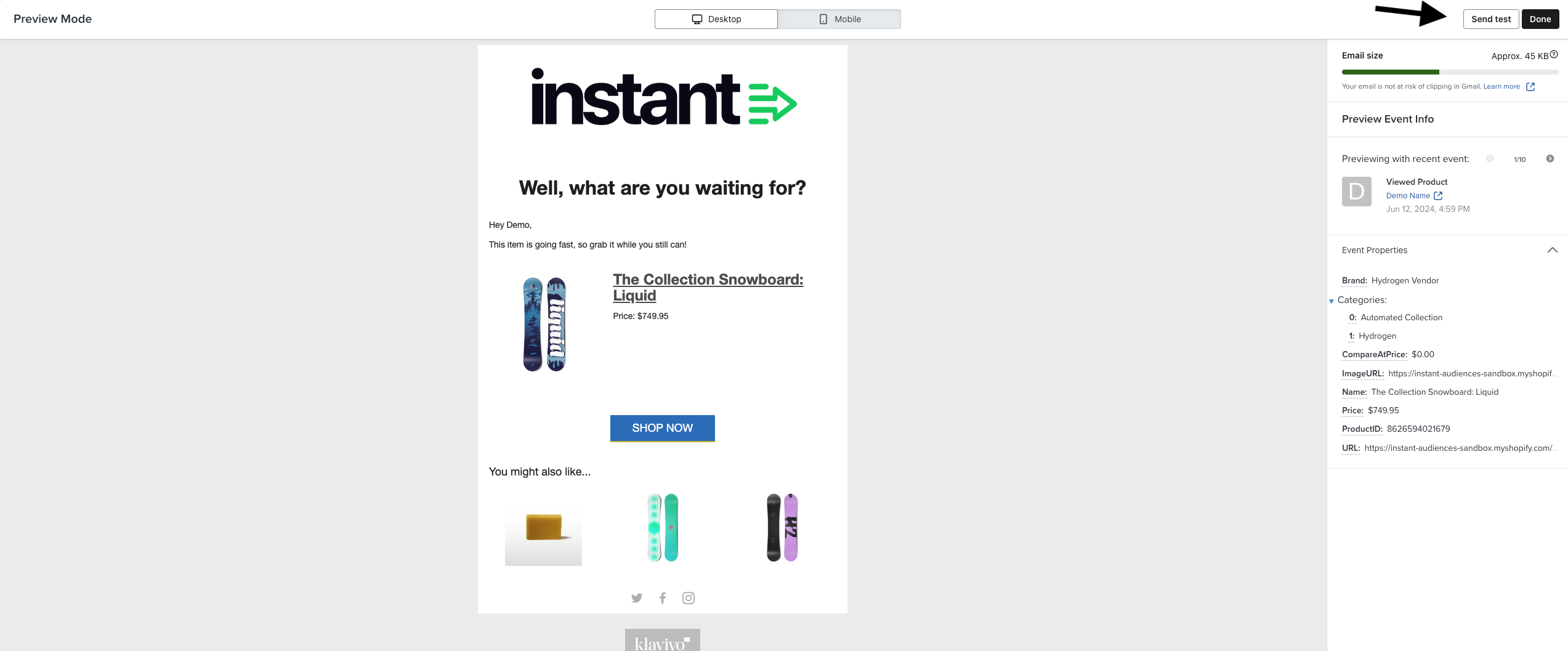
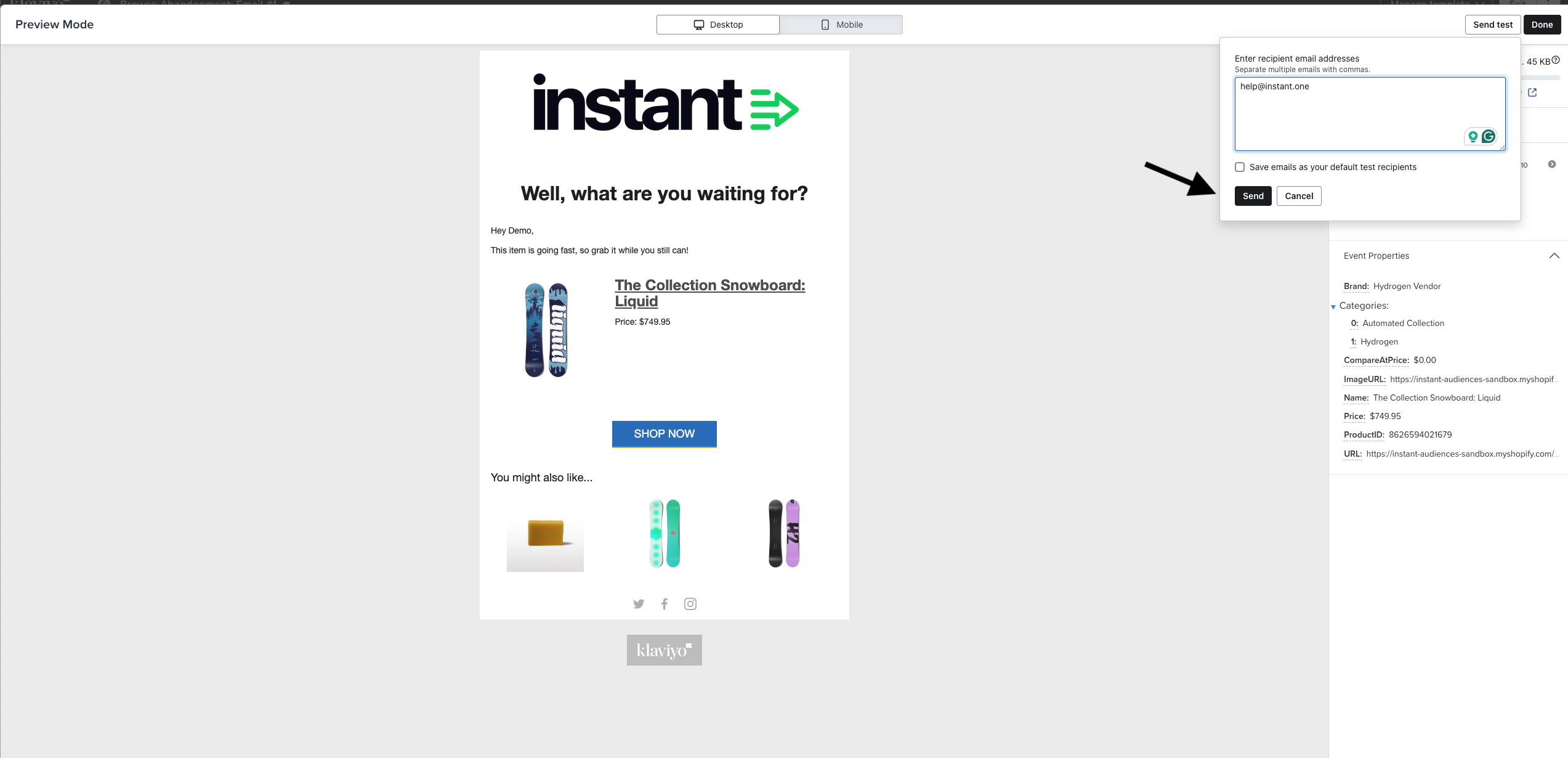
9. On the Preview Mode page, click Send test.
10. In the popup, enter your email address and click Send. The preview will be sent to your inbox.
Option #2: Clone the Existing Email or SMS
Clone your existing email and modify the new copy to fit your needs.
Steps:
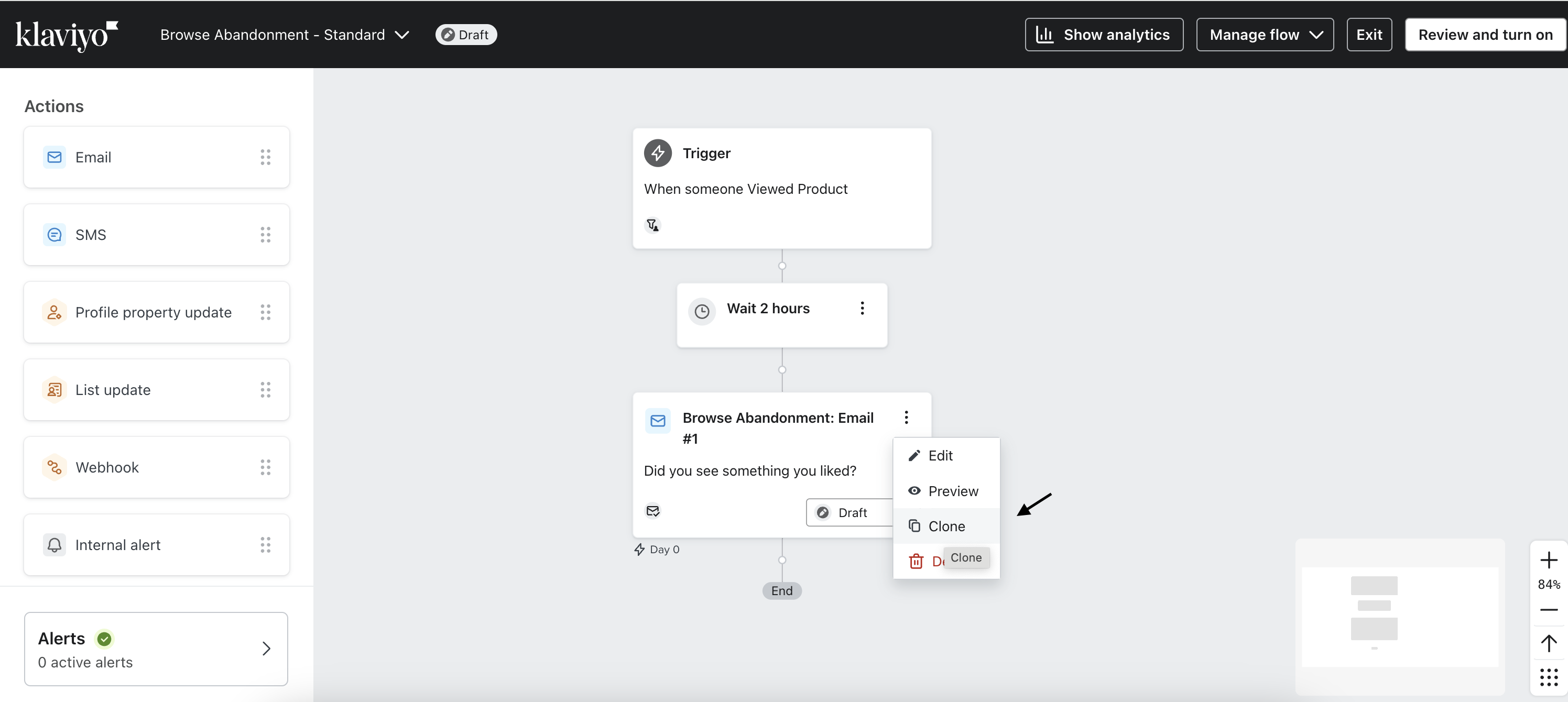
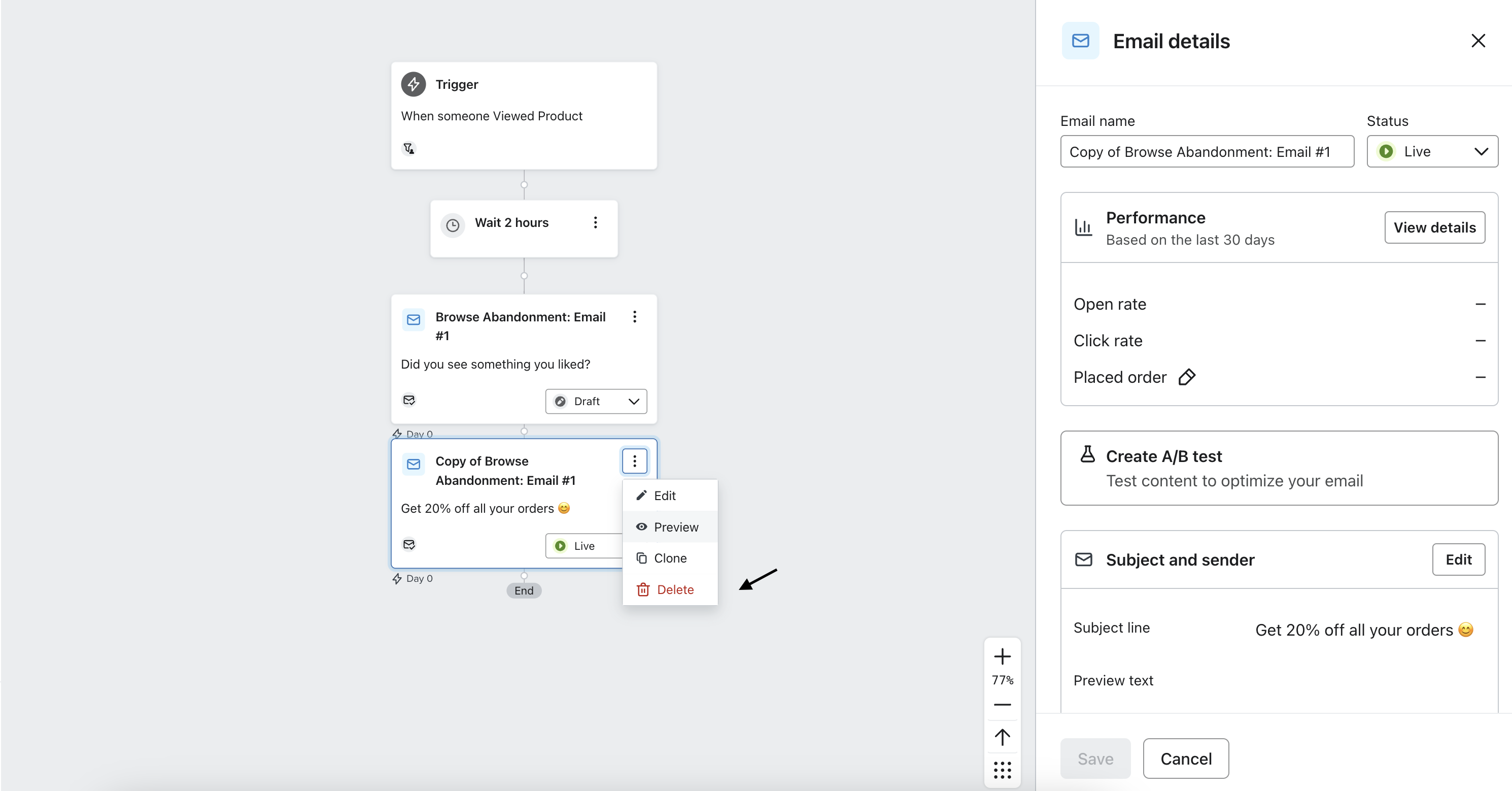
Navigate to your existing flow and click on the email under the trigger. Next, click the three dots in the top right corner and select Clone.
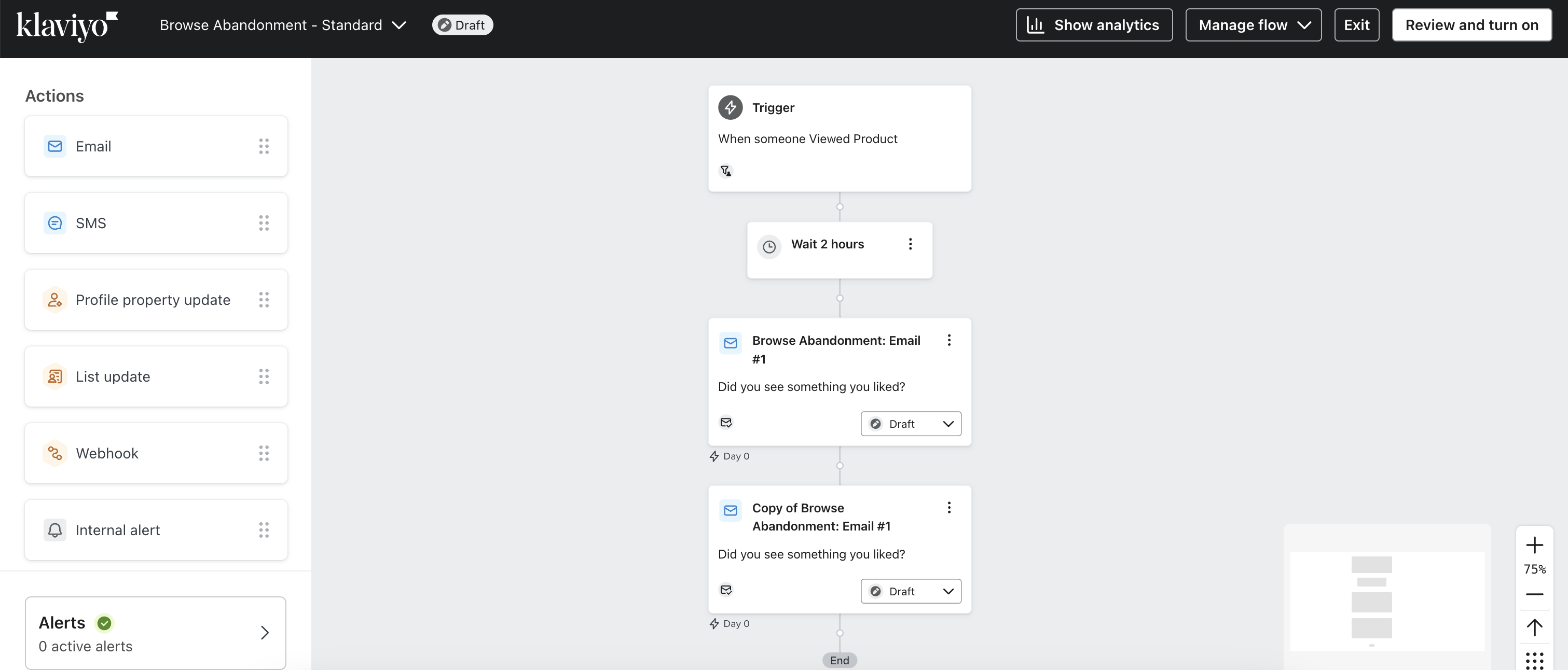
2. A cloned copy of the email will appear directly below the original email.
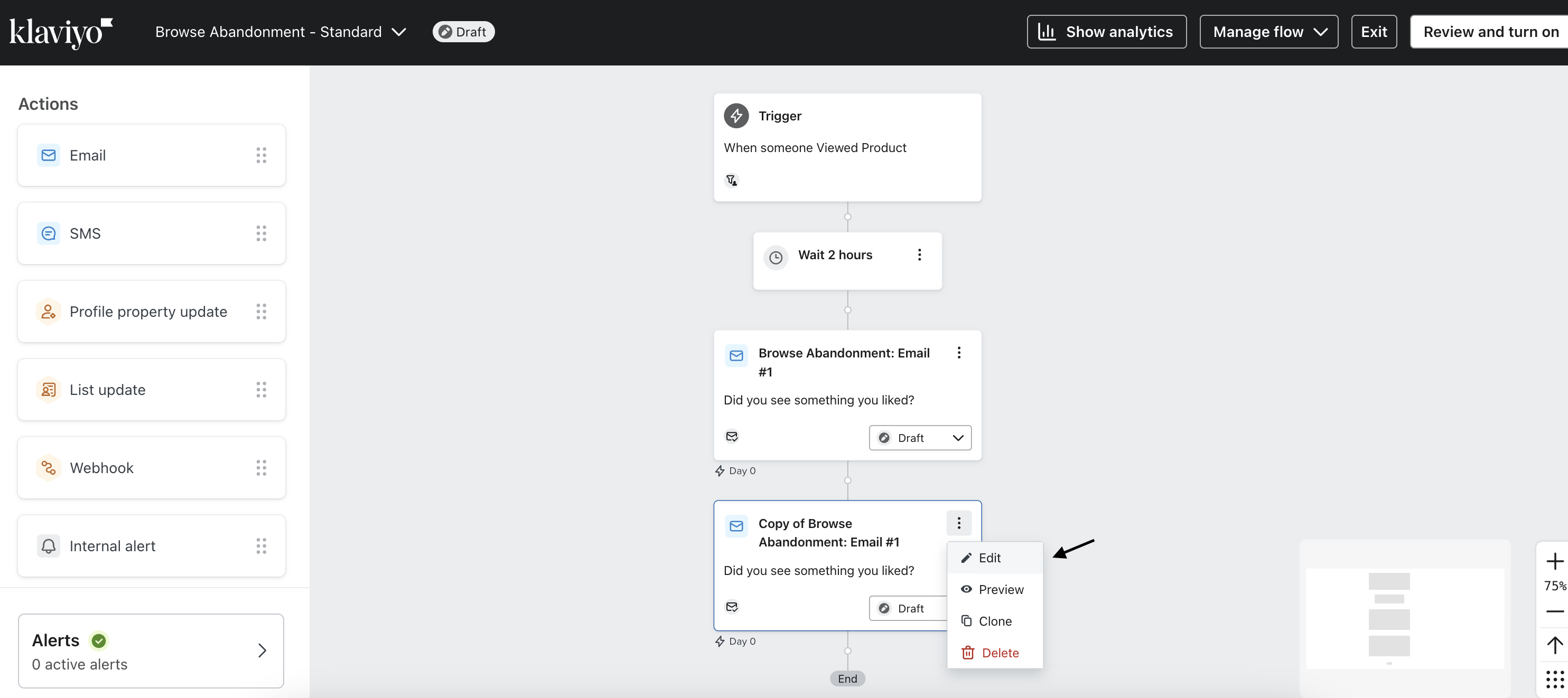
3. In the top right-hand corner of the clone, click the three dots and select Edit.
4. On the next page, click the subject line and update the content to reflect your promotion.
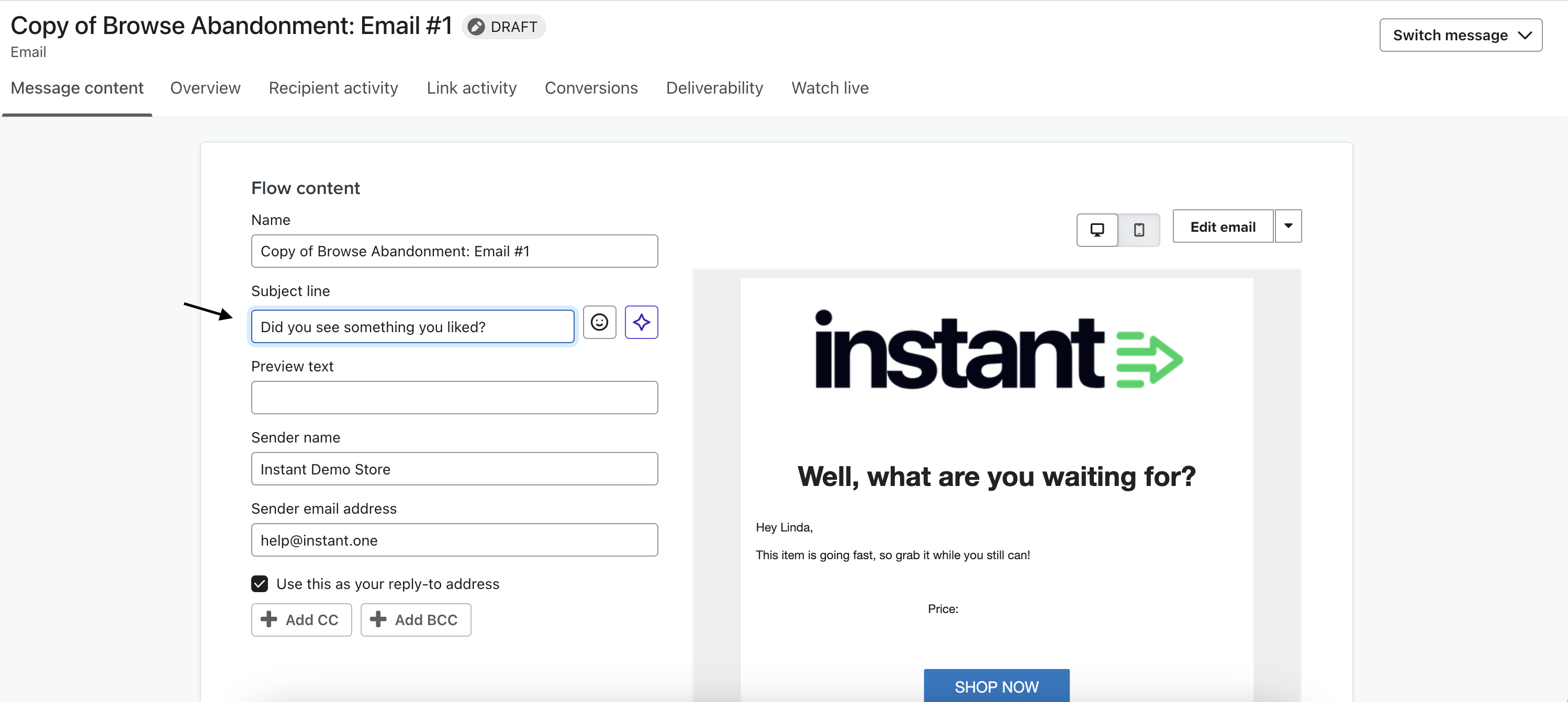
5. Once you've made the necessary changes, click Done in the top right-hand corner.
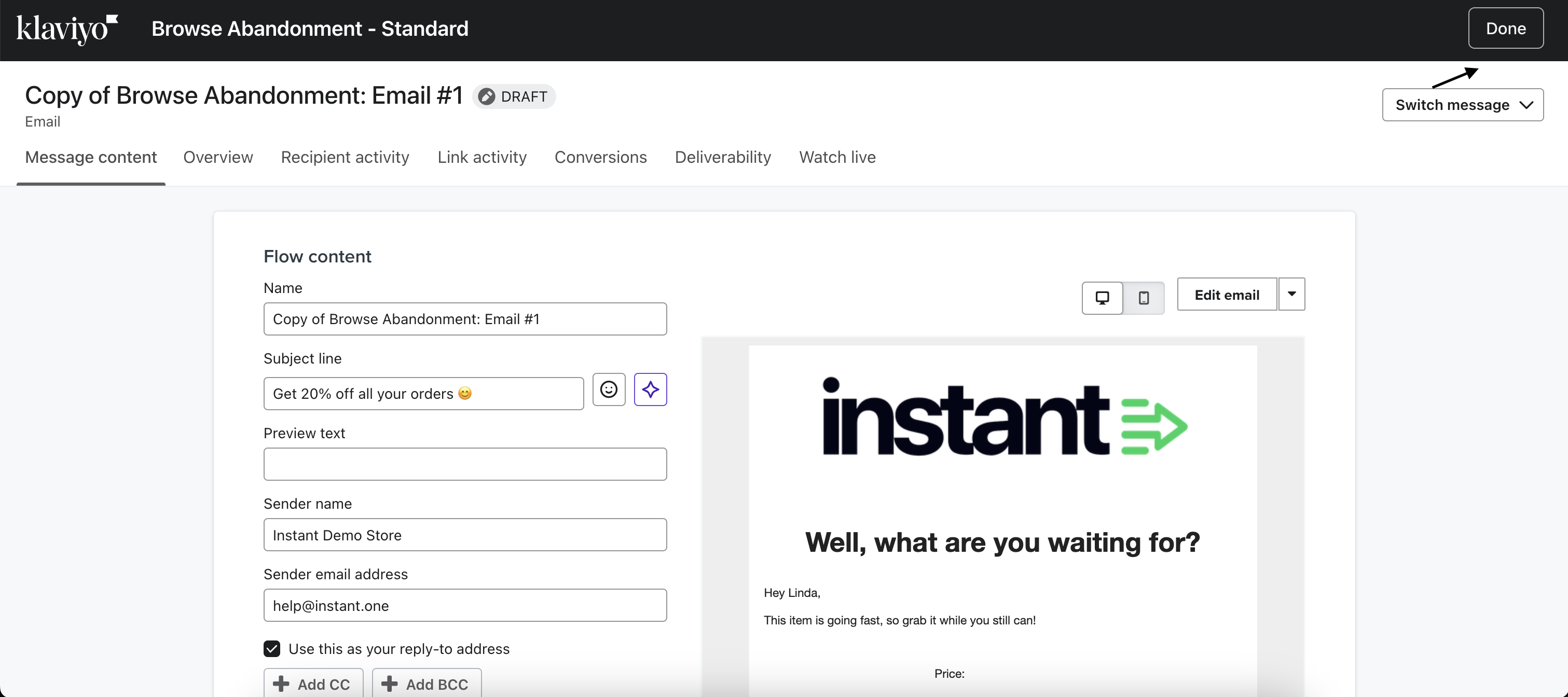
6. This will redirect you to the flow page. To test the changes, go to the left-hand pane and click Edit.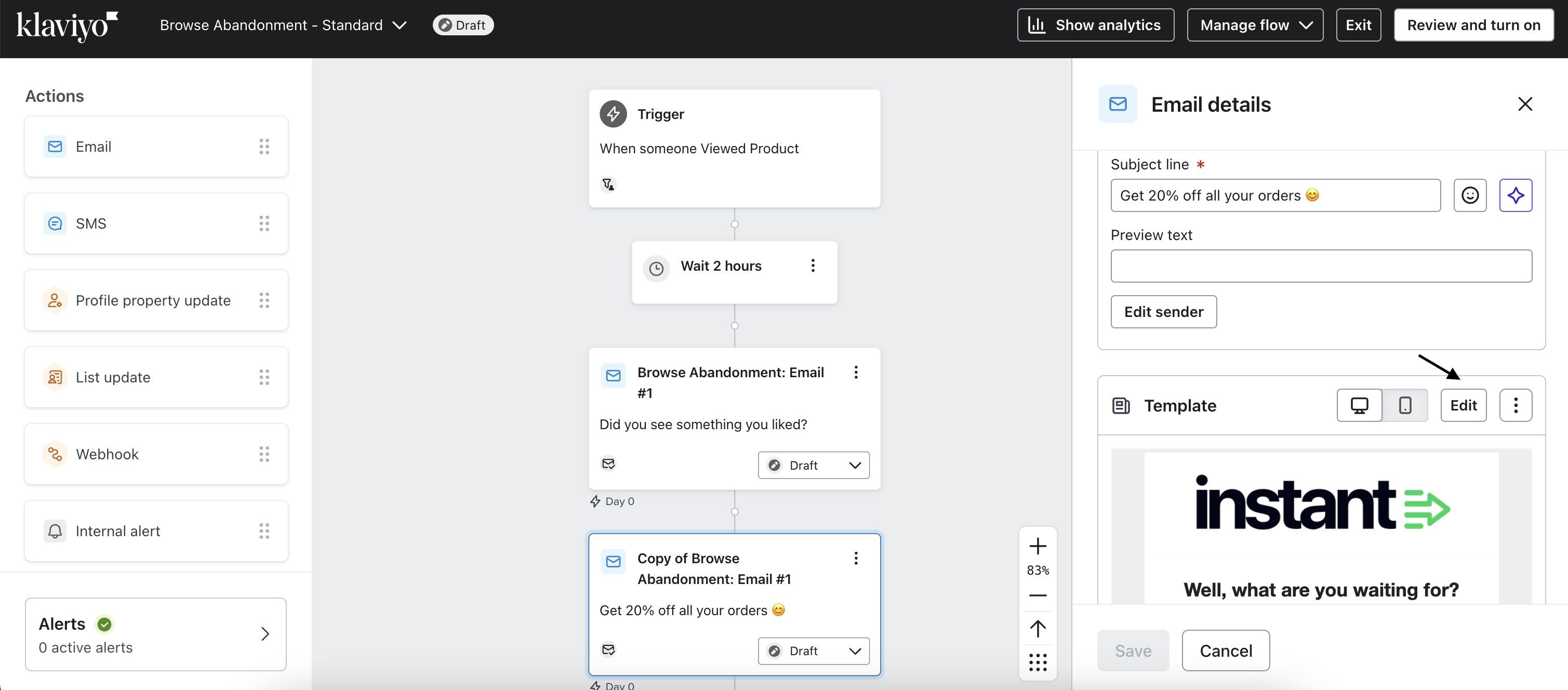
7. On the Manage template page, click Preview & test.
8. On the Preview & Test page, click Send Test.
9. In the popup, enter your email address and click Send. The preview will be sent to your inbox.
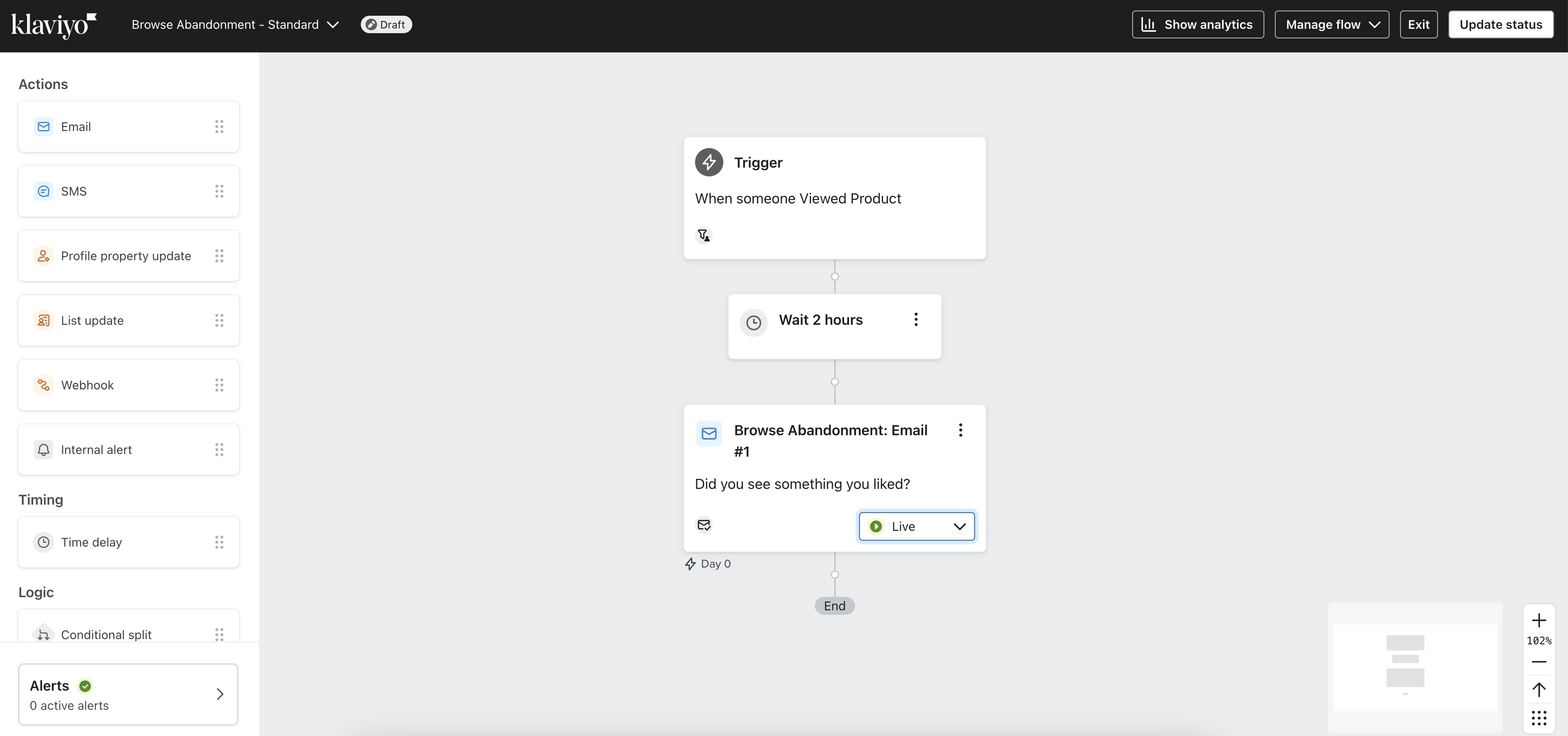
10. On the day of the sale, select the Live button in the original email and switch its status to Draft. Next, set the cloned email status to Live.
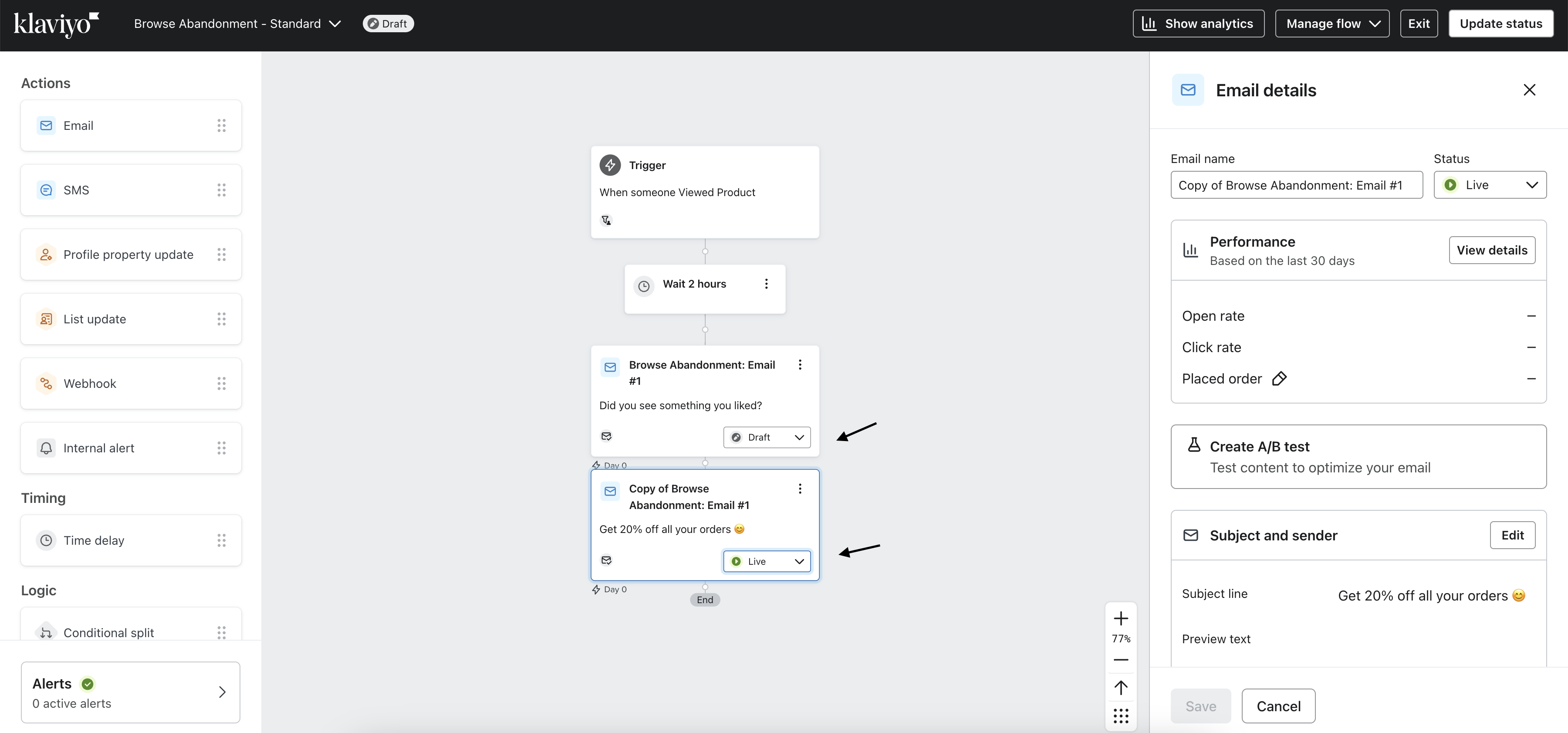
11. After the sale ends, return the flow to its original setup. Click the three dots in the top-right corner of the clone and select Delete.
12. Update the subject in the original email and set the status to Live.
How Instant Audiences Attributes Revenue
Accurate attribution is crucial for understanding marketing performance and making informed investment decisions. That's why Instant Audiences relies entirely on your email service provider—like Klaviyo—for attributed revenue reporting.
Instead of applying our own attribution model, we pull data directly from your email platform. This ensures the numbers in our dashboard align with what you see in Klaviyo, maintaining consistency, transparency, and reliability in attribution.
Klaviyo Attribution: A Reliable Standard
By default, our flows follow Klaviyo’s multi-channel last-click attribution model, where each email and SMS has a customisable tracking window.
In this model, when a customer event occurs (i.e., placing an order), Klaviyo checks your attribution window for each channel and credits the conversion to the most recent message within an open window.
The default attribution windows are:
- Email: 5-day open or click.
- If a customer makes a purchase within 5 days of opening or clicking an email, and that email was the last marketing message they interacted with, the sale will be credited to that email in Klaviyo.
- SMS: 24-hour click.
- If a customer buys within 24 hours of clicking a text message, and it was the last marketing touchpoint they clicked, the purchase will be attributed to that SMS in Klaviyo.
By setting distinct attribution windows for email and SMS, each conversion is credited to a single message, preventing double-counting.
This approach enables you to accurately measure the impact of your campaigns and make informed decisions regarding your marketing budget.
Note: Note: Every business is unique, so Klaviyo’s default attribution windows should be aligned with your customer behavior. For details on how to modify your attribution setting, click here.
How Audiences Works With Klaviyo
Audiences Flows
Instant Audiences is designed to enhance your Klaviyo setup by identifying and engaging visitors that Klaviyo may miss—without disrupting your existing flows. We only trigger messages when Klaviyo is unable to trigger the existing flows, ensuring that those Klaviyo native flows always take priority.
To achieve this, we clone your existing abandonment flows and apply time delays and filters to prevent overlap, ensuring that customers never receive duplicate messages.
The cloned flows include:
- Viewed Product – Targets visitors who view a product but leave without purchasing.
- Cart Viewed / Checkout Started – Engages shoppers who visit their cart or begin checkout but don’t complete the transaction.
- Add to Cart – Reaches users who add items to their cart but don’t finalize the purchase.
Note: Note: Some businesses will have more or fewer abandonment flows, which flows you choose to clone is up to you. But best practice is that all three flows are cloned and activated for best Instant Audience performance.
Example
When Klaviyo identifies a visitor on your website, and that visitor then abandons the website and triggers a flow, Instant Audiences remains inactive. If the visitor is not identifiable by Klaviyo, Instant Audiences steps in and sends the corresponding message from your cloned flow.
For example:
Day 1: A user visits your ecommerce site, adds a product to their cart, and leaves without completing the purchase.
Later: They return to your site. Klaviyo no longer recognizes them, either because they switched browser, device, or their cookies have expired, our Instant Pixel is still able to track them.
Result: We trigger an email based on your cloned Klaviyo flow, recovering a conversion that would have otherwise been missed.
Attributing this conversion
Conversions attributed to Instant come from visitors who have received, opened, and/or clicked on Instant abandonment emails, following your business’s email marketing attribution rules.
In the example above, the visitor would have received an Instant cart abandonment email, because only Instant was able to identify and track their session. That conversion would then be attributed to Instant only if the visitor opened and/or clicked on an email in the flow within the last 5 days (or opened and/or clicked on the SMS in that flow within the last 24 hours).
Tracking your performance
Once your flows are set up, you’ll have access to a personalised merchant dashboard tailored to your specific needs.
Your Analytics page provides a clear view of the revenue uplift driven by Instant Audiences, based on data from your connected Klaviyo account.
Here, you can:
View attributed revenue
Monitor key performance metrics such as ROI, projected revenue, and Instant Flow statistics
See how your audiences are performing—and even watch shoppers convert in real time
To learn more about analytics and tracking your progress with Instant Audiences, click here.
Note:If you have any further questions about attribution, please feel free to email help@instant.one.
How do I add UTM tracking to Instant Audiences flows for Google Analytics?
UTM tracking can be very useful for sending detailed information and data to Google Analytics about where site traffic and visits are coming from.
Instant's Klaviyo integration leverages Klaviyo's flows, and therefore merchants can use Klaviyo's native integration into Google Analytics for UTM tracking.
By adding UTM tracking to emails sent from Instant Audiences flows, you will be able to track conversions from Instant Audiences flows in Google Analytics.
To understand how to use UTM tracking for Instant Audiences flows, please refer to the following help article from Klaviyo titled "How to add UTM tracking to campaigns and flows" - https://help.klaviyo.com/hc/en-us/articles/360053921252.
The relevant sections from Klaviyo, are:
To understand UTM tracking in Klaviyo, please refer to the following help article from Klaviyo titled "Understanding UTM tracking in Klaviyo" - https://help.klaviyo.com/hc/en-us/articles/115005247808
Please refer to Google analytics' support documentation for any further clarification regarding questions or issues related to your Google Analytics account or setup.
How do I retrieve the ID of a Klaviyo form?
You may need to retrieve a form ID from a Klaviyo sign-up form to use for configuration in Instant.
The instructions below outline how you can retrieve a Klaviyo form ID.
- Proceed to Klaviyo's Sign-up forms page.
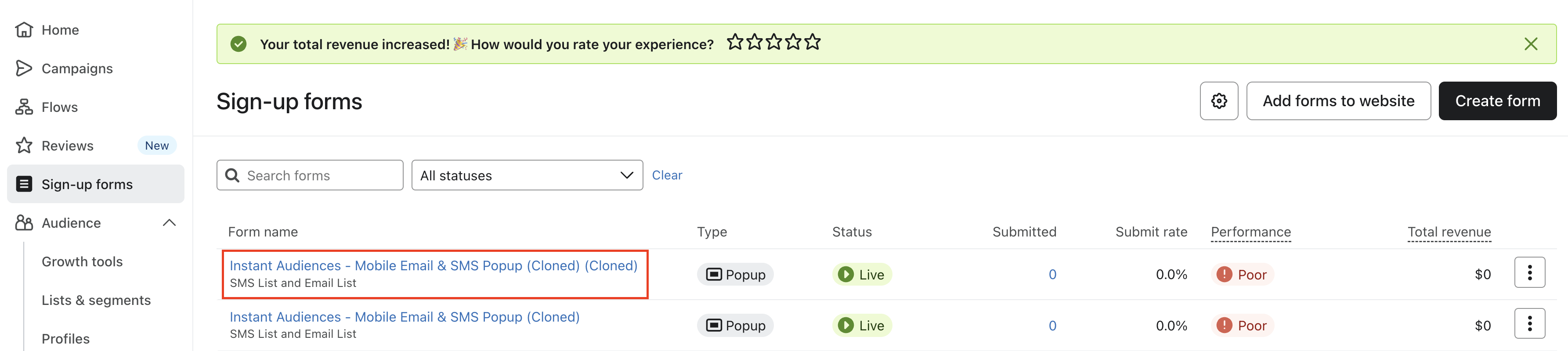
- Click into your form.
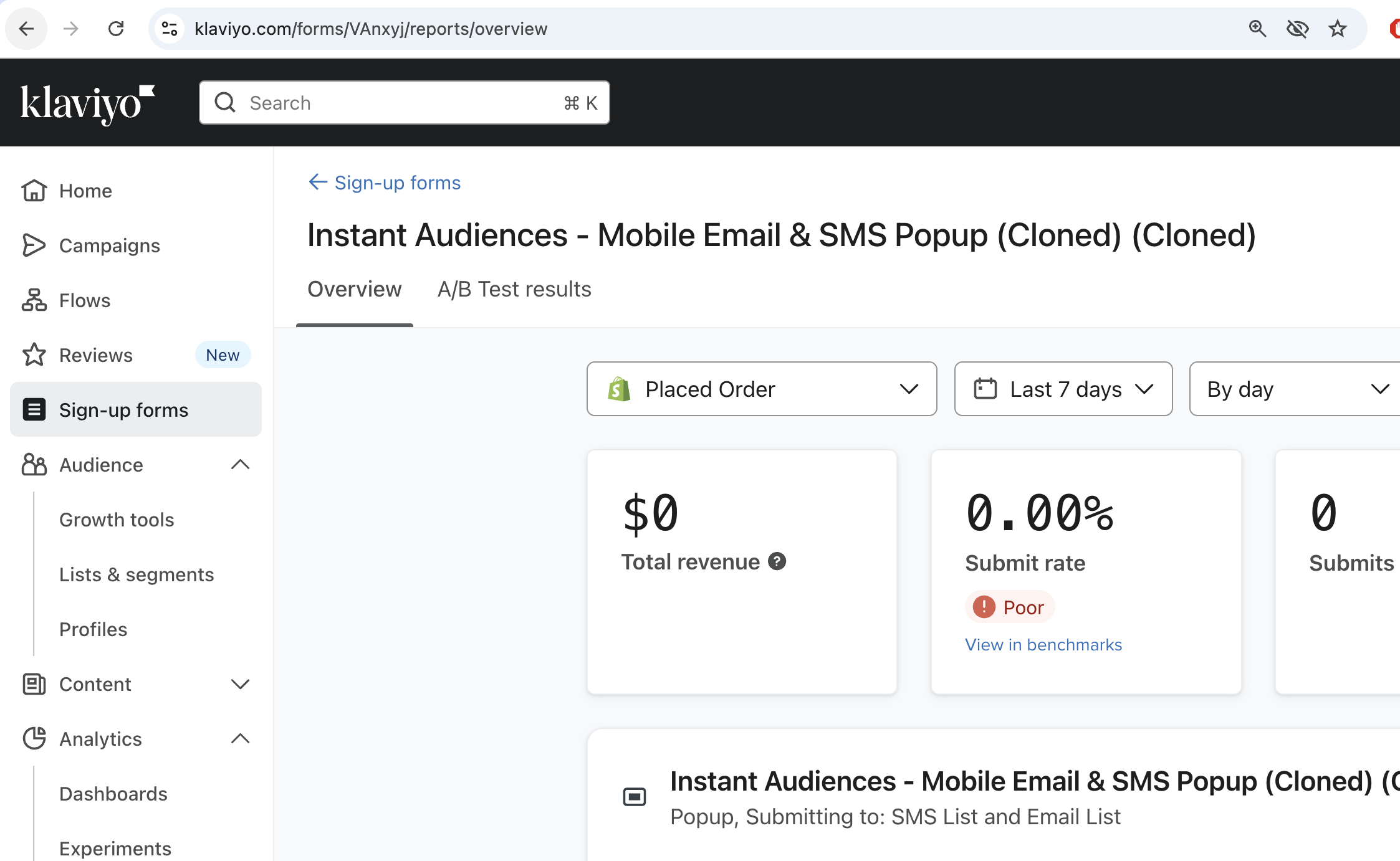
- Inspect the URL you are currently on.

- The 6 character code after /forms/ is your form ID.

For example, the form ID above is VAnXyj. Once you have this form ID, you can use this throughout Instant, such as in our [Predictive Opt-In](/how-do-i-get-started-with-instant-predictive-opt-in) feature.
How does Audiences prevent duplicate emails from being sent?
Flow filters are configured to both the non-Audiences and Audiences Klaviyo flows to ensure that if a customer is identified by both Klaviyo and Instant Audiences, that they only get sent emails from the non-Audiences flow.
This ensures that emails sent from Audiences flows are emails that would not have been sent otherwise, and Audiences flows do not send emails when standard flows would.
Note:Setup guidelines for flow filters for each flow type can be found here.
If you need support with this please contact us.
Why is Instant sending through numerous Klaviyo metrics for a profile?
Instant may send multiple metrics for a single profile due to user interactions and behavior on the site.
This is expected behavior and is designed to ensure accurate tracking of a customer's journey.
This means that the volume of events reflects user activity, not website sessions. This may result in the number of events fired by Instant exceeding the number of site sessions, which is normal behaviour. For example, if a customer refreshes the checkout numerous times, then multiple checkout started events will be fired for the same customer.Note:💡 For more in-depth information about what metrics Instant Audiences sends to Klaviyo, and when those metrics are fired, please refer to this article.
Why is the same Instant metric triggered numerous times for a single profile?
1. Checkout progression- If a customer navigates through multiple stages of the checkout process or refreshes the checkout page, multiple events may be fired within a single session.
- For example:
- Refreshing the checkout page multiple times will trigger multiple Checkout Started events.
- Progressing through various stages of the checkout process will re-trigger Checkout Started events.
- For example, filling out personal information, or filling out address information.
- Each Checkout Started event will also trigger a Page Viewed event.
- Every time a Checkout Started event is fired, a Cart Viewed / Checkout Started event will also be fired.
- Customers navigating the site frequently or interacting with multiple pages will naturally generate a larger number of events, such as:
- Product Viewed events when they visit product pages.
- If a shopper visits the checkout numerous times, that shopper's Klaviyo profile will result in numerous Checkout Started and Cart Viewed / Checkout Started events.
- Page Viewed events alongside other actions like Item Added to Cart events.
- Customers navigating the site frequently or interacting with multiple pages will naturally generate a larger number of events, such as:
3. Item Added to Cart events with multiple items
- When a customer adds multiple items to their cart, each item generates a separate Item Added to Cart event for each item.
Why does Instant send metrics like this?
Instant’s behavior is designed to align with the needs of platforms like Klaviyo, which use these events to drive flows and automate customer engagement.
Here’s why this approach works:
Flow cooldowns prevent duplicate emails
- Events are meant to trigger frequently, but flow cooldowns ensure that customers aren’t enrolled multiple times in short periods.
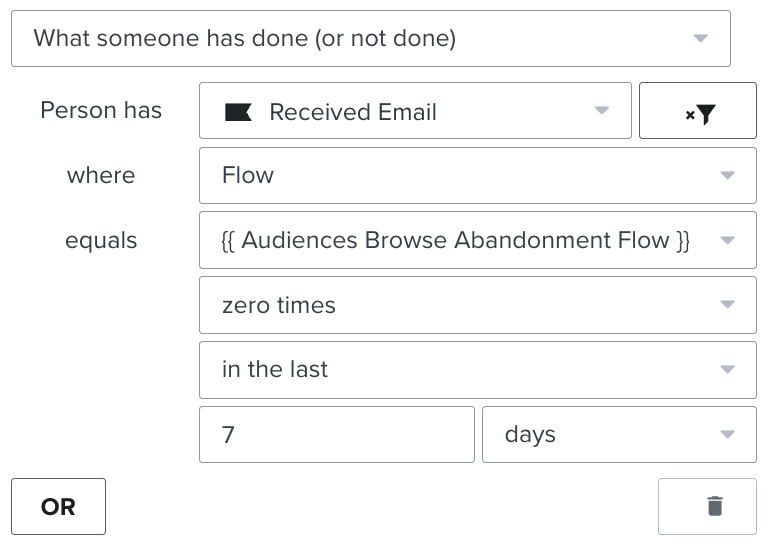
- Flow cooldowns should be on all flows. To add a flow cooldown, add the following Profile filter to the flow filters.
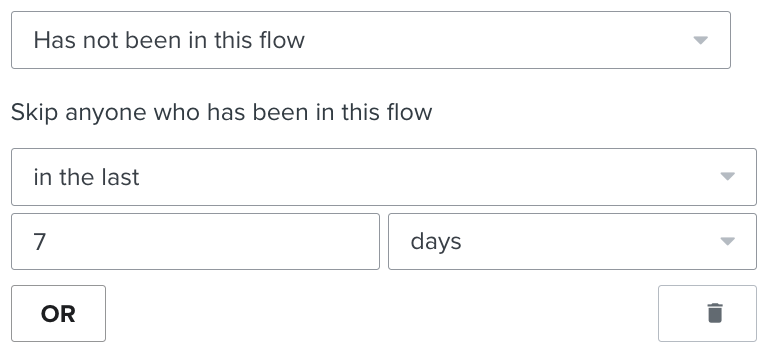
- With this flow cooldown setup, Klaviyo ensures flows (e.g., an abandoned cart email sequence) only enroll customers once every 7 days, regardless of how many events are fired.
- Configure this 7 day cooldown to be longer if you wish, but 7 days is recommended as a minimum to ensure sufficient cooldown between enrollments.
Simplified flows
- We send the Cart Viewed / Checkout Started event every time a Cart Viewed or CheckoutStarted event is triggered.
- This enables brands to create a single flow for both Cart Viewed and Checkout Started, instead of creating separate flows for each of the events.
- This makes flow management easier.
How do I prevent duplicate emails?
Ensure sufficient flow cooldowns, minimum of 7 days
- Ensure adequate cooldown periods for flows to prevent customers from being re-enrolled too frequently.
- For example, a 1-hour cooldown will cause duplicate emails if a customer refreshes the checkout multiple times throughout a given day. Increasing the cooldown prevents this issue.
Understand event frequency
- Recognize that the volume of events reflects user activity, not website sessions. For example:
- A customer viewing multiple products will generate multiple Product Viewed events.
- Refreshing the checkout results in repeated Page Viewed and Checkout Started events. Progressing through a checkout will result in further Checkout Started events to fire.
- Recognize that the volume of events reflects user activity, not website sessions. For example:
Review flows and triggers
- Ensure your Klaviyo flows are set up to handle events intelligently.
- Long enough flow cooldowns ensure that customers receive relevant emails without over-communication.
Flow Setup: Add to Cart Abandonment
Note:Add to Cart abandonment flow targets visitors who have added an item to their cart and left the site without completing a purchase.
These flows are triggered through the "Add to Cart - Instant Audiences" metric in Klaviyo.
If you have an existing flow setup for 'Add to Cart', please duplicate it for Instant Audiences.
If not, we suggest duplicating your Cart Viewed/ Checkout Started flow.
When creating this Instant Audiences flows, ensure it's named '[Instant Audiences] - Add to Cart Abandonment'.
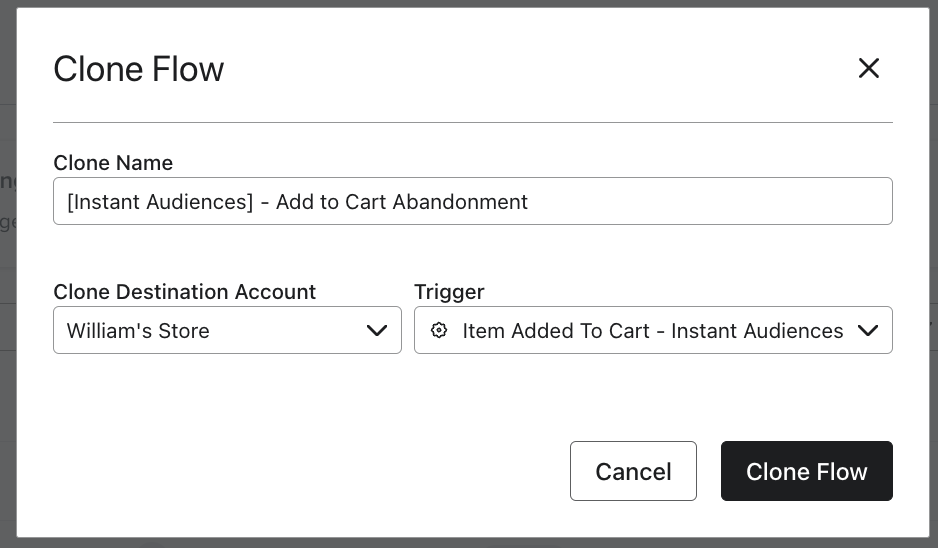
Flow Filters
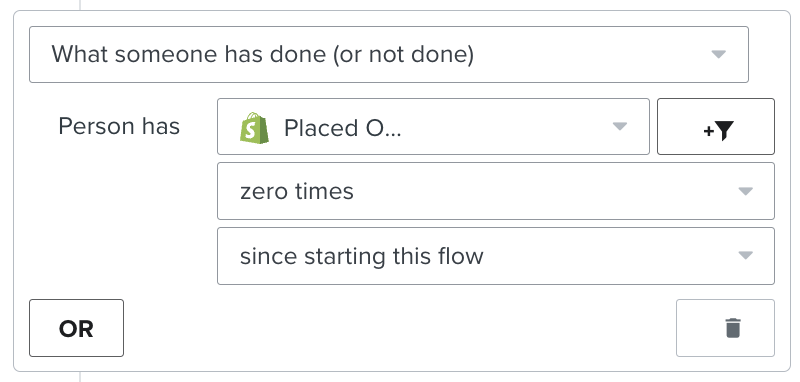
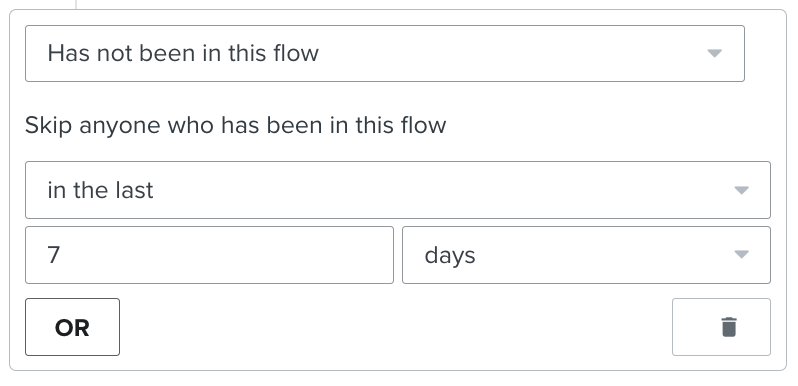
To ensure that contacts are not enrolled multiple times or if they have made a purchase, it's crucial to add the followingflow filters to your new flow:
- Placed Order > zero times since starting this flow
- Has not been in this flow in the last 7* days
If you have these existing flows:
If you have any of these flows, you'll also need to add these filters on yournew '[Instant Audiences] - Add to Cart Abandonment' flow to prevent enrolling contacts already in your existing flow or in a higher intent Audiences flow.If you have, or are going to create this existing flow:
Add these filters to your new Instant Audiences flow:
Add to Cart abandonment flow
Add the filter: Added to Cart > zero times > since starting this flow
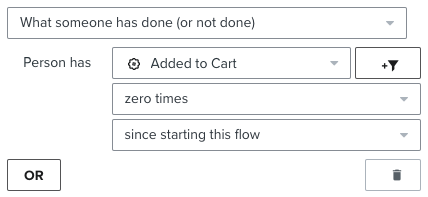
Extend the delay on your new flow to be 15 minutes later than your existing flow
(e.g. if your existing flow was 1 hour, set the Audiences flow to 1 hour, 15 minutes)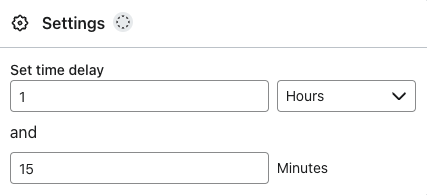
If your existing Browse Abandonment flow has a cooldown (i.e. Has not been in this flow > in the last X days), then add the following filter to your new flow. If this Audiences flow also support SMS, then also add the filter: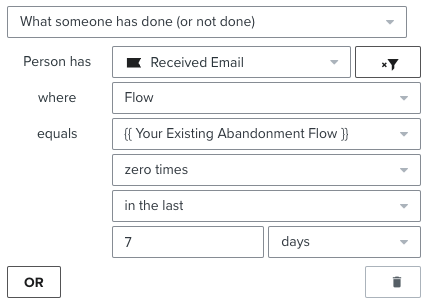
Checkout Started abandonment flow
Add the filter: Checkout Started > zero times > since starting this flow
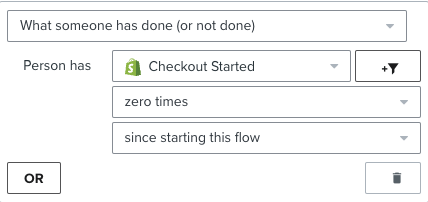
Instant Audiences - Cart Viewed / Checkout Started abandonment flow
Cart Viewed / Checkout Started - Instant Audiences > zero times > since starting this flow
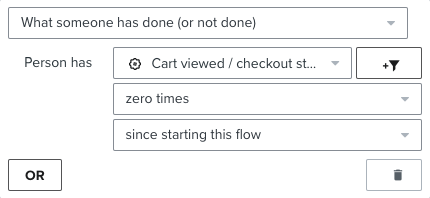
Add these filters to your existing flow's
If you have any of these existing non-Instant Audiences flows, these additional filters must be added to your existing flows to prevent enrolling contacts already in those flows.
If you have, or are going to create this existing flow
Add these filters to your existing flow
Add to Cart Abandonment
Cart Viewed / Checkout Started - Instant Audiences > zero times > since starting this flow
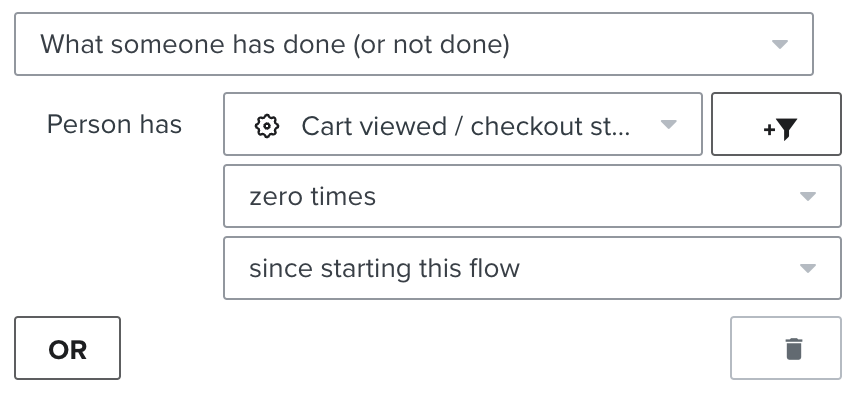
If you have a cooldown on your existing flow: then add the following filter to your new flow: If the Audiences flow also supports SMS, add another identical flow filter to your existing flow, but with "Person has Received SMS" as the filter.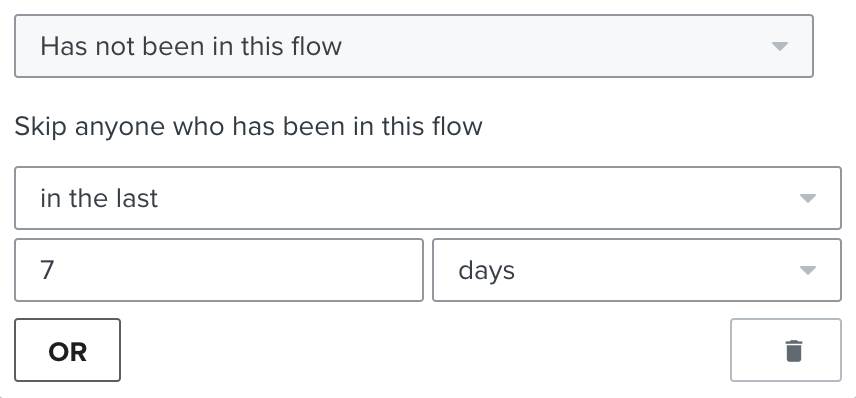
Using Instant Audiences with a Custom Store
Instant has native integrations into platforms like Shopify and BigCommerce. However some sites may be headless sites such as a PWA / React app - where the frontend is hosted separately to the back office platform. Or, you may be running an eCommerce store on an alternative platform like Salesforce, WooCommerce etc.
For these websites, Audiences will need to be integrated through a custom integration. There are detailed instructions for:
- Using Instant Audiences with a WooCommerce Store
- Using Instant Audiences with a Neto Store
- Using Instant Audiences with a Shopify Headless Store
If your custom build is not covered by these guides, please keep reading below!
Please contact your customer success manager if you run into any issues - we are happy to guide you or your developers through this implementation if needed.
Step 1: Installing Instant's Pixel
The first step of the integration process requires adding Instant's pixel to your site. This allows Instant to identify anonymous shoppers who visit your website.
- If you're currently onboarding onto the product, your pixel can be found in the Connect Custom Store step.
- If you have already onboarded onto the product, proceed to the Instant dashboard and go to Configuration > Select Custom . You will see a pixel underneath the Custom section.
- Add this pixel to the <head> tag of your website's HTML.
Step 2: Tracking Customer Events
Caution:The code snippets below are example track events.
They are intended as a reference — copying and pasting them directly may not work as-is.
After implementing these events in the correct places, make sure you're passing all the necessary data used in your email templates.
Step 3 walks you through this process.
Event triggers determine when Instant interaction events are sent and contain the payload data for Klaviyo.
- Throughout your website, where you would be sending events to Klaviyo, also send them to Instant Audiences by copy pasting the following snippet just below. See examples below.
window.InstantJS.track("EVENT_TYPE", [{
    provider: "KLAVIYO",
    event: EVENT_DATA
}]);
- Replace EVENT_TYPE with the type of event you wish to send.
- Replace EVENT_DATA with the data you'd like to send to Audiences. Audiences will then send this data through to your marketing integrations such as Klaviyo. Please note that the structure of this event data payload does not matter. Audiences will simply forward this payload through to Klaviyo.
Note that the available events are as follows:
- PAGE_VIEWED
- COLLECTION_VIEWED
- PRODUCT_VIEWED
- ITEM_ADDED_TO_CART
- CART_VIEWED
- CHECKOUT_STARTED
Tip:We recommend adding adding the following three events at a minimum:
- PRODUCT_VIEWED — this will trigger a Browse Abandonment flow
- ITEM_ADDED_TO_CART — this will trigger a Cart Abandonment flow
- CHECKOUT_STARTED — this will trigger a Checkout Abandonment flow
Example code snippets for these events are shown below.
Example: Checkout started events
To track when a customer starts the checkout flow, you'll need to execute the following JavaScript code as soon as someone visits the checkout page. The payload data serves as a placeholder to demonstrate the required data structure for Instant Audiences.
window.InstantJS.track("CHECKOUT_STARTED", [
  {
    provider: "KLAVIYO",
    event: {
      CheckoutURL: "",
      Items: [
        {
          ProductName: "",
          Quantity: "1",
          ItemPrice: "19.95",
          ImageURL:
            ""
        },
        {
          ProductName: "",
          Quantity: "1",
          ItemPrice: "221.95",
          ImageURL:
            ""
        },
      ],
    },
  },
]);
Example: Add to cart events
To track when a customer adds an item to their cart, you'll need to execute the following JavaScript code when the “Add to Cart” button is clicked.
One implementation method is to add an event listener to the "Add to Cart" button on relevant pages. When clicked, this will trigger the code shown below. The payload data serves as a placeholder to demonstrate the required data structure for Instant Audiences.
window.InstantJS.track("ITEM_ADDED_TO_CART", [
  {
    provider: "KLAVIYO",
    event: {
      CheckoutURL: "",
      Items: [
        {
          ProductName: "",
          Quantity: "1",
          ItemPrice: "19.95",
          ImageURL: "",
        },
        {
          ProductName: "",
          Quantity: "1",
          ItemPrice: "221.95",
          ImageURL: "",
        },
      ],
    },
  },
]);
Example: Product viewed events
To track product views, you’ll need to execute the following JavaScript code whenever a customer lands on a product page.
One implementation method is to add the following code snippet to the source code of your product page template. This code will trigger when a customer visits the page. The payload data serves as a placeholder to demonstrate the required data structure for Instant Audiences.
window.InstantJS.track("PRODUCT_VIEWED", [
  {
    provider: "KLAVIYO",
    event: {
      ProductName: "",
      ItemPrice: "370.00",
      ImageURL: ""
    },
  },
]);
Step 3: Update Event Properties
In the code snippet above, the PRODUCT_VIEWED event has a structured event payload:
event: {
  ProductName: "",
  ItemPrice: "370.00",
  ImageURL: ""
}
The properties in this payload will need to match the properties used in your email templates. For example, if you use the property 'event.item_price' in your templates, you will need to change the 'ItemPrice' property to 'item_price'. Similarly, this must be done for any properties your email templates require that are not included in our payload.
Caution:Please ensure you are passing through all the necessary data required in your email templates.
If you make updates to your email templates without updating your integration, Klaviyo may receive incomplete data.
Tip:Once this is finalised, your integration with Instant Audiences is complete.
Please reach out to your customer success manager if you require any assistance.
Using Instant Audiences with a Neto Store
Instant has native integrations into Shopify and BigCommerce. Alternative platforms like Neto require a custom integration. This custom integration involves three steps:
Please contact your customer success manager if you experience any issues. We are happy to guide you or your developers through this implementation if needed.
Step 1: Installing Instant's Pixel
The first step of the integration process requires adding Instant's pixel to your site. This allows Instant to identify anonymous shoppers who visit your website.
- If you're currently onboarding onto the product, your pixel can be found in the Connect Custom Store step.
- If you have already onboarded onto the product, proceed to the Instant dashboard and go to Configuration > Select Custom. You will see a pixel underneath the Custom section.
- Add this pixel to the <head> tag of your website's HTML.
Step 2: Tracking Customer Events
The second step of the integration process requires forwarding customer events to Instant Audiences, similar to how you would already be forwarding these events to Klaviyo!
- Navigate to "Settings & tools" and then "All settings & tools".
- In the "Settings & tools page", select "Custom Scripts".
- The "Custom Scripts" page will show all current custom scripts installed. Select "New" to add a new custom script.
- Paste the code snippet below into the "Page Header" section. This will ensure it is added to every page.
- When complete, click the "Save" button!
<script>
  function getCartForInstantEvent(callback) {
    // Wait for k4n.checkout to be available
    if (window.k4n && window.k4n.checkout && Array.isArray(k4n.checkout.items)) {
      // Execute the callback with the cart items
      callback(k4n.checkout);
    } else {
      setTimeout(() => getCartForInstantEvent(callback), 1000);
    }
  }


  function getProductData() {
    if (window.k4n && window.k4n.product) {
      return {
        Title: decodeURIComponent(k4n.product.name),
        ItemId: parseInt(k4n.product.product_id),
        ProductID: parseInt(k4n.product.product_id),
        Categories: k4n.product.categories.map(decodeURIComponent),
        ImageUrl: decodeURIComponent(k4n.product.image),
        Url: decodeURIComponent(k4n.product.url),
        Metadata: {
          Price: parseFloat(k4n.product.price),
        },
      };
    }
    return null;
  }


  function getCartItem(item) {
     return {
       image: decodeURIComponent(item.image),
       name: decodeURIComponent(item.name),
       product_id: item.product_id,
       qty: item.qty,
       sku: item.sku,
       total: item.total,
       unit_price: item.unit_price,
       url: decodeURIComponent(item.url)
     }
  }


  // Track Product Viewed
  document.addEventListener("DOMContentLoaded", () => {
    const product = getProductData();
    if (product) {
      window.InstantJS.track("PRODUCT_VIEWED", [
        {
          provider: "KLAVIYO",
          event: product,
        },
      ]);
    }
  });


  // Track Add to Cart with dynamic selectors
  document.addEventListener("DOMContentLoaded", () => {
    const addToCartButtons = document.querySelectorAll("[name='add-to-cart'], [name='addToCart'], [class*='addtocart'], [class*='add-to-cart'], [class*='btn-add-to-cart']"); // Add other potential selectors here
    addToCartButtons.forEach(button => {
      button.addEventListener("click", () => {
        const product = getProductData();
        let cartItems;
        if(window.nCartCache) {
         cartItems = window.nCartCache
        }
        if (product) {
          window.InstantJS.track("ITEM_ADDED_TO_CART", [
            {
              provider: "KLAVIYO",
              event: {
                ...product,
               items: cartItems
              },
            },
          ]);
        }
      });
    });
  });


  // Track Cart Viewed
  document.addEventListener("DOMContentLoaded", () => {
    if (window.location.href.includes("cart") && !window.location.href.includes("payment")) {
      getCartForInstantEvent(function (checkout) {
        window.InstantJS.track("CART_VIEWED", [
          {
            provider: "KLAVIYO",
            event: {
             items: checkout.items.map((item) => {
              return getCartItem(item)
             }),
             total: checkout.total
            },
          },
        ]);
      });
    }
  });


  // Track Checkout Started
  document.addEventListener("DOMContentLoaded", () => {
    if (window.location.href.includes("cart") && window.location.href.includes("payment")) {
      getCartForInstantEvent(function (checkout) {
        window.InstantJS.track("CHECKOUT_STARTED", [
           {
            provider: "KLAVIYO",
            event: {
            items: checkout.items.map((item) => {
              return getCartItem(item)
            }),
            total: checkout.total
            },
          },
        ]);
      });
    }
  });
</script>
Step 3: Update Event Properties
In the code snippet above, the following events have a structured payload:
- PRODUCT_VIEWED
- ITEM_ADDED_TO_CART
- CART_VIEWED
- CHECKOUT_STARTED
event: {
  image: decodeURIComponent(item.image),
  name: decodeURIComponent(item.name),
  product_id: item.product_id,
  qty: item.qty,
  sku: item.sku,
  total: item.total,
  unit_price: item.unit_price,
  url: decodeURIComponent(item.url)
}
The properties in this payload will need to match the properties used in your email templates. For example, if you use the property 'event.item_name' in your templates, you will need to change the 'name' property to 'item_name'. Similarly, this must be done for any properties your email templates require that are not included in our payload.
Caution:Please ensure you are passing through all the necessary data required in your email templates.
If you make updates to your email templates without updating your integration, Klaviyo may receive incomplete data.
Tip:Once this is finalised, your integration with Instant Audiences is complete.
Please reach out to your customer success manager if you require any assistance.
Flow Setup: Product Viewed
Note:Product Viewed abandonment flows target anonymous visitors who have viewed a product but left the site without completing a purchase.
These flows are triggered through the "Product Viewed - Instant Audiences" metric in Klaviyo.
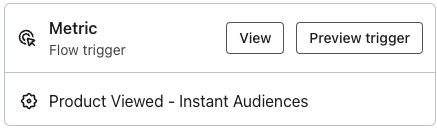
If you have an existing flow setup for 'Product Viewed' or 'Abandoned Browse', please duplicate it for Instant Audiences.
When creating this Instant Audiences flows, ensure it's named '[Instant Audiences] - Product Viewed'.
Flow Filters
To ensure that contacts are not enrolled multiple times or if they have made a purchase, it's crucial to add the followingflow filters to your new flow:
- Placed Order > zero times since starting this flow
- Has not been in this flow in the last 7* days
If you have these existing flows:
If you have any of these existing non-Instant Audiences flows, add these filters on your Instant Audiences flows to prevent enrolling contacts already in your existing flow.If you have, or are going to create this existing flow
Add these filters to your new Instant Audiences flow
Product Viewed / Browse abandonment flow
Add the filter: Viewed Product > zero times > since starting this flow
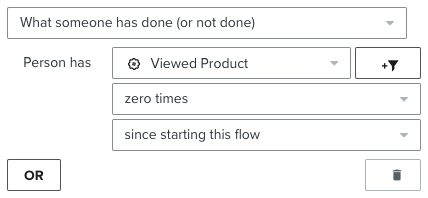
Extend the delay on your new flow to be 15 minutes later than your existing flow (e.g. if your existing flow was 1 hour, set the Audiences flow to 1 hour, 15 minutes)
If your existing Browse Abandonment flow has a cooldown (i.e. Has not been in this flow > in the last X days), then add the following filter to your new flow. If this Audiences flow also support SMS, then also add the filter:
Add to Cart abandonment flow
Add the filter: Added to Cart > zero times > since starting this flow
Checkout Started abandonment flow
Add the filter: Checkout Started > zero times > since starting this flow
Instant Audiences - Add to Cart abandonment flow
Add the filter: Item Added to Cart - Instant Audiences > zero times > since starting this flow
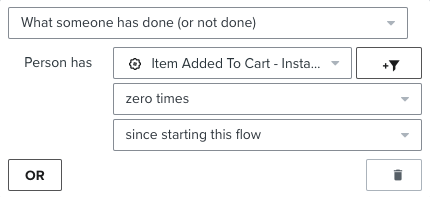
Instant Audiences - Cart Viewed / Checkout Started abandonment flow
Cart Viewed / Checkout Started - Instant Audiences > zero times > since starting this flow
Add these filters to your existing flow
If you have any of these existing non-Instant Audiences flows, these additional filters must be added to your existing flows to prevent enrolling contacts already in those flows.
If you have, or are going to create this existing flow
Add these filters to your existing flow
Browse Abandonment
Add: Item Added to Cart - Instant Audiences > zero times > since starting this flow
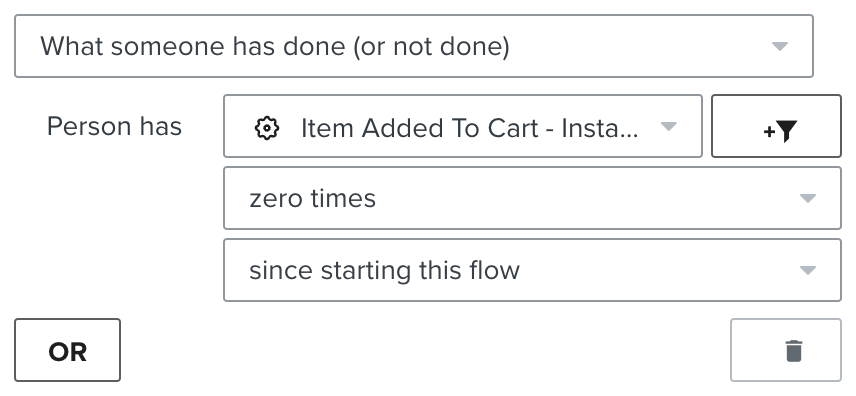
Add: Cart Viewed / Checkout Started - Instant Audiences > zero times > since starting this flow
If you have a cooldown on your existing flow: then add the following filter to your new flow. If the Audiences flow also supports SMS, add another identical flow filter to your existing flow, but with "Person has Received SMS" as the filter.
What metrics does Instant Audiences send to Klaviyo?
Below is a table explaining what the Instant Audiences metrics are, and when each Instant Audiences metric is fired in Klaviyo.
Metric Type
When is this Metric fired?
Page Viewed
Fired when someone views a page.
This event will also trigger when someone views a product or cart. For example, if someone views a product, both the Page Viewed and Product Viewed will fire.
Product Viewed
Fired when someone views any product page. This metric will fire multiple times if someone views a product multiple times.
Item Added to Cart
Fired when someone adds an item to cart, or increases the quantity of any item in their cart.
This metric will fire multiple times if multiple items are being added to the cart in one go.
For example, if you add a bundled product that has 5 products, 5 separate Item Added to Cart metrics will be fired for each item.
Cart Viewed
Fired when someone views a cart page. This metric will fire multiple times if someone views a cart page multiple times.
Checkout Started
Fired when someone views a checkout page. This metric will fire multiple times if someone views the checkout page multiple times.
This metric will also fire when a customer progresses through parts of the checkout stage, e.g. completing personal or address information will trigger this metric.
Cart Viewed / Checkout Started
Fired when either the "Cart Viewed" and "Checkout Started" events are fired.
This metric is used to enable simple flow creation, as a single flow can be used for both Cart Viewed and Checkout Started, instead of creating two separate flows.
How do I add new profiles from Audiences into a welcome flow?
Incorporating new profiles from the Audiences new profile export into a welcome flow or other low-touch, incentive-driven flows is highly recommended.
This approach effectively engages shoppers who have shown intent but may still be undecided or browsing.
By integrating welcome flows with the Audiences new profile export, you can create a powerful conversion strategy that maximizes the ROI from your top-of-funnel traffic.
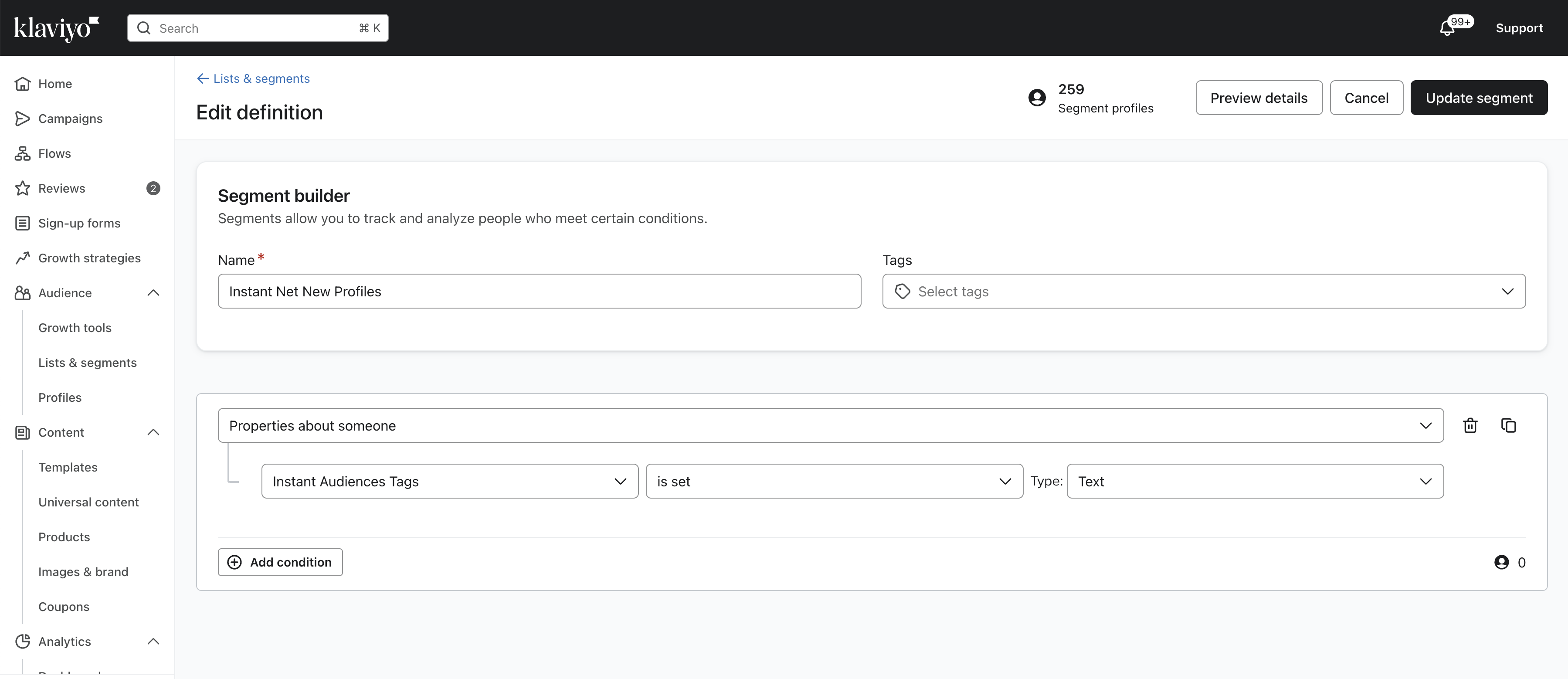
- Create a segment in Klaviyo which contains all new profiles identified by Instant Audiences.
- Follow the Klaviyo documentation on how you can create a segment triggered flow. When creating the flow, ensure you use this segment.
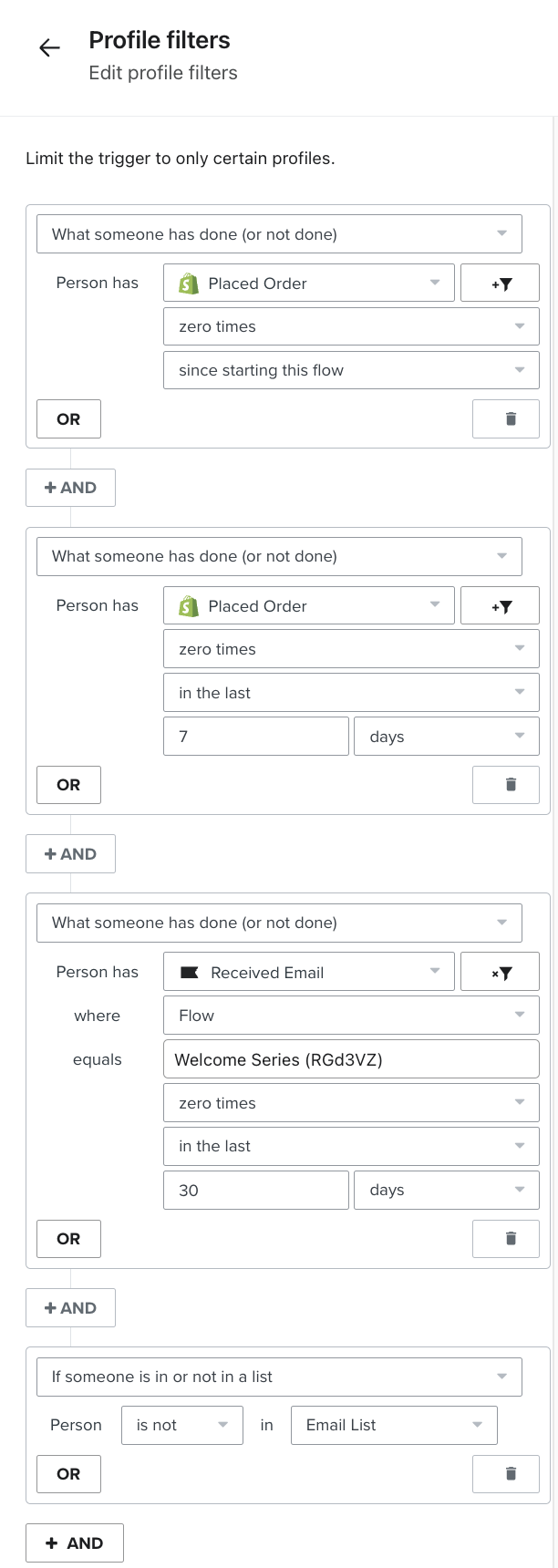
https://help.klaviyo.com/hc/en-us/articles/360003040052 - Once you have created a segment triggered flow, add the following filters to the flow
(1) Placed Order zero times since starting this flow
(2) Placed Order zero times in the last 7 days
(3) Received email where flow equals {{ your existing welcome flow }} zero times in the last 30 days
(4) If someone is in or not in a list - person is not in {{ your main subscriber list }}