
This page brings together our Instant Audiences and Klaviyo help articles into one reference. Each section below is a complete, standalone article — scroll to browse everything, or to find something specific, press Ctrl+F (Cmd+F on Mac) and search for a keyword like “skipped emails”, “UTM” or “duplicate”.
Why are my Klaviyo flow emails being skipped due to "Catalog Item Unavailable"?
Catalog Item Unavailable
Catalog item unavailable occurs when a Klaviyo email template for Browse Abandonment or Added to Cart Abandonment uses the catalog lookup syntax to retrieve product information, but the product ID provided is invalid.
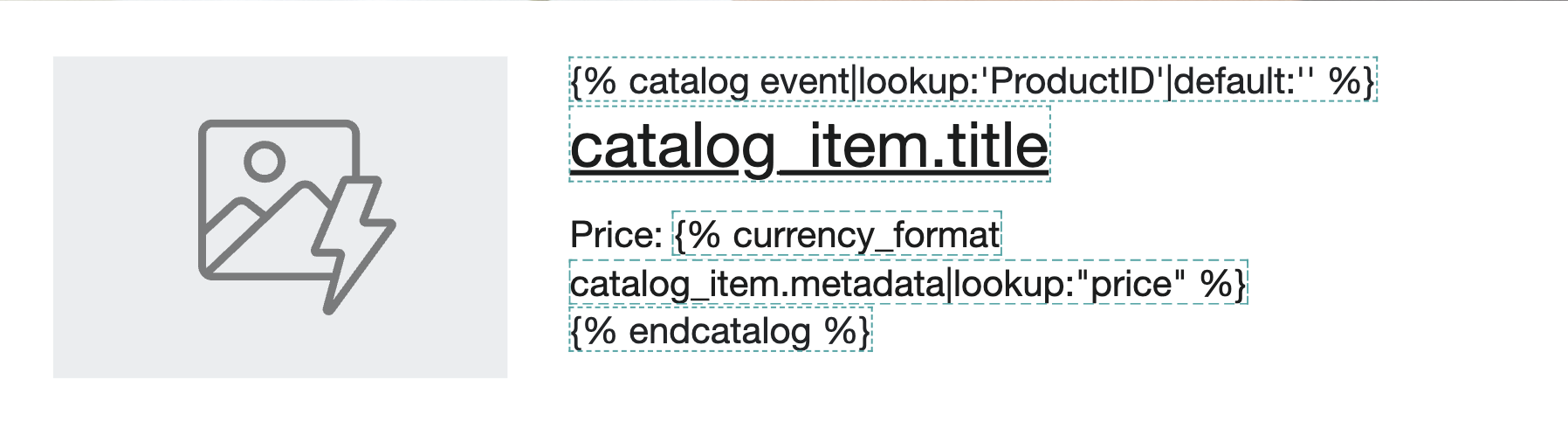
Commonly, the following syntax is used to inject catalog information based on the event product ID.
{% raw %}
{% catalog event|lookup:'ProductID'|default:'' %}
{{catalog_item.title}}
Price: {% currency_format catalog_item.metadata|lookup:"price" %}
{% endcatalog %}
{% endraw %}
Used correctly, the above template will show as:
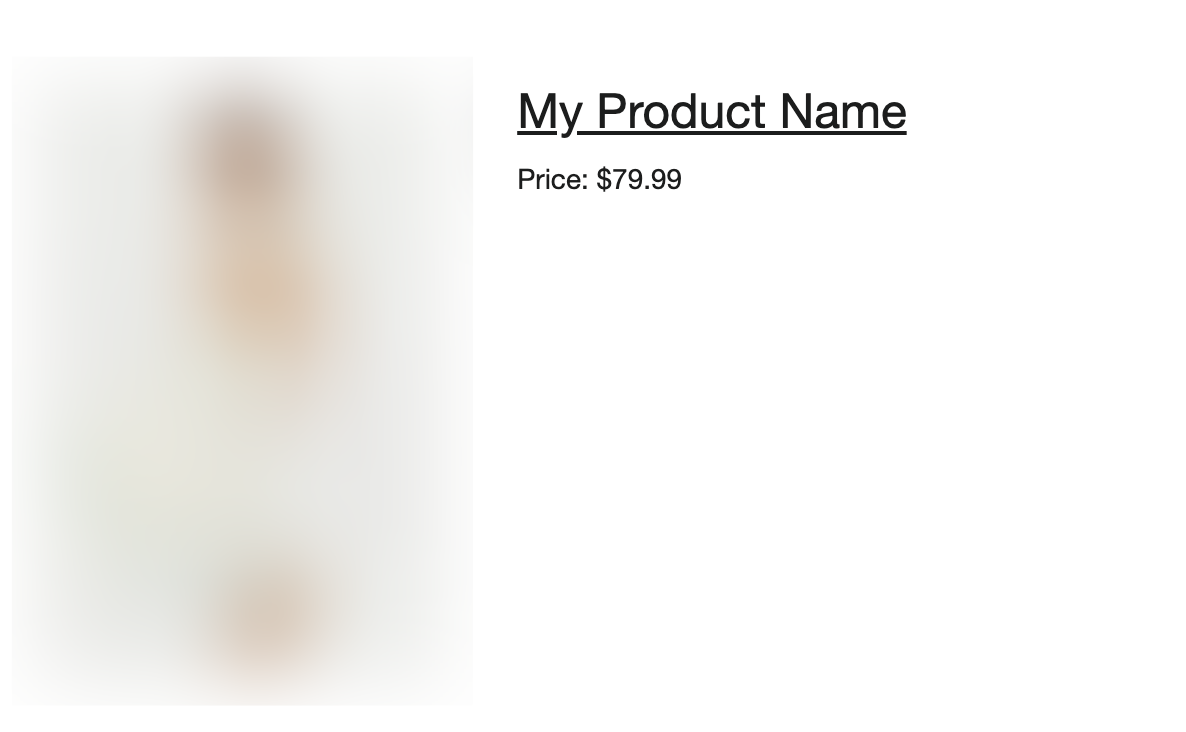
A common issue when using this format is that the lookup property is a field other than "ProductID".
For example, properties like "Product ID", "productID" or "productId" etc. are invalid.
Providing an invalid lookup property will cause the following error to show in emails, and cause emails to be skipped.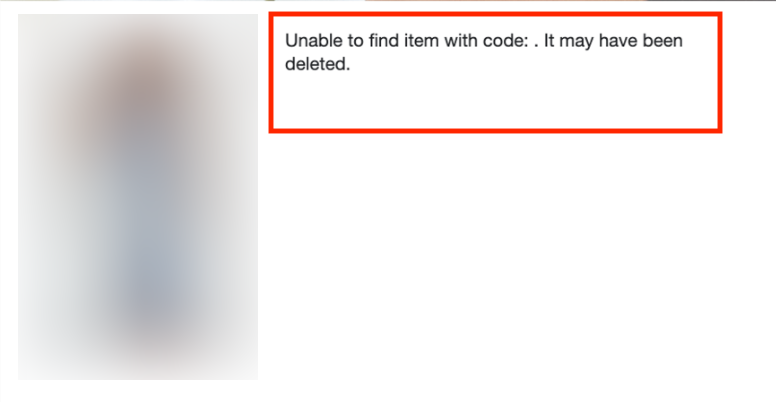
Please ensure that the catalog lookup is being done on "ProductID".
For example, if the syntax is "{% catalog event|lookup:'Product ID'|default:'' %}", this is invalid as "Product ID" is not a valid property.
To resolve this, please ensure the lookup is on "ProductID" instead.
Product Image not displaying correctly
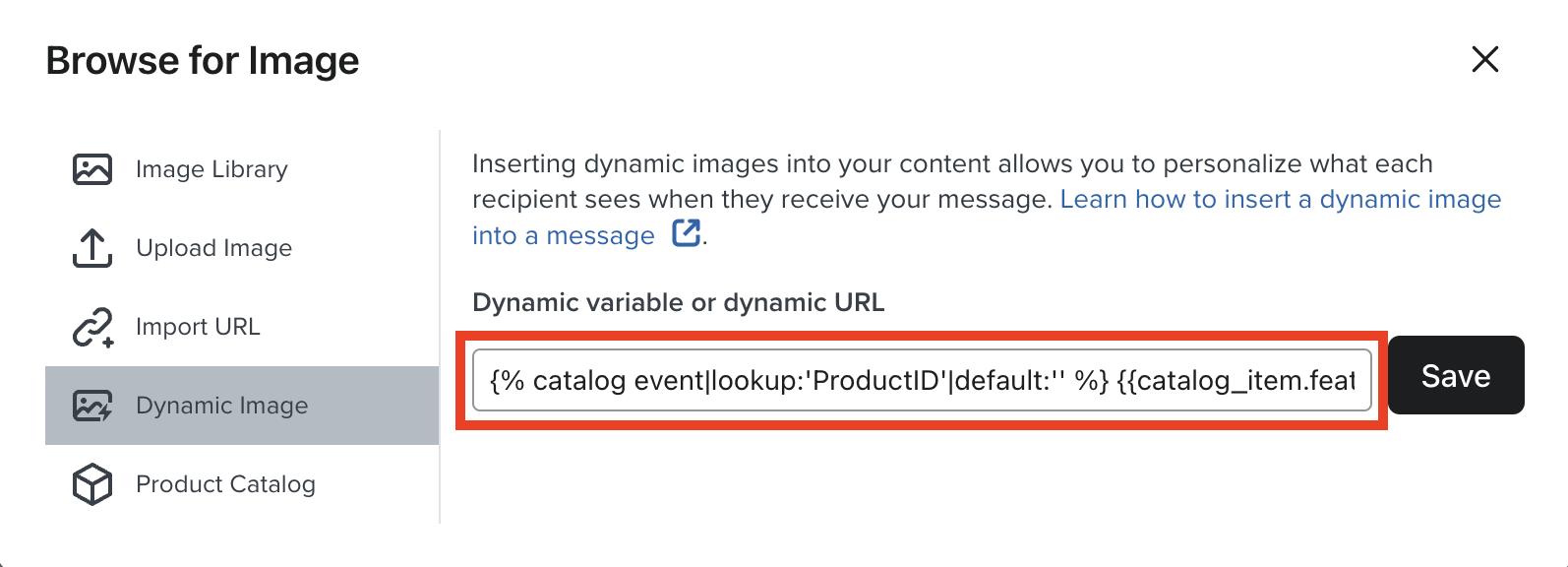
If your images are also not displaying correctly and your product images are also using catalog lookups, please ensure the dynamic variable is using "ProductID" as well.
The correct syntax for dynamic images using catalog lookups is
{% raw %}{% catalog event|lookup:'ProductID'|default:'' %} {{catalog_item.featured_image.thumbnail.src}} {% endcatalog %}{% endraw %}
Why are my Klaviyo flow emails being skipped due to "Fails Flow Filters"?
Failed flow filters means that one or more of the configured trigger or profile filters against the flow prevented a profile from entering a flow.
For example, a profile may not enter an add to cart abandonment flow because they have since placed an order.
Or, a profile might not enter a browse abandonment flow because they have since added to cart or started checkout.
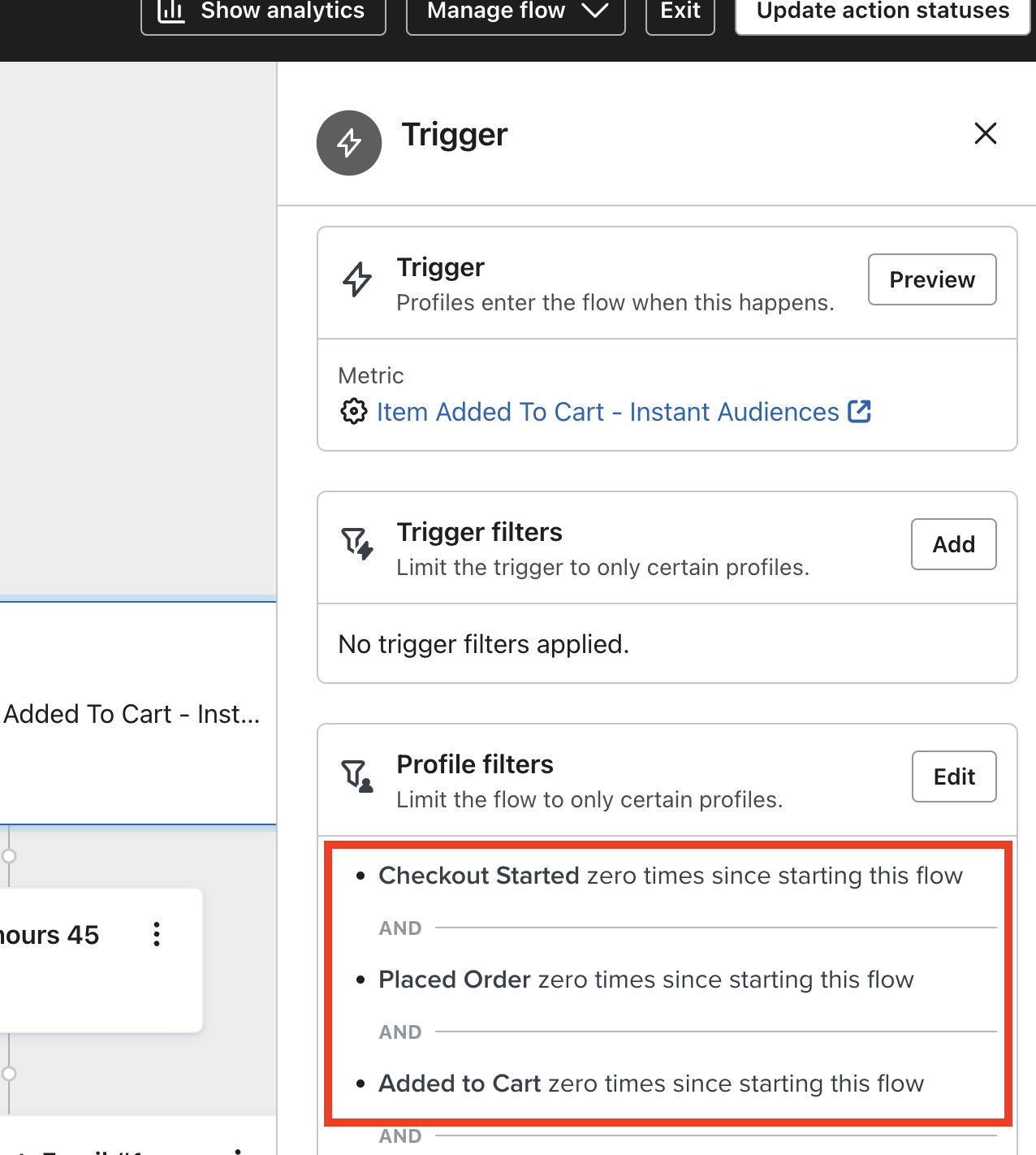
If you click into "Fails Flow Filters", you can identify the failed filters.
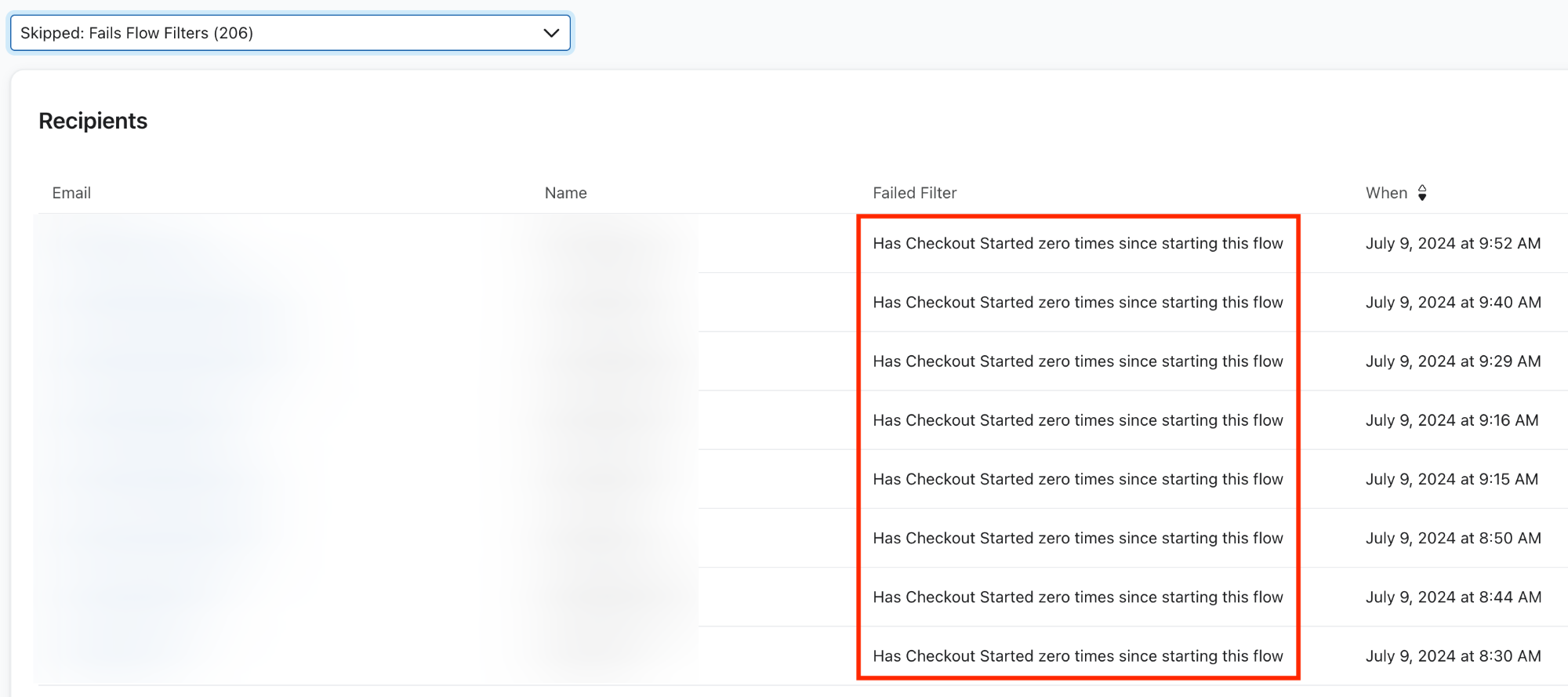
If you identify any flow filters that look inaccurate, consider removing the flow filter.
How do you send custom events to Instant Audiences?
Warning:If you are looking to integrate Audiences into a headless store, please proceed here.
This guide will walk through how you can send custom events to Instant Audiences.
It is common that even while using Instant's native integrations into platforms like Shopify and BigCommerce, that modifications to a product page, such as dynamic DOM rendering (without refreshing the page) may result in the native integration not sending through event such as product viewed, or add to cart events.
You may also want to track additional add to cart events from upsell pop-ups, or other locations that are custom built and not picked up by our native integrations.
Please contact your customer success manager if you run into any issues - we are happy to guide you or your developers through this implementation.
Steps to send custom events to Audiences:
To send custom events to Audiences, please complete the following:
- Locate where you would like to send a custom event to Audiences.
- Copy and paste the below snippet of code to the location to where you'd like to send the custom event.
window.InstantJS.track("EVENT_TYPE", [{
    provider: "KLAVIYO",
    event: EVENT_DATA
}]);
- Replace EVENT_TYPE with the type of event you wish to send.
- Replace EVENT_DATA with the data you'd like to send to Audiences. Audiences will then send this data through to your marketing integrations such as Klaviyo.
Note that the available events are as follows:
- PAGE_VIEWED, COLLECTION_VIEWED, PRODUCT_VIEWED, ITEM_ADDED_TO_CART, CART_VIEWED, CHECKOUT_STARTED, CHECKOUT_ADDED_PAYMENT_INFO, CHECKOUT_ADDED_ADDRESS_INFO, PURCHASE_COMPLETED
Examples:
Example #1: Klaviyo Viewed Product: If you render your product page dynamically (which may interfere with Shopify customer event tracking), then you can send a product viewed event to Audiences directly. See below for an example.
window.InstantJS.track("PRODUCT_VIEWED", [{
    provider: "KLAVIYO",
    event: {
        ProductName: "Expandable Bag",
        ProductID: "12345",
        Categories: ["Bags"],
        URL: "https://example.com/product/expandable-bag",
        Brand: "YourBrand",
        Price: "$199.99",
        CompareAtPrice: "$249.99",
        ImageURL: "https://example.com/images/expandable-carry-on.jpg"
    }
}]);
How do I create a Welcome flow for [Predictive Opt-In](/how-do-i-get-started-with-instant-predictive-opt-in)?
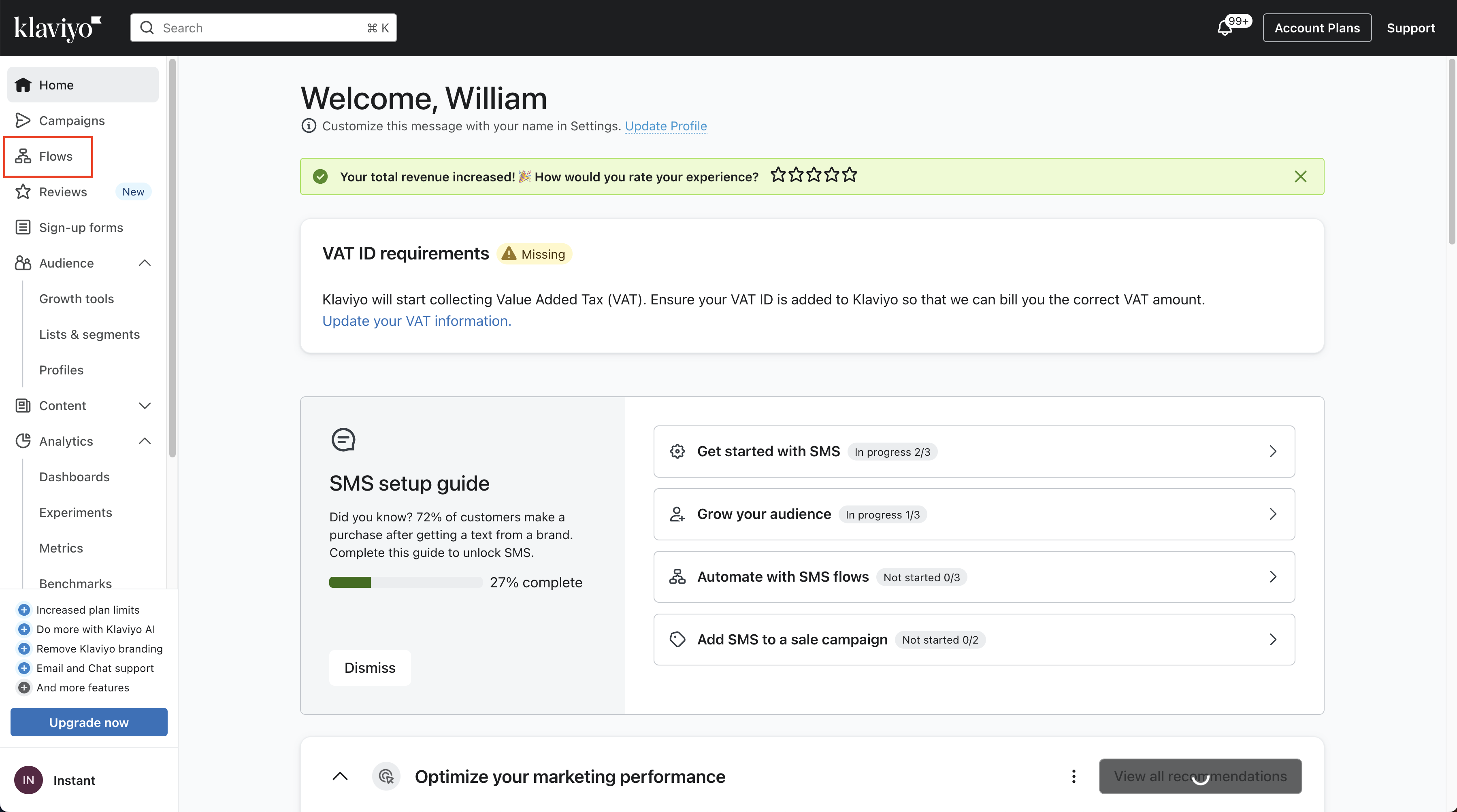
- Proceed to your Klaviyo dashbard, and click on "Flows" in your sidebar.
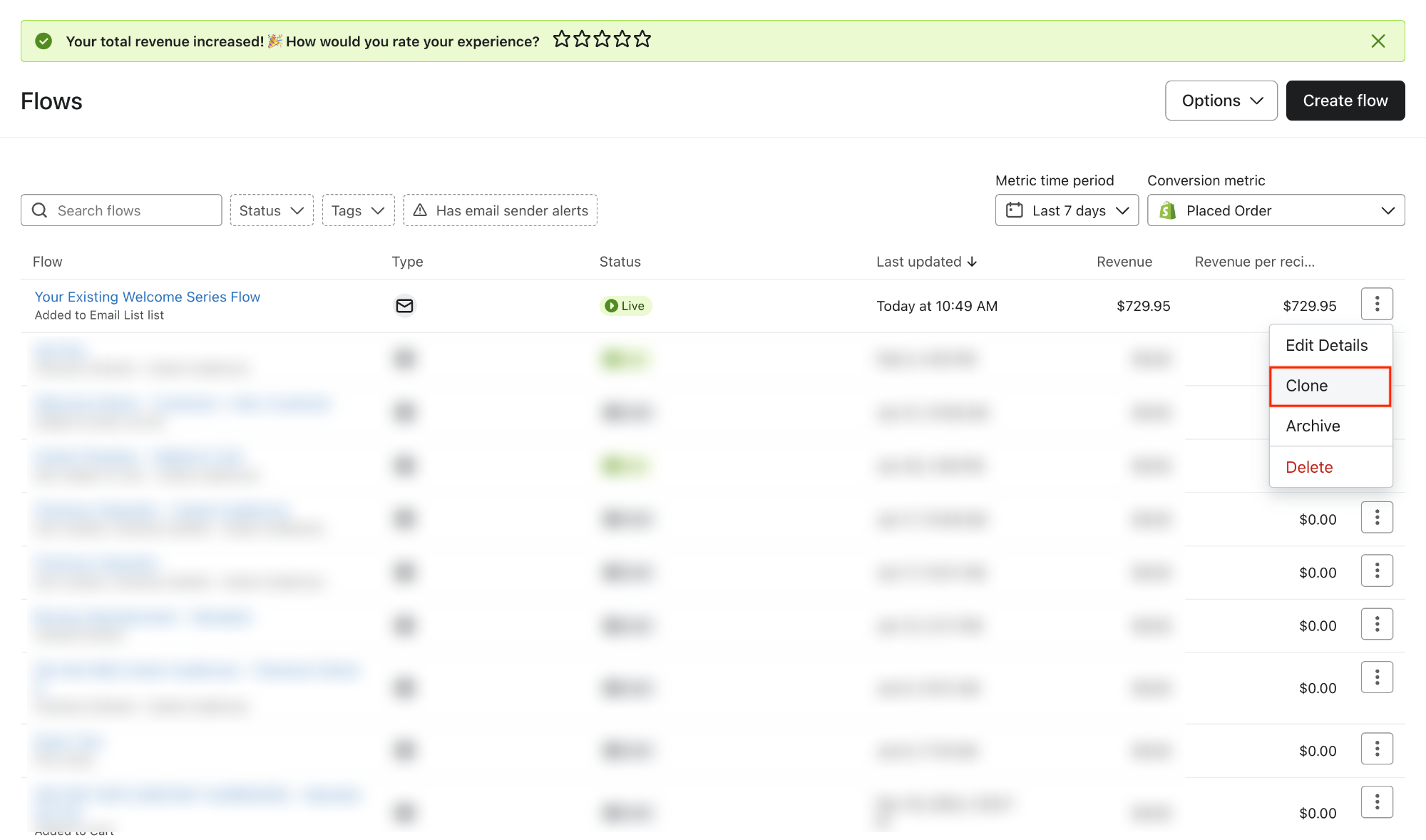
- On your existing welcome flow, click on the three dots and click on Clone.
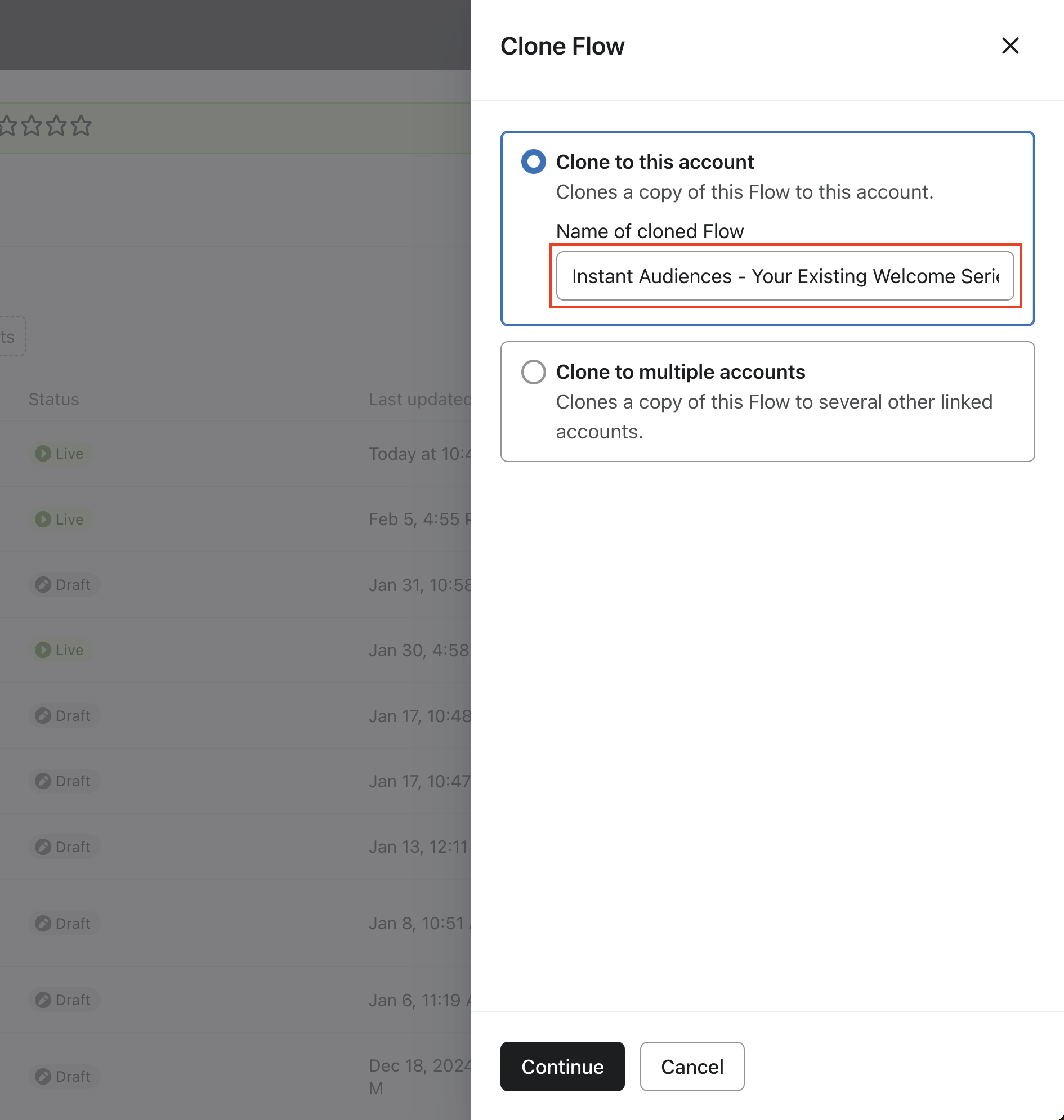
- Add Instant Audiences as the prefix on your new flow name. Click on Continue.
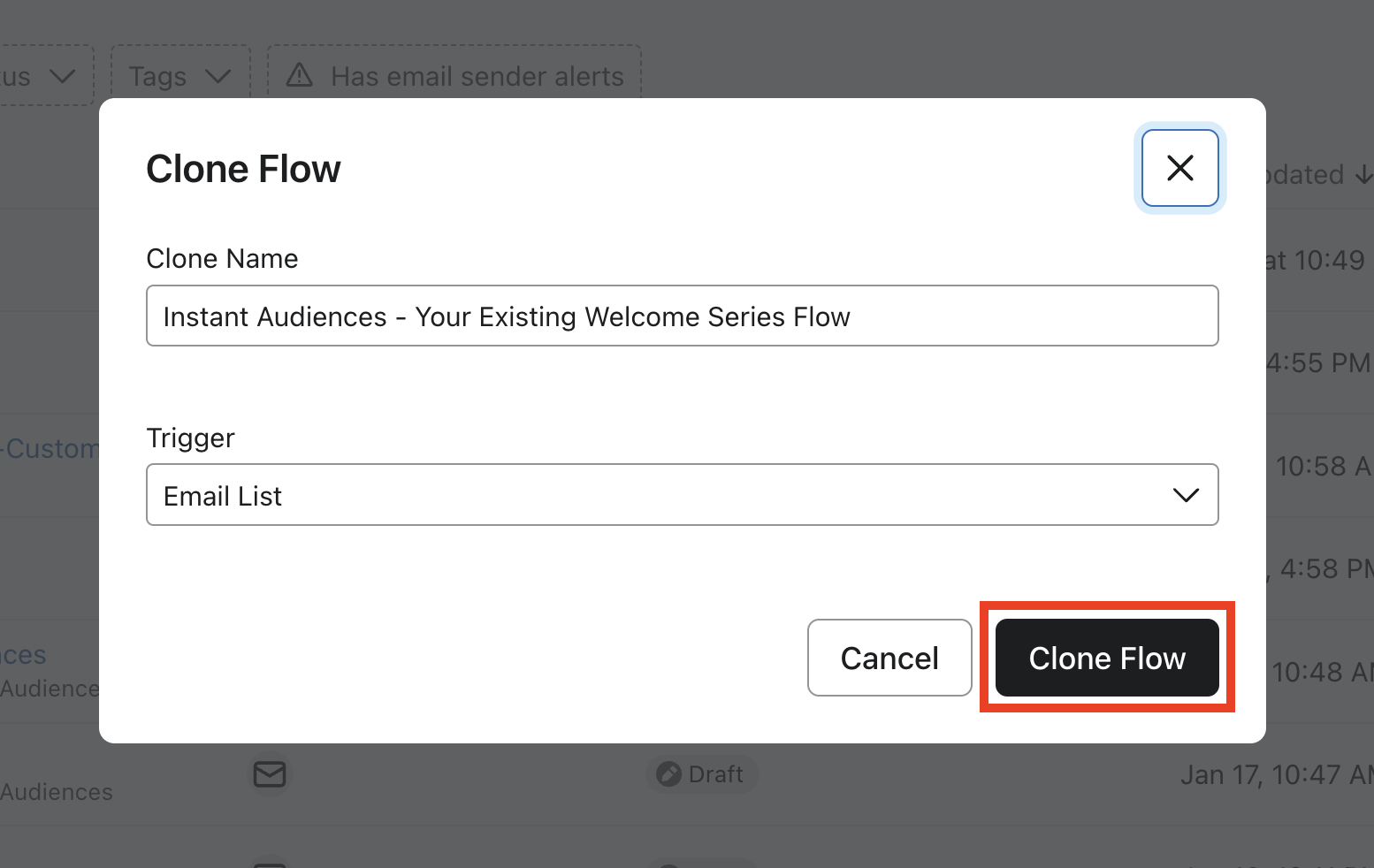
- In the modal that shows up, click "Clone Flow".
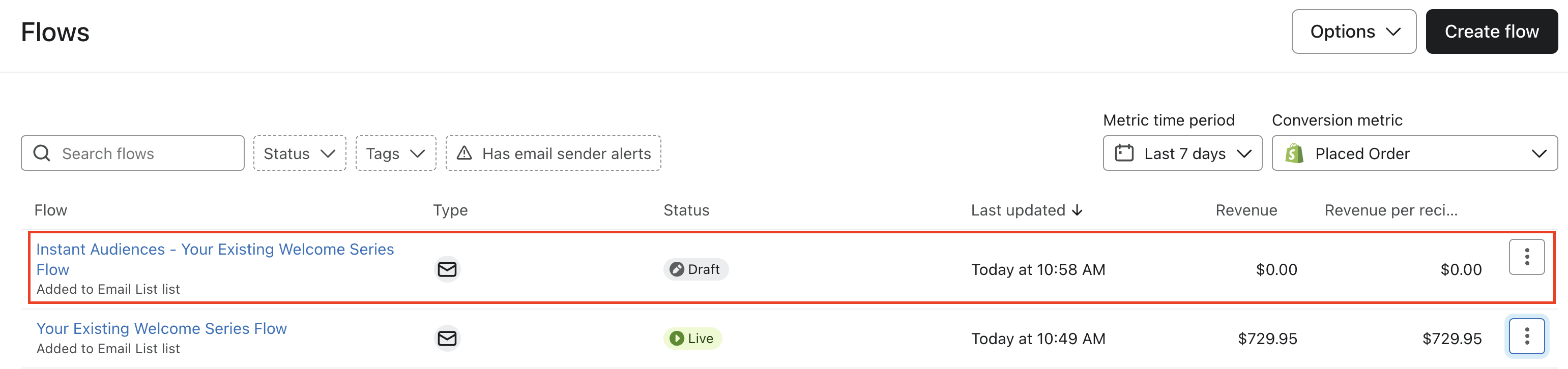
- Click onto your newly cloned Instant Audiences welcome flow.
- Click into the Trigger of the flow, and click Add.
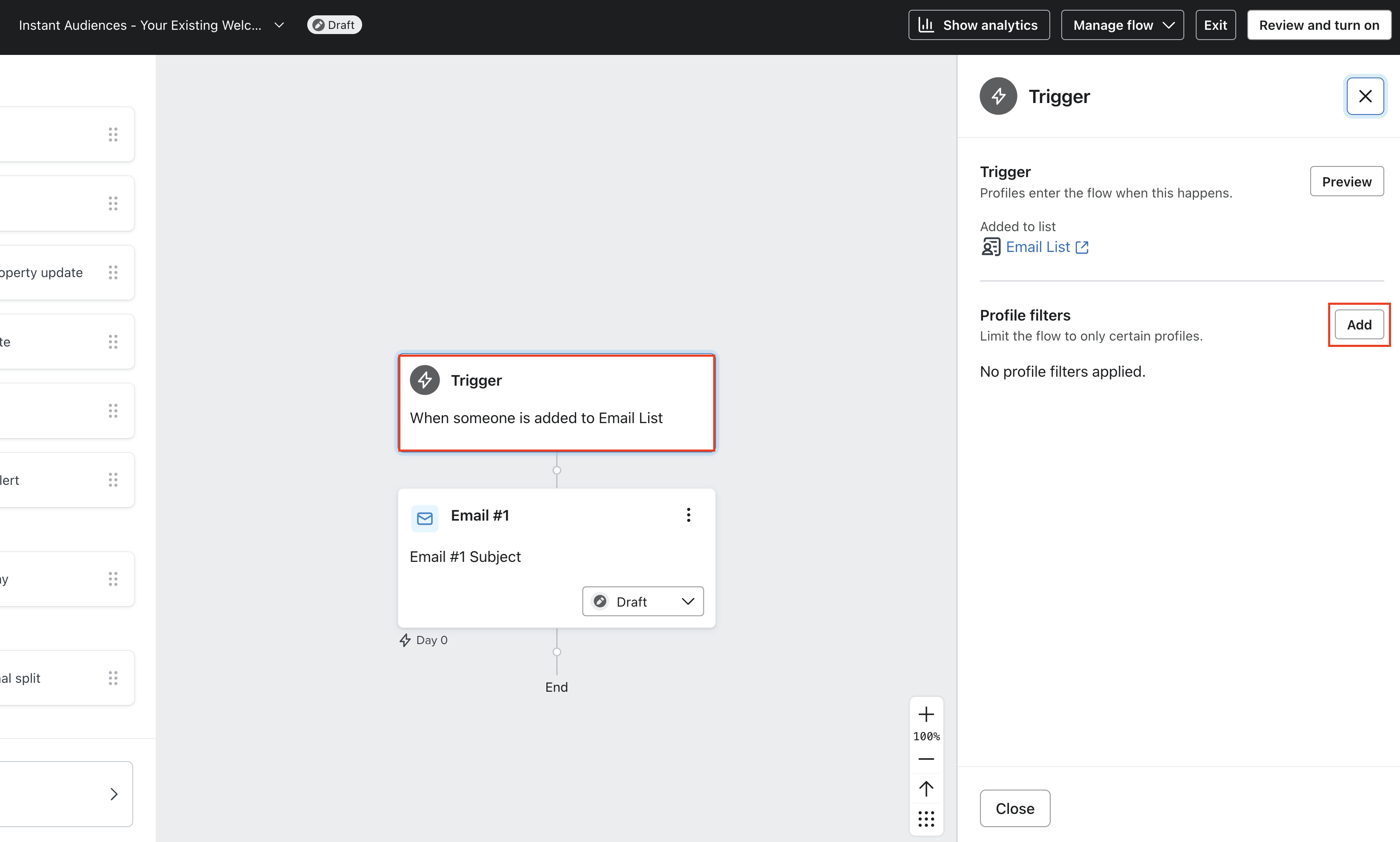
- Add a profile flow filter as follows: "Properties about someone, Opted-In Via Instant [Predictive Opt-In](/how-do-i-get-started-with-instant-predictive-opt-in) is set". Ensure any existing filters are not removed.
Ensure the type of the property is set to "Text", and click Save.
This filter ensures that only profiles opted-in through Instant triggered pop-ups are enrolled into this flow, making it easy to attribute revenue and track your results.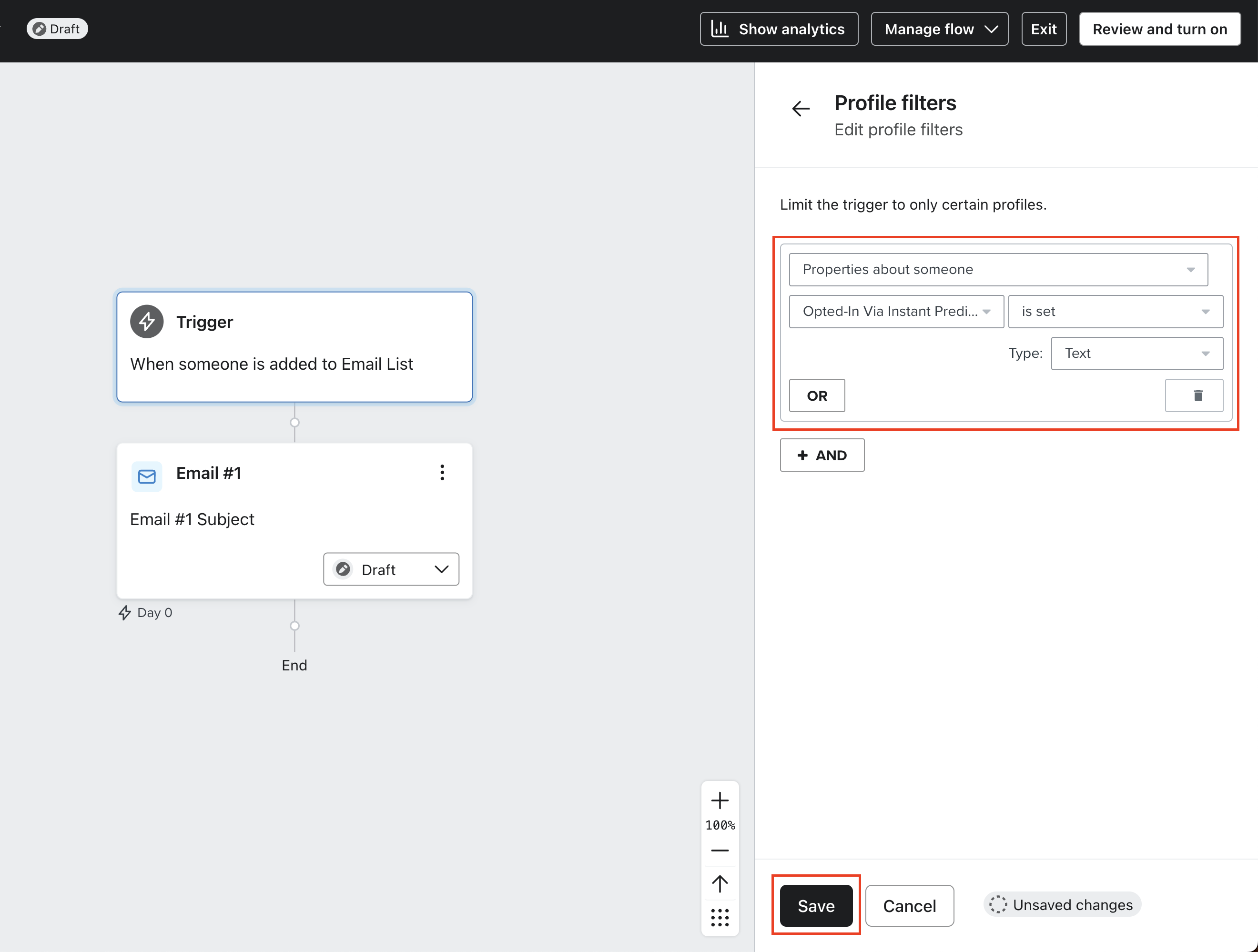
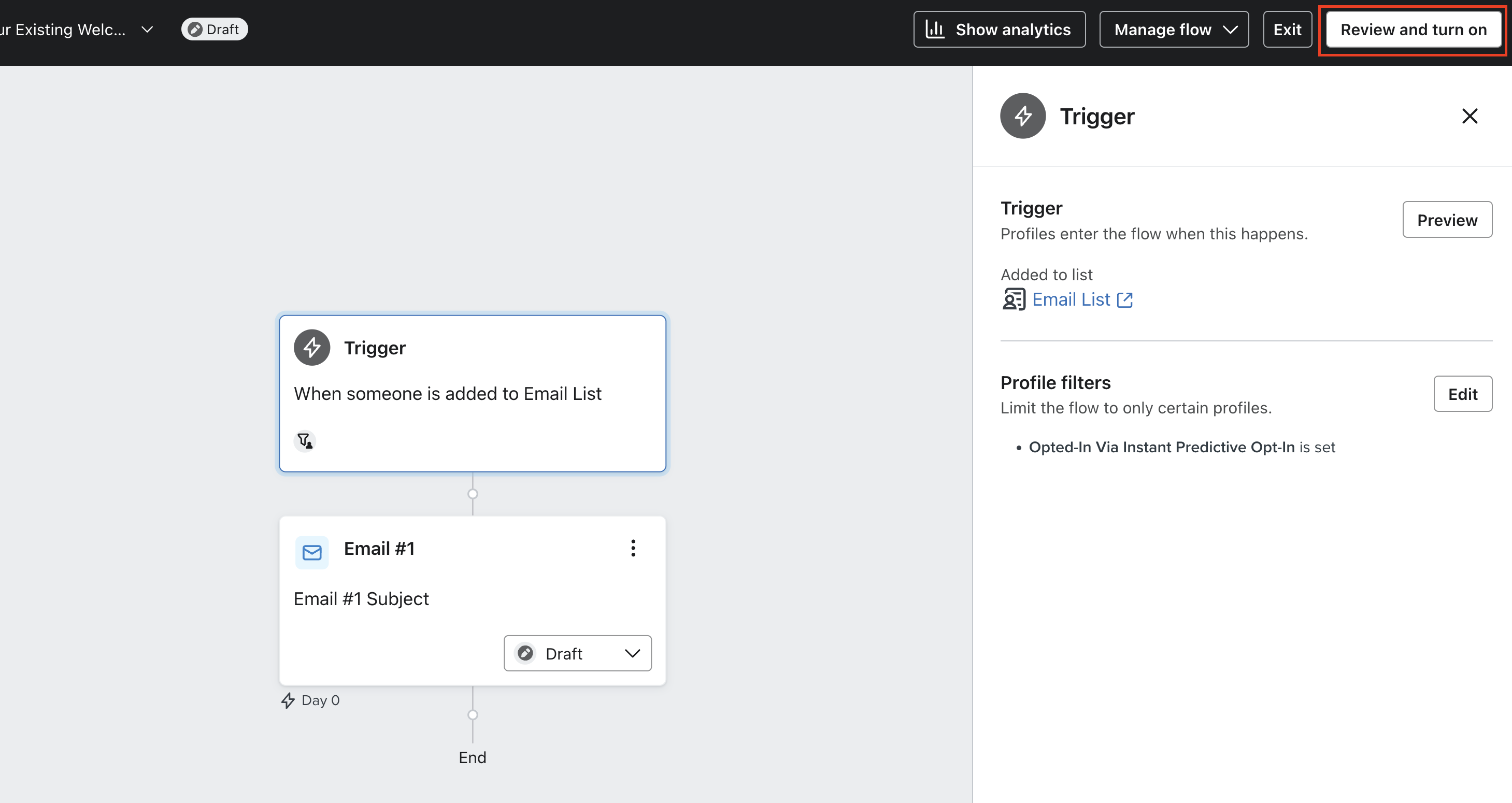
- Click Review and turn on in the top right of your screen, and click Save in the screen that follows. Once this is done, click Exit.
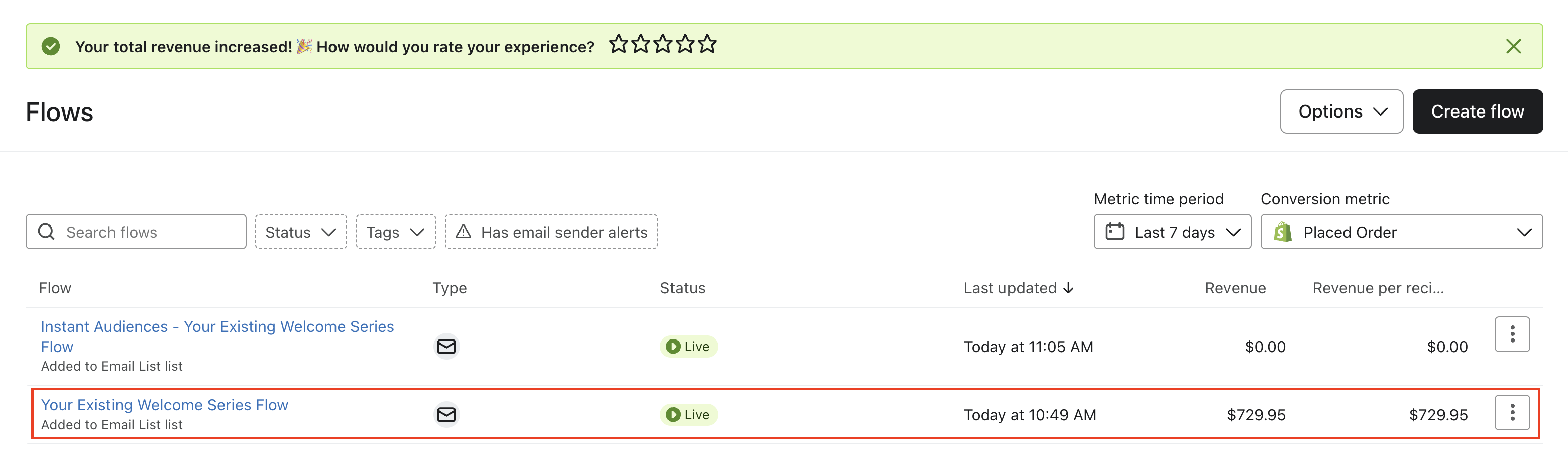
- Click into your existing welcome series flow.
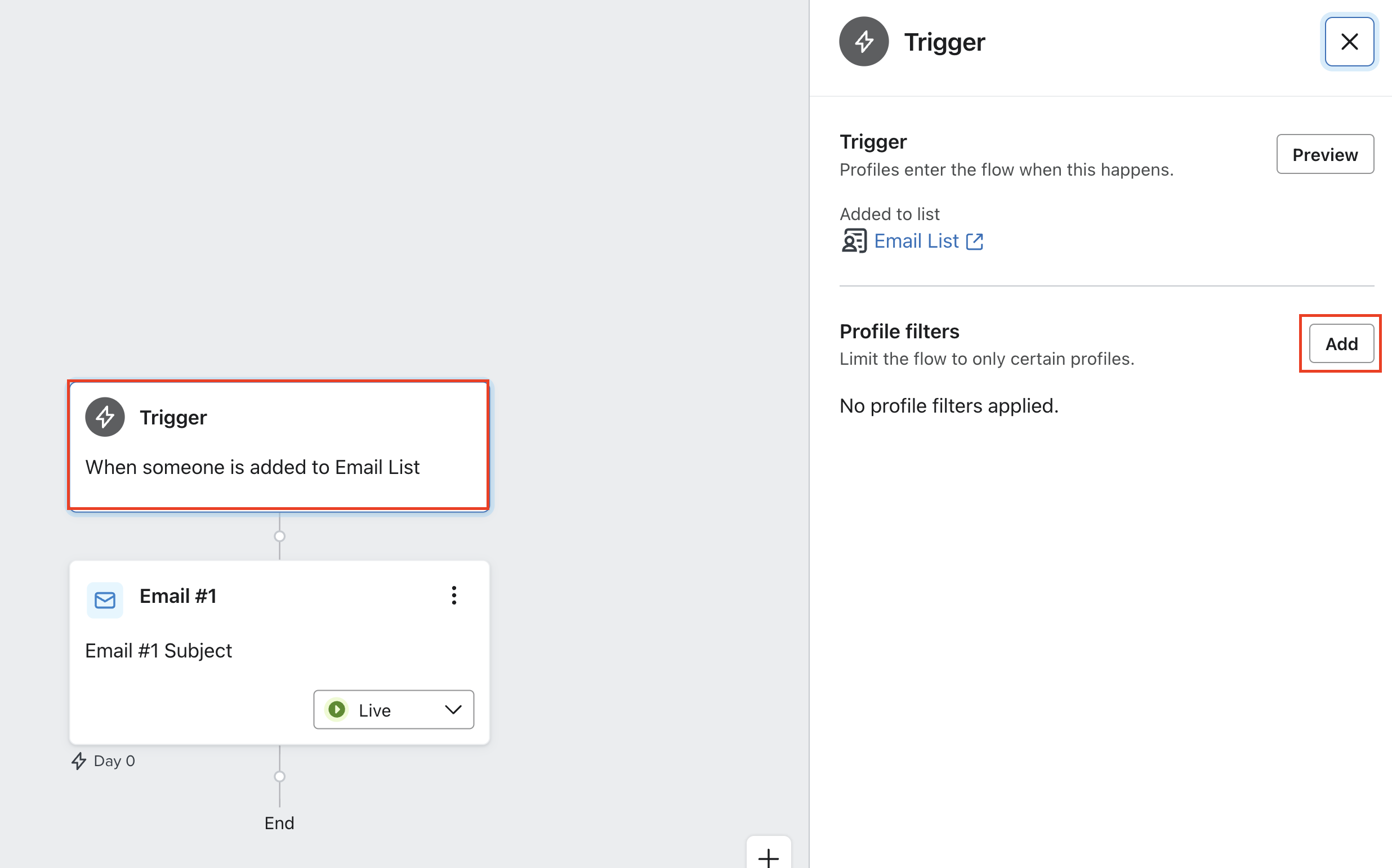
- Click into the Trigger of your flow, and click on "Add" next to Profile filters.
- Add a profile flow filter as follows: "Properties about someone, Opted-In Via Instant [Predictive Opt-In](/how-do-i-get-started-with-instant-predictive-opt-in) is not set". Ensure any existing filters are not removed.
Ensure the type of the property is set to "Text", and click Save.
This filter ensures that profiles opted-in through Instant triggered pop-ups are not enrolled into this flow, instead they will be enrolled into the cloned flow created earlier. This makes it easy to attribute revenue and track your results.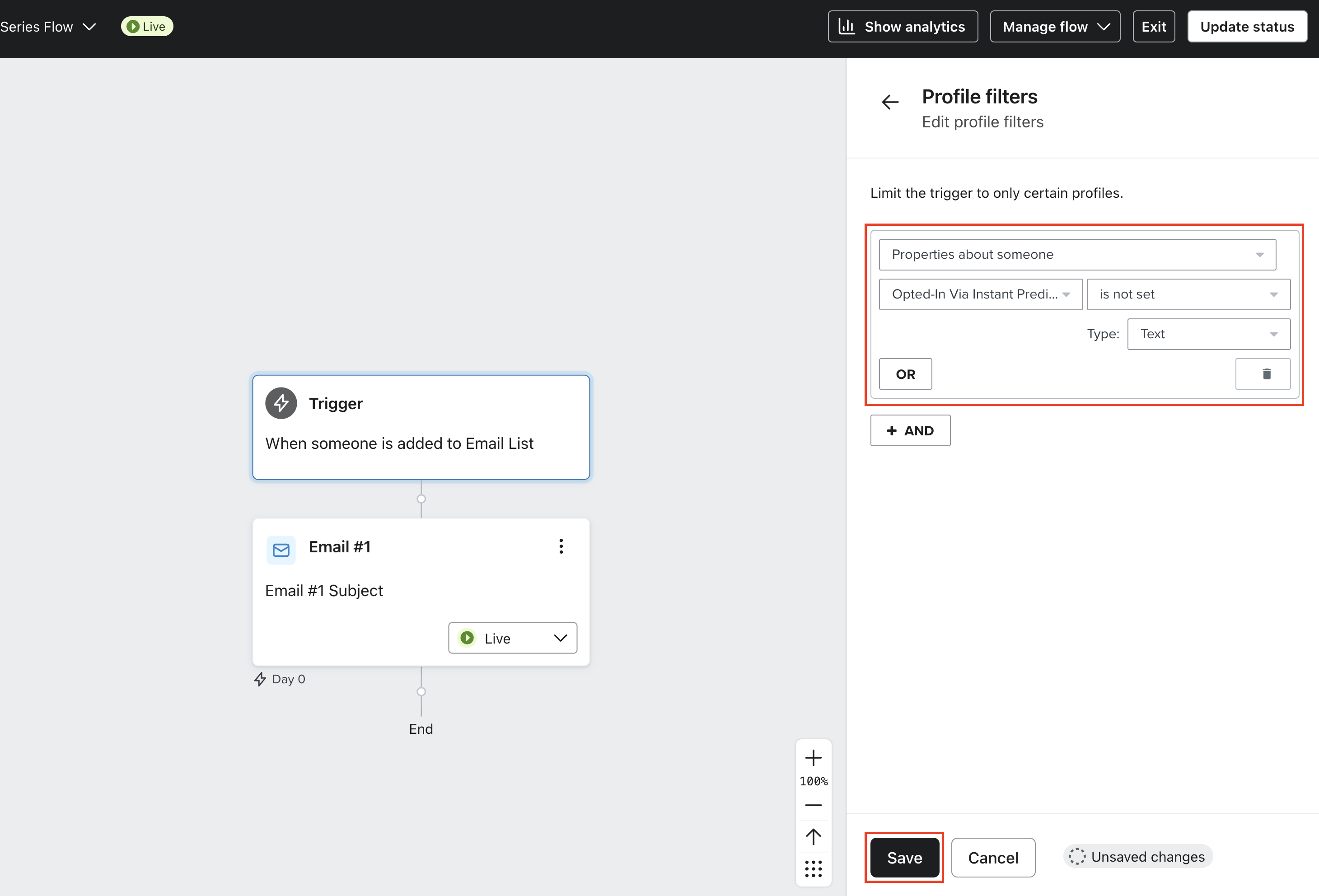
Proving ROI with A/B Testing
In today’s competitive eCommerce landscape, every marketing dollar counts. At Instant, we want our brands to be confident of the true impact of Instant, providing indisputable proof for the ROI Instant brings. This is why Instant is introducing built-in A/B testing—so that any brand can see objectively how Instant drives your brand's revenue growth.
The A/B test is easy to set up, and only some brands are eligible to run this test. Please reach out to your Customer Success Manager to get started. Once it is set up, the A/B test results are 100% self-serve with results displayed inside of the Instant Dashboard. The information displayed in the "A/B Test" section of the dashboard is designed to help you evaluate how much additional revenue Instant generates, with statistics in there to guide you through the Instant A/B Test logic and process.
How the A/B Test Works:
- Enable A/B Testing – A customer success manager (CSM) can activate an A/B test for a merchant directly from the Instant dashboard.
- Split Audience Cohorts – Shoppers visiting the merchant’s store are randomly assigned to one of two groups - 50% of shoppers into each group:
- Group A (Instant Test): This group's user events are de-anonymised from Instant and sent to Klaviyo, powering Instant marketing flows in Klaviyo.
- Group B (Excluded): This group will not have their user events de-anonymised by Instant.
- Track Key Metrics – The platform automatically monitors conversion events, revenue generated, and shopper engagement for both groups.
- Analyze Revenue Impact – We strongly recommend the A/B test to run for be at least 4 to 6 weeks, and should not be shorter. This is because the larger the sample size is, the more accurate the results will be.
During the test, the Instant dashboard can present an objective side-by-side comparison of:- Revenue generated in total, and by each cohort
- What each cohort's test results process looks like
- Revenue uplift between the two cohorts - bearing in mind this isn't reflective of the total revenue uplift you would see with Instant as only 50% of the eligible shoppers are going through the Instant experience.
- Make Data-Driven Decisions – brands can use these results to validate the effectiveness of Instant’s platform and optimize their marketing strategies.
Accessing your A/B Test
1. Navigate to the Instant Dashboard and log in.
2. After logging in, select A/B test in the left-hand panel
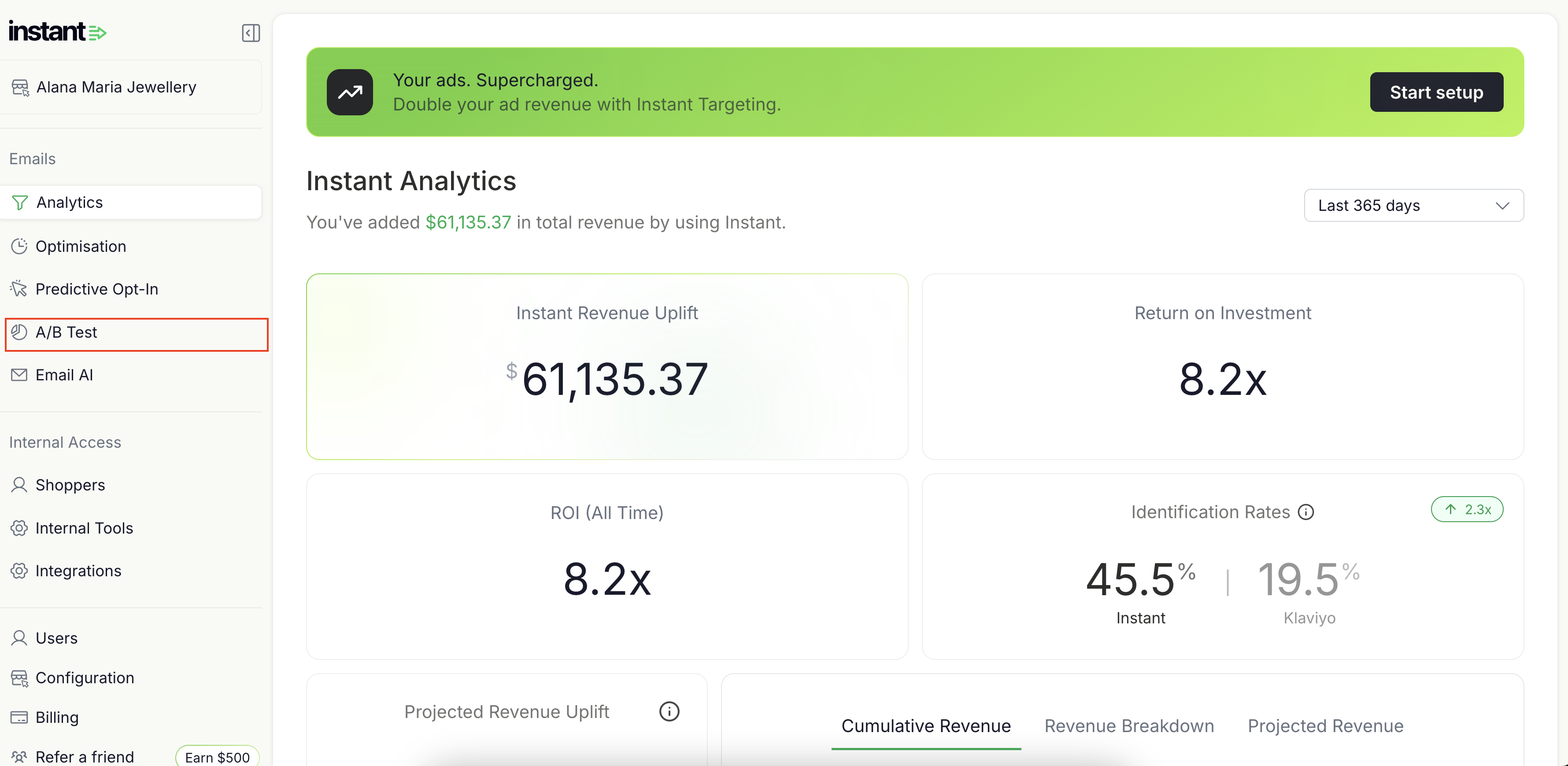
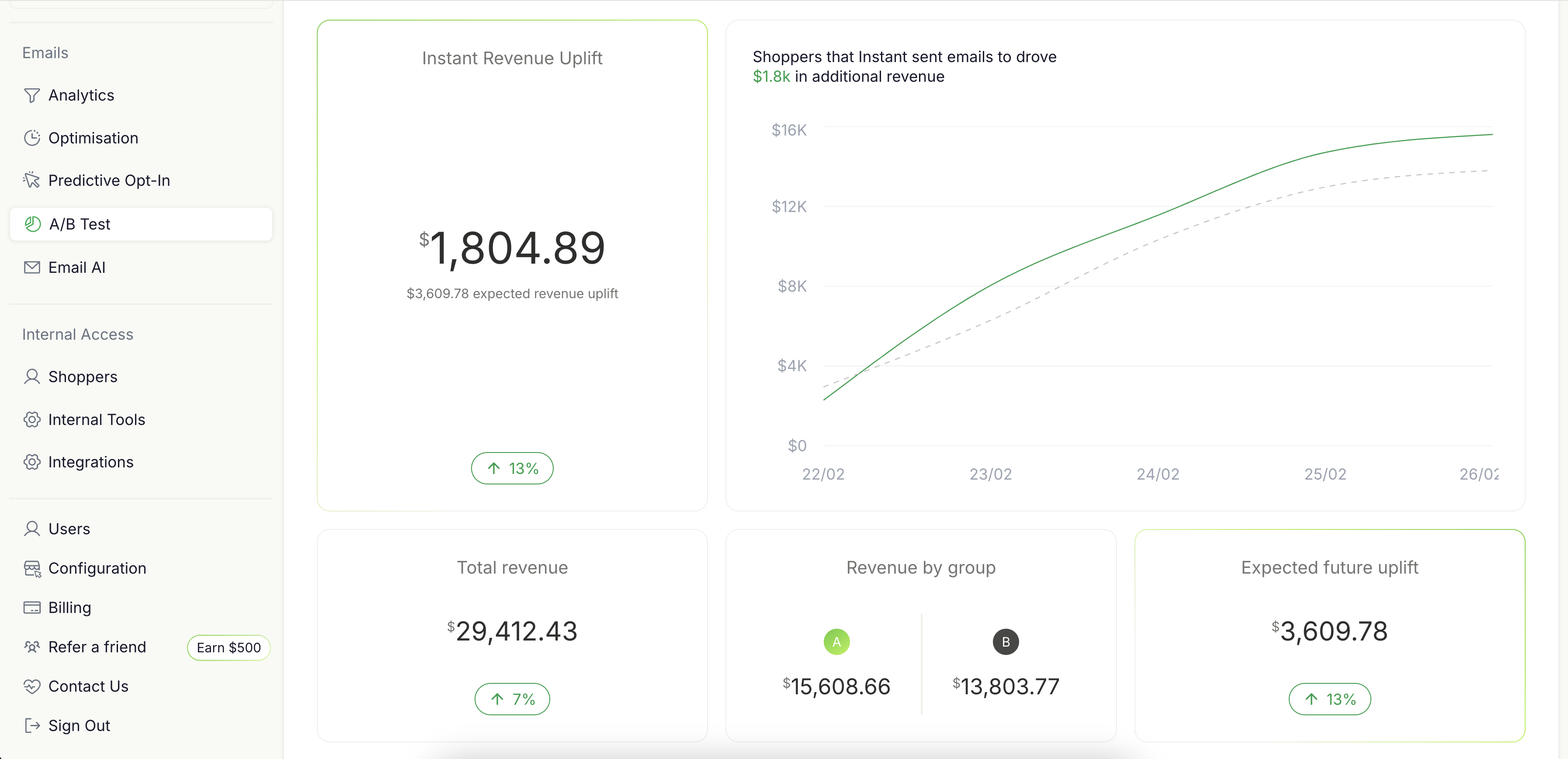
3. This will take you directly to your A/B test results
How to Understand your Instant A/B Test Dashboard and Data:
1. How we tested: consistent with how Instant Audiences usually functions, the A/B test only include Instant identified browsers arriving at your store. We exclude any browsers that Klaviyo or Shopify would have already identified.

For example, in this A/B test Instant has identified 3,548 shoppers that Klaviyo and Shopify were unable to identify.
2. Results
This section of the report presents the primary test outcomes:
-
Instant Revenue Uplift: The additional revenue generated from shoppers who received Instant emails compared to those who did not.
-
Total Revenue: The combined revenue from both groups over the testing period. Noting that the is the revenue generated only from shoppers that were tracked by the A/B test.
-
Revenue by Group: A breakdown showing how much revenue was generated by Group A vs. Group B.
-
Expected Future Uplift: The estimated future revenue gain if Instant emails continue to be sent to all eligible shoppers.
Also included in this section is a time-series chart that helps you visualise and tracks revenue accumulation for both Group A and Group B throughout the testing period.
-
The green line: Represents revenue from shoppers in Group A.
-
The grey line: Represents revenue from shoppers in Group B.
-
The gap between the lines: Indicates the incremental revenue difference generated by Group A vs Group B.
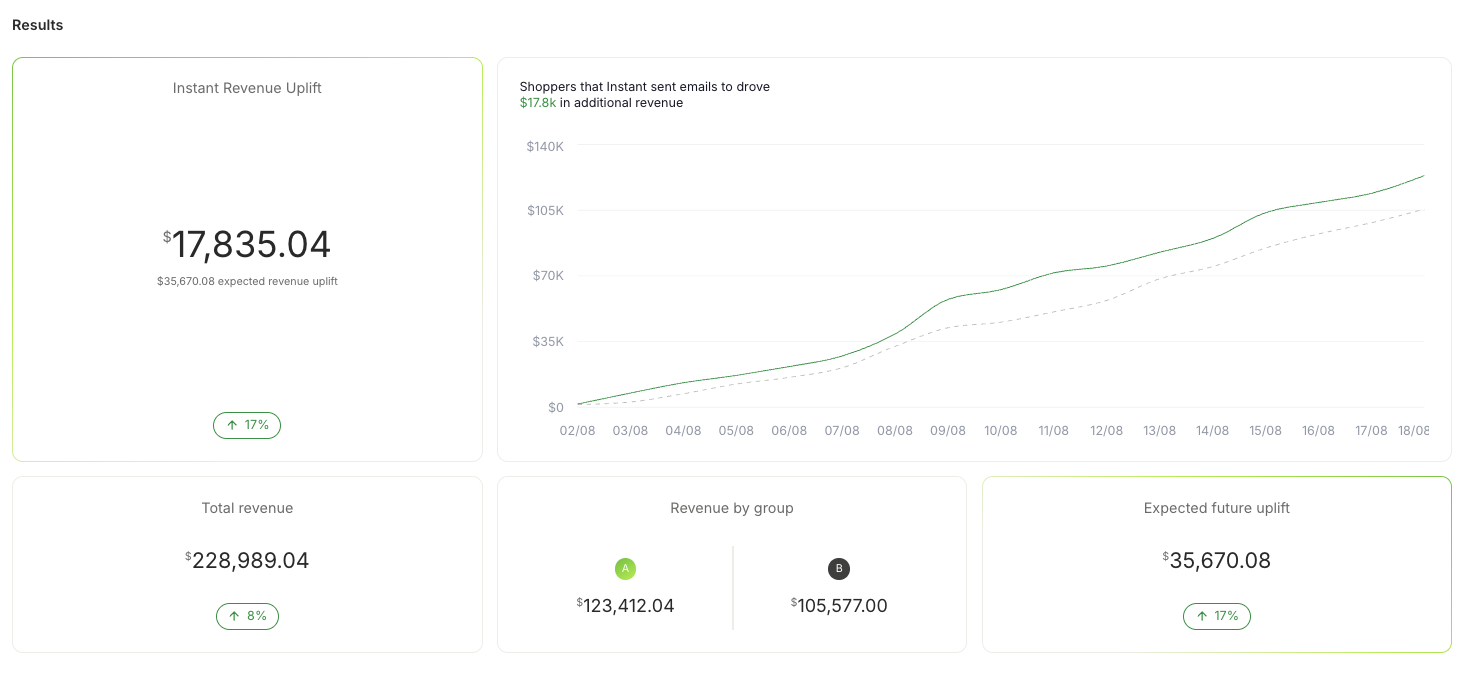
For example, in this test Instant’s emails generated an additional $17,835.04, an 17% revenue increase comparing Group A over Group B. If the merchant extends this strategy, they can expect an estimated future uplift of $35,670.08.
3. Test breakdown
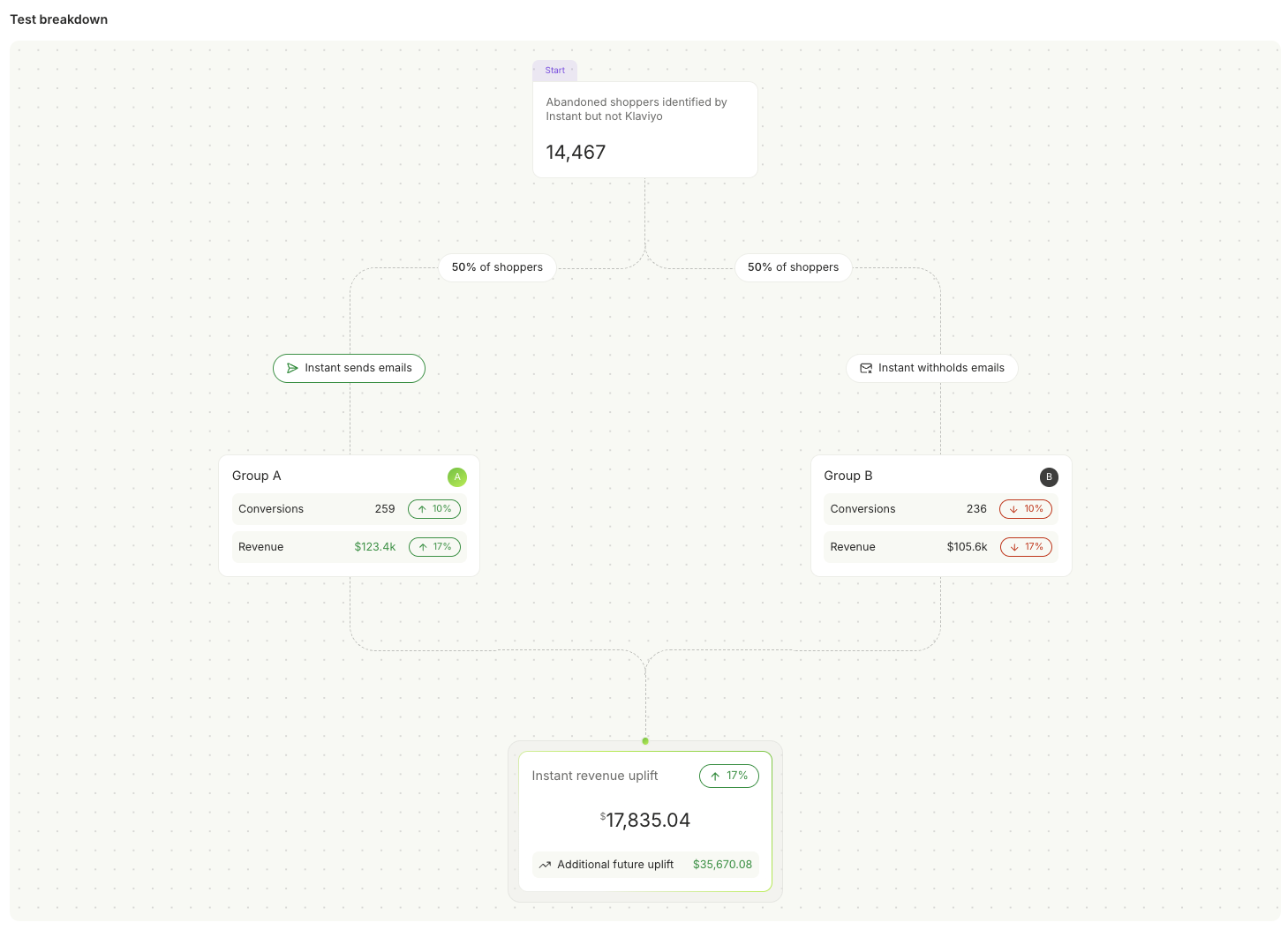
The test breakdown diagram provides a visual representation of how the test was structured and the final results:
-
Total Shoppers Tested: The number of shoppers split into two groups.
-
Conversions Per Group: The number of shoppers who completed a purchase.
-
Revenue Per Group: The revenue generated from each cohort.
-
Percentage Uplift: The increase in conversions and revenue observed in the Test Group.
For example, in this test we analyzed 14,467 shoppers, split evenly between the two groups:
-
Group A (Received Emails): 259 conversions, generating $123.4K in revenue.
-
Group B (No Emails): 236 conversions, generating $105.6K in revenue.
-
Result: A clear 17% increase in conversions and revenue that Group A has demonstrated over Group B.
Key notes about your A/B Test:
- Traffic Separation: The traffic is split into two separate groups, allowing you to clearly compare the value of Instant identifications.
- No Impact on Existing Flows: The A/B test is run independently from your existing Klaviyo flows, so it will not interfere with your store’s regular revenue generation.
- No Email Triggered for 50% of Browsers: In the A/B test, 50% of the browsers that Instant identifies will not have their de-anonymised events sent to Klaviyof, allowing us to track their behavior separately.
Frequently Asked Questions:
1. How are the browsers assigned to Group A and Group B?
Browsers that Klaviyo identifies are excluded from the A/B test. For shoppers that are not identified by Klaviyo but are identified by Instant, 50% will be sent Instant events (Group B), and the other 50% will not (Group A). These are randomly selected.
2. How do we measure the impact of Instant?
We measure conversion and revenue for each group (A and B). The results show how much additional revenue could be generated by using Instant events.
3. What happens if a browser identified by Klaviyo makes a purchase?
If a browser is identified by Klaviyo, their purchases are tracked as part of the standard Klaviyo metrics and do not impact the A/B test and they are excluded from the A/B test.
4. Will My A/B Test Revenue Appear in My Analytics Page?
No, the A/B test revenue will not appear in your analytics page. Your analytics page shows how much revenue Klaviyo is reporting. The A/B test is comparing the overall revenue difference between the two randomly allocated cohorts (one we send events to Klaviyo, the other we don't).
Conclusion
This A/B testing feature provides definitive proof of Instant's value, eliminating skepticism and doubts related to your brand's ROI figures. Brands can now see exactly how much additional revenue they’re generating with Instant Audiences—helping them make data-driven decisions and supercharge their revenue!
Note:Ready to prove your own revenue uplift? Contact your Instant Customer Success Manager today to enable A/B testing for your brand, or email help@instant.one
What should I consider before changing my flows?
During the onboarding process, your Customer Success Manager will configure profile filters to manage which customers are enrolled in your flows and ensure they receive the appropriate communications.
Any adjustments to these filters could disrupt your flows and result in duplicate emails to customers, which may negatively impact their experience.
Before making any changes, please reach out to your Customer Success Manager to confirm that all filters are correctly set up.
Frequently Asked Questions:
1. Can I adjust my filters the day before a big sale?
If you need to make urgent changes to your flow before a sale or promotion, please contact your CSM or help@instant.one.
2. What if I only need to adjust my flow to run a seasonal promotion?
If you would like to run a seasonal promotion, you can either clone your existing flow or edit the email content within your current flow to align with the seasonal promotion. For a step-by-step guide on how to do this, check out this article linked here.
3. Can I change my cool-down period or profile filters?
For changes to your cool-down period or profile filters, we strongly recommend reaching out to your CSM. This ensures that the flow remains optimised and that any changes to the filters are properly implemented, preventing any impact on customer enrollment or email delivery.
4. What if I only need to change my time delay details?
You can safely adjust any time delays, but please ensure the Instant flows are timed to follow your Klaviyo flow.
5. Can I create an A/B test?
Yes, A/B testing is available and is an excellent way to optimize your flows and emails! Please feel free to contact your CSM or consult the Help Center for detailed instructions on setting up an A/B test.
6. Can I update the subject line and header content?
Yes, you can modify the subject line and header content of your emails. For best practices on optimising for a sale or promotion, please refer to this helpful guide here.
Note:If you have any questions or need further assistance, please reach out to help@instant.one
How do I setup Audiences flows alongside another provider?
If you’re using Instant Audiences alongside another provider with Klaviyo abandonment flows, it’s important to set things up correctly.
This guide will help you prioritize Instant Audiences in your email flows, ensuring you get the best results without overlapping with other providers.
1. Setup your flow delays:
For each flow (like Browse Abandonment, Add to Cart Abandonment, etc.), ensure that Instant Audiences comes first in your email delivery order:
- Step 1: Your original Klaviyo flow should trigger first.
- Step 2: The Instant Audiences flow should trigger 15 minutes after your original Klaviyo flow.
- Step 3: If you’re using another provider’s flow, set it to trigger 15 minutes after Instant Audiences.
Example:
- If your original Browse Abandonment flow triggers after 1 hour,
- Set Instant Audiences to trigger at 1 hour and 15 minutes, and
- Your other provider’s flow to trigger at 1 hour and 30 minutes.
How do you setup the Audiences flows?
Even when setting up Audiences in parallel to another identity resolution provider, continue to set-up the Audiences flows as usual. If you are unsure how to setup the Audiences flows, we have help guides available here.
Apply filters to prevent duplicate emails
To avoid the other provider's flows from sending emails to the same customers that either Klaviyo or Instant has already identified, you need to filter out people who have already been identified by Klaviyo or Instant from each of the flows.
Please apply the following filters to each flow on the other provider.
Browse Abandonment Flow
For the other provider’s Browse Abandonment flow, add these filters:
-
Product Viewed - Instant Audiences: zero times since starting this flow
-
Product Viewed - Instant Audiences: zero times in the last 1 day
-
Viewed Product: zero times since starting this flow
-
Viewed Product: zero times in the last 1 day
-
Added to Cart: zero times since starting this flow
- Item Added to Cart - Instant Audiences: zero times since starting this flow
-
Checkout Started: zero times since starting this flow
- Cart Viewed / Checkout Started - Instant Audiences: zero times since starting this flow
-
Received Email: zero times in the last 7 days for Instant Audiences’ Browse Abandonment flow
-
Received Email: zero times in the last 7 days for the original Browse Abandonment flow
Add to Cart Abandonment Flow
For the other provider’s Add to Cart flow, add these filters:
-
Item Added to Cart - Instant Audiences: zero times since starting this flow
-
Item Added to Cart - Instant Audiences: zero times in the last 1 day
-
Added to Cart: zero times since starting this flow
-
Added to Cart: zero times in the last 1 day
-
Checkout Started: zero times since starting this flow
- Cart Viewed /Checkout Started - Instant Audiences: zero times since starting this flow
-
Received Email: zero times in the last 7 days for Instant Audiences’ Added to Cart Abandonment flow
-
Received Email: zero times in the last 7 days for the original Added to Cart Abandonment flow
Checkout Started Flow
For the other provider’s Checkout Started flow, add these filters:
-
Cart Viewed / Checkout Started - Instant Audiences: zero times since starting this flow
-
Cart Viewed / Checkout Started - Instant Audiences: zero times in the last 1 day
-
Checkout Started: zero times since starting this flow
-
Checkout Started: zero times in the last 1 day
-
Received Email: zero times in the last 7 days for Instant Audiences’ Checkout Abandonment flow
-
Received Email: zero times in the last 7 days for the original Checkout Abandonment flow
Conclusion
Setting up flows correctly is important to ensure that the maximum amount of abandoned customers are being abandoned, whilst not sending out duplicate emails.
By following our setup guides, you will ensure that your Klaviyo flows are set-up correctly and operating without issues.
If you need help at anytime with your Klaviyo flow setup, please reach out to your customer success manager, or email help@instant.one at anytime.
How Instant Audiences Attributes Revenue
Accurate attribution is crucial for understanding marketing performance and making informed investment decisions. That's why Instant Audiences relies entirely on your email service provider—like Klaviyo—for attributed revenue reporting.
Instead of applying our own attribution model, we pull data directly from your email platform. This ensures the numbers in our dashboard align with what you see in Klaviyo, maintaining consistency, transparency, and reliability in attribution.
Klaviyo Attribution: A Reliable Standard
By default, our flows follow Klaviyo’s multi-channel last-click attribution model, where each email and SMS has a customisable tracking window.
In this model, when a customer event occurs (i.e., placing an order), Klaviyo checks your attribution window for each channel and credits the conversion to the most recent message within an open window.
The default attribution windows are:
- Email: 5-day open or click.
- If a customer makes a purchase within 5 days of opening or clicking an email, and that email was the last marketing message they interacted with, the sale will be credited to that email in Klaviyo.
- SMS: 24-hour click.
- If a customer buys within 24 hours of clicking a text message, and it was the last marketing touchpoint they clicked, the purchase will be attributed to that SMS in Klaviyo.
By setting distinct attribution windows for email and SMS, each conversion is credited to a single message, preventing double-counting.
This approach enables you to accurately measure the impact of your campaigns and make informed decisions regarding your marketing budget.
Note: Note: Every business is unique, so Klaviyo’s default attribution windows should be aligned with your customer behavior. For details on how to modify your attribution setting, click here.
How Audiences Works With Klaviyo
Audiences Flows
Instant Audiences is designed to enhance your Klaviyo setup by identifying and engaging visitors that Klaviyo may miss—without disrupting your existing flows. We only trigger messages when Klaviyo is unable to trigger the existing flows, ensuring that those Klaviyo native flows always take priority.
To achieve this, we clone your existing abandonment flows and apply time delays and filters to prevent overlap, ensuring that customers never receive duplicate messages.
The cloned flows include:
- Viewed Product – Targets visitors who view a product but leave without purchasing.
- Cart Viewed / Checkout Started – Engages shoppers who visit their cart or begin checkout but don’t complete the transaction.
- Add to Cart – Reaches users who add items to their cart but don’t finalize the purchase.
Note: Note: Some businesses will have more or fewer abandonment flows, which flows you choose to clone is up to you. But best practice is that all three flows are cloned and activated for best Instant Audience performance.
Example
When Klaviyo identifies a visitor on your website, and that visitor then abandons the website and triggers a flow, Instant Audiences remains inactive. If the visitor is not identifiable by Klaviyo, Instant Audiences steps in and sends the corresponding message from your cloned flow.
For example:
-
Day 1: A user visits your ecommerce site, adds a product to their cart, and leaves without completing the purchase.
-
Later: They return to your site. Klaviyo no longer recognizes them, either because they switched browser, device, or their cookies have expired, our Instant Pixel is still able to track them.
Result: We trigger an email based on your cloned Klaviyo flow, recovering a conversion that would have otherwise been missed.
Attributing this conversion
Conversions attributed to Instant come from visitors who have received, opened, and/or clicked on Instant abandonment emails, following your business’s email marketing attribution rules.
In the example above, the visitor would have received an Instant cart abandonment email, because only Instant was able to identify and track their session. That conversion would then be attributed to Instant only if the visitor opened and/or clicked on an email in the flow within the last 5 days (or opened and/or clicked on the SMS in that flow within the last 24 hours).
Tracking your performance
Once your flows are set up, you’ll have access to a personalised merchant dashboard tailored to your specific needs.
Your Analytics page provides a clear view of the revenue uplift driven by Instant Audiences, based on data from your connected Klaviyo account.
Here, you can:
-
View attributed revenue
-
Monitor key performance metrics such as ROI, projected revenue, and Instant Flow statistics
-
See how your audiences are performing—and even watch shoppers convert in real time
To learn more about analytics and tracking your progress with Instant Audiences, click here.
Note:If you have any further questions about attribution, please feel free to email help@instant.one.
How do I measure revenue generated by Audiences?
In Klaviyo, proceed to Analytics > Dashboards
Click on Create Dashboard
.png)
Name your dashboard “Instant Audiences”
.png)
Click Add Data View
.png)
Select Flows Conversions from the Data View Library and click Add Data View
.png)
Ensure that the Conversion metric is selected to Placed Order
.png)
Under All flows, select the Instant Audiences flows
.png)
How do I add UTM tracking to Instant Audiences flows for Google Analytics?
UTM tracking can be very useful for sending detailed information and data to Google Analytics about where site traffic and visits are coming from.
Instant's Klaviyo integration leverages Klaviyo's flows, and therefore merchants can use Klaviyo's native integration into Google Analytics for UTM tracking.
By adding UTM tracking to emails sent from Instant Audiences flows, you will be able to track conversions from Instant Audiences flows in Google Analytics.
To understand how to use UTM tracking for Instant Audiences flows, please refer to the following help article from Klaviyo titled "How to add UTM tracking to campaigns and flows" - https://help.klaviyo.com/hc/en-us/articles/360053921252.
The relevant sections from Klaviyo, are:
To understand UTM tracking in Klaviyo, please refer to the following help article from Klaviyo titled "Understanding UTM tracking in Klaviyo" - https://help.klaviyo.com/hc/en-us/articles/115005247808
Please refer to Google analytics' support documentation for any further clarification regarding questions or issues related to your Google Analytics account or setup.
How do I retrieve the ID of a Klaviyo form?
You may need to retrieve a form ID from a Klaviyo sign-up form to use for configuration in Instant.
The instructions below outline how you can retrieve a Klaviyo form ID.
- Proceed to Klaviyo's Sign-up forms page.
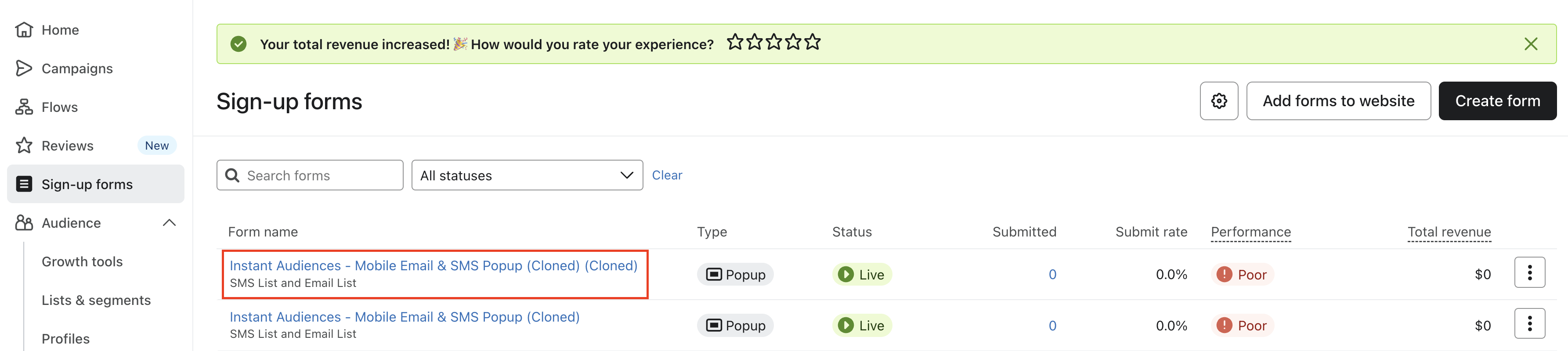
- Click into your form.
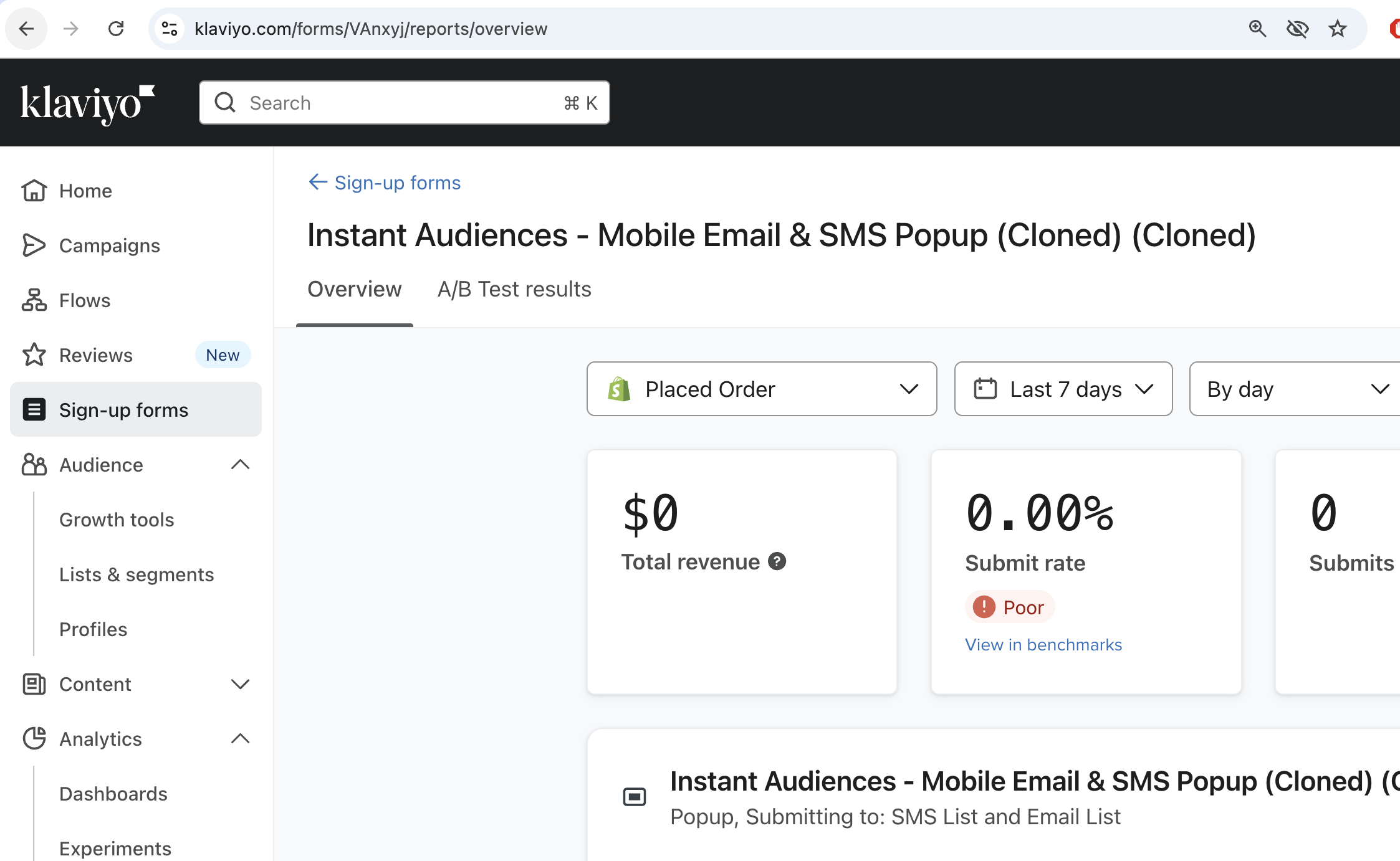
- Inspect the URL you are currently on.

- The 6 character code after /forms/ is your form ID.

For example, the form ID above is VAnXyj. Once you have this form ID, you can use this throughout Instant, such as in our [Predictive Opt-In](/how-do-i-get-started-with-instant-predictive-opt-in) feature.
How does Audiences prevent duplicate emails from being sent?
Flow filters are configured to both the non-Audiences and Audiences Klaviyo flows to ensure that if a customer is identified by both Klaviyo and Instant Audiences, that they only get sent emails from the non-Audiences flow.
This ensures that emails sent from Audiences flows are emails that would not have been sent otherwise, and Audiences flows do not send emails when standard flows would.
Note:Setup guidelines for flow filters for each flow type can be found here.
If you need support with this please contact us.
Why is Instant sending through numerous Klaviyo metrics for a profile?
Instant may send multiple metrics for a single profile due to user interactions and behavior on the site.
This is expected behavior and is designed to ensure accurate tracking of a customer's journey.
This means that the volume of events reflects user activity, not website sessions. This may result in the number of events fired by Instant exceeding the number of site sessions, which is normal behaviour. For example, if a customer refreshes the checkout numerous times, then multiple checkout started events will be fired for the same customer.Note:💡 For more in-depth information about what metrics Instant Audiences sends to Klaviyo, and when those metrics are fired, please refer to this article.
Why is the same Instant metric triggered numerous times for a single profile?
1. Checkout progression
-
- If a customer navigates through multiple stages of the checkout process or refreshes the checkout page, multiple events may be fired within a single session.
- For example:
- Refreshing the checkout page multiple times will trigger multiple Checkout Started events.
- Progressing through various stages of the checkout process will re-trigger Checkout Started events.
- For example, filling out personal information, or filling out address information.
-
-
- Each Checkout Started event will also trigger a Page Viewed event.
- Every time a Checkout Started event is fired, a Cart Viewed / Checkout Started event will also be fired.
-
-
- Customers navigating the site frequently or interacting with multiple pages will naturally generate a larger number of events, such as:
- Product Viewed events when they visit product pages.
- If a shopper visits the checkout numerous times, that shopper's Klaviyo profile will result in numerous Checkout Started and Cart Viewed / Checkout Started events.
- Page Viewed events alongside other actions like Item Added to Cart events.
- Customers navigating the site frequently or interacting with multiple pages will naturally generate a larger number of events, such as:
3. Item Added to Cart events with multiple items
-
- When a customer adds multiple items to their cart, each item generates a separate Item Added to Cart event for each item.
Why does Instant send metrics like this?
Instant’s behavior is designed to align with the needs of platforms like Klaviyo, which use these events to drive flows and automate customer engagement.
Here’s why this approach works:
-
Flow cooldowns prevent duplicate emails
- Events are meant to trigger frequently, but flow cooldowns ensure that customers aren’t enrolled multiple times in short periods.
- Flow cooldowns should be on all flows. To add a flow cooldown, add the following Profile filter to the flow filters.
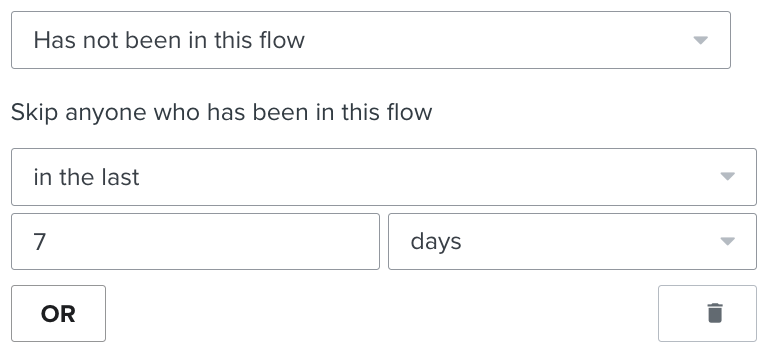
- With this flow cooldown setup, Klaviyo ensures flows (e.g., an abandoned cart email sequence) only enroll customers once every 7 days, regardless of how many events are fired.
- Configure this 7 day cooldown to be longer if you wish, but 7 days is recommended as a minimum to ensure sufficient cooldown between enrollments.
-
Simplified flows
- We send the Cart Viewed / Checkout Started event every time a Cart Viewed or Checkout Started event is triggered.
- This enables brands to create a single flow for both Cart Viewed and Checkout Started, instead of creating separate flows for each of the events.
- This makes flow management easier.
How do I prevent duplicate emails?
-
Ensure sufficient flow cooldowns, minimum of 7 days
- Ensure adequate cooldown periods for flows to prevent customers from being re-enrolled too frequently.
- For example, a 1-hour cooldown will cause duplicate emails if a customer refreshes the checkout multiple times throughout a given day. Increasing the cooldown prevents this issue.
-
Understand event frequency
- Recognize that the volume of events reflects user activity, not website sessions. For example:
- A customer viewing multiple products will generate multiple Product Viewed events.
- Refreshing the checkout results in repeated Page Viewed and Checkout Started events. Progressing through a checkout will result in further Checkout Started events to fire.
- Recognize that the volume of events reflects user activity, not website sessions. For example:
-
Review flows and triggers
- Ensure your Klaviyo flows are set up to handle events intelligently.
- Long enough flow cooldowns ensure that customers receive relevant emails without over-communication.
How does Audiences track profiles for longer than 7 days on Safari/iOS?
Recent updates from Safari/iOS and Chrome/Firefox limit Klaviyo's tracking ability to only 7 days (therefore only identifying 10-15% of abandoners). If a shopper comes back after 7 days, Klaviyo has lost the ability to collect signals on that customer, meaning no abandonment signals are collected.
However, with Audiences, Klaviyo will continue to receive user signals and events indefinitely, even after 7 days on Apple/iOS/Firefox/Chrome. This greatly increases the amount of abandonment events that in Klaviyo, resulting in increased abandonment revenue.