
You may wish to set a different form as your permanent/default form used by Instant Predictive Opt-In. If you wish to make a temporary change, we recommend scheduling a form. The instructions for this are here.
How Predictive Opt-In works
Predictive Opt-In is a re-targeting pop-up. It gives a shopper a second chance to sign up after they have passed on your first signup form, and Instant decides when to show it. Because it runs on re-trigger logic, it works as its own standalone form and does not open on a first visit.
- Your native form handles the first visit. It opens based on the display rules you have set with your form provider, such as device targeting, “don’t show again if form was submitted”, and frequency capping.
- Predictive Opt-In is a separate “try again” form. It has to be its own form with its own trigger, so Instant uses an approved clone of your form (for example Instant Audiences - [Approved] Desktop Popup) that sits alongside your native form in your forms list. This is expected. The clone is the form the re-trigger opens.
- Instant opens the clone using its own custom event. On Klaviyo this fires through the
openFormtrigger. Instant’s pixel keeps this hook in place so the re-trigger can open at the right moment.
Note: Klaviyo only supports one input as a form trigger. When a form is opened by an Instant custom event, your native display rules (such as “don’t show again if submitted” and frequency capping) do not govern that trigger. Instant’s own timing algorithm decides when the re-trigger appears, and you cannot layer additional native rules on top of an Instant event. Native display and targeting rules can only be applied to native events.
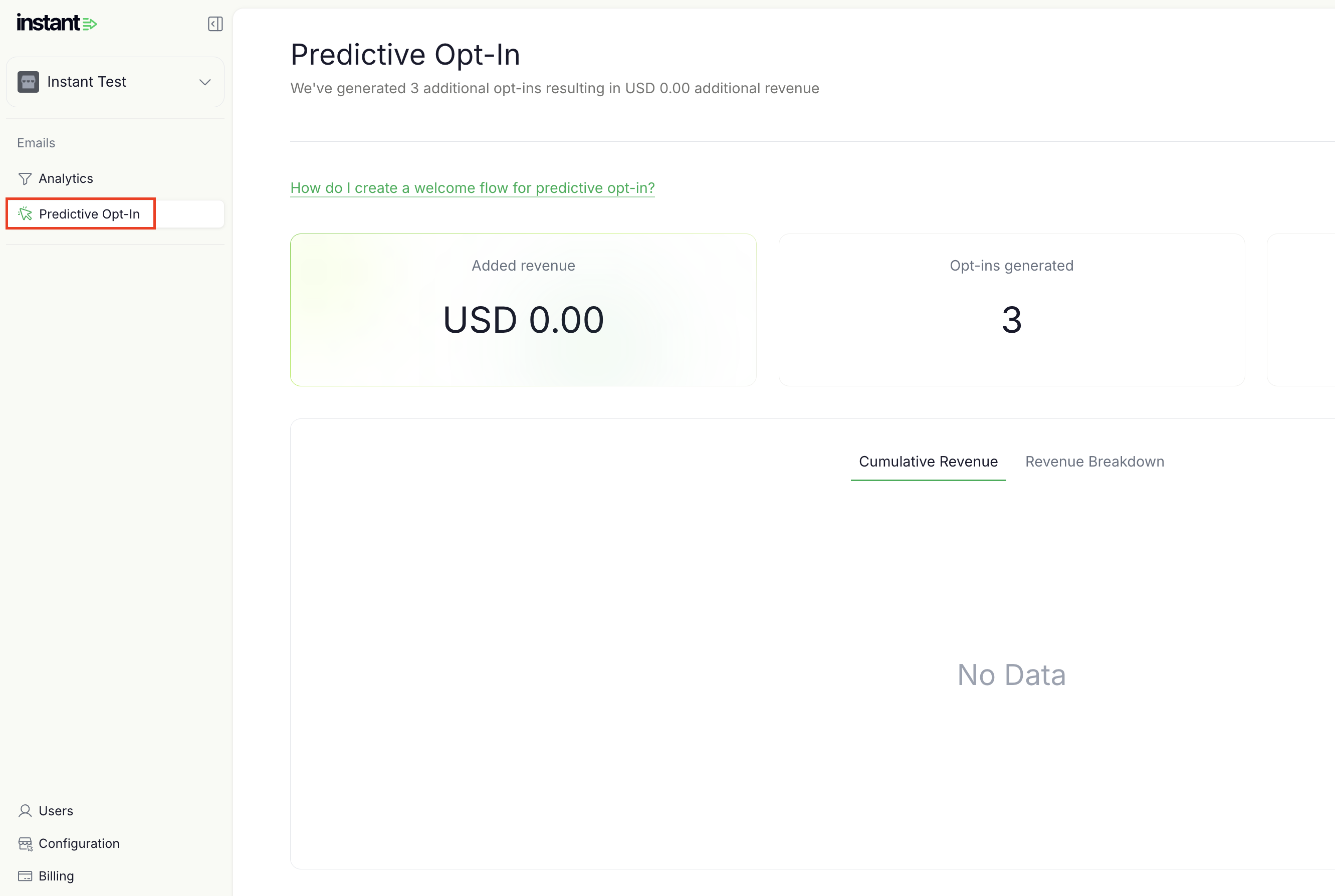
Step 1: Proceed to your Instant dashboard and click on Predictive Opt-In in the sidebar.
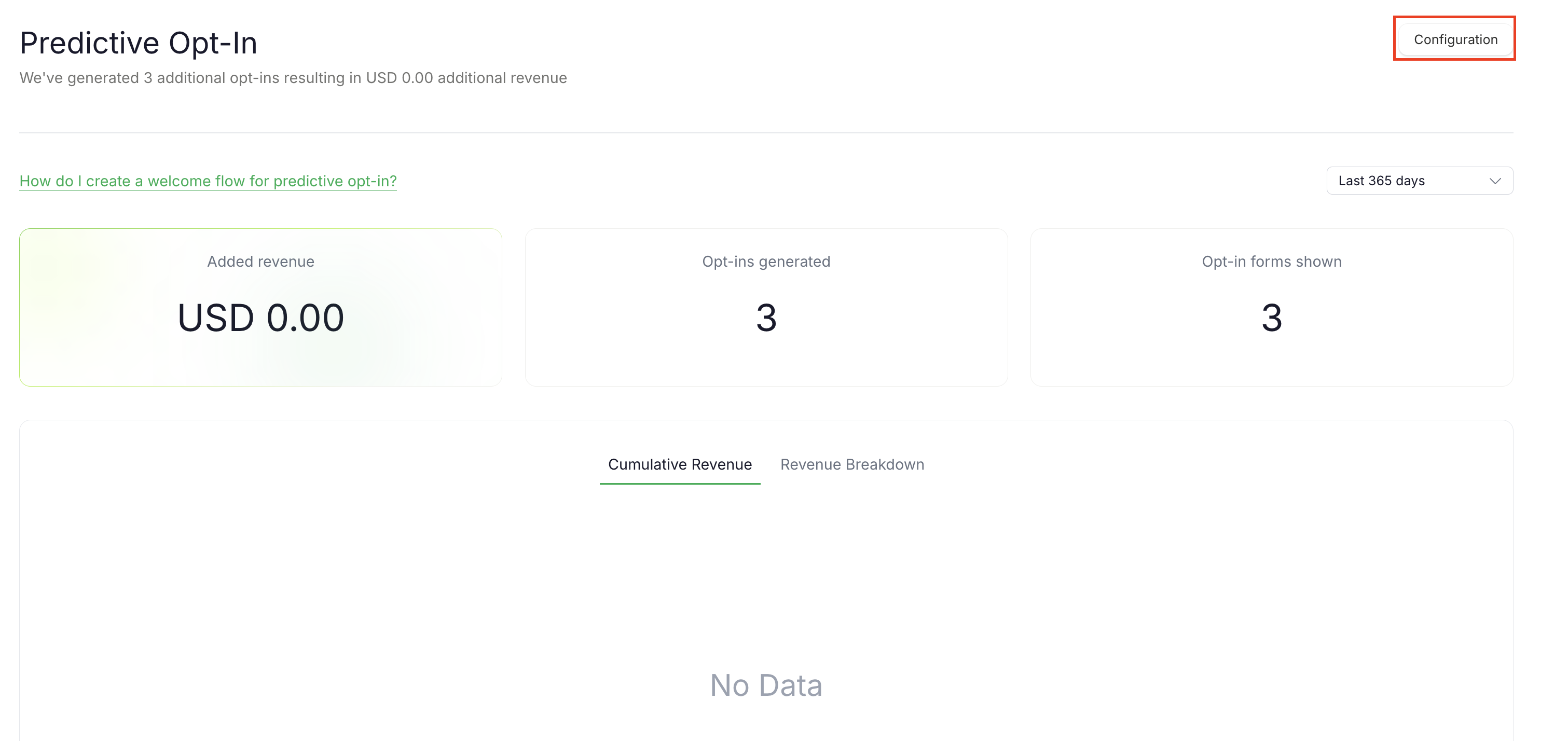
Step 2: Click on Configuration in the top right.
The remaining steps will differ based on the form provider you are using with Predictive Opt-In.
Klaviyo Integration
Follow these remaining steps if you are using Klaviyo Forms with Predictive Opt-In.
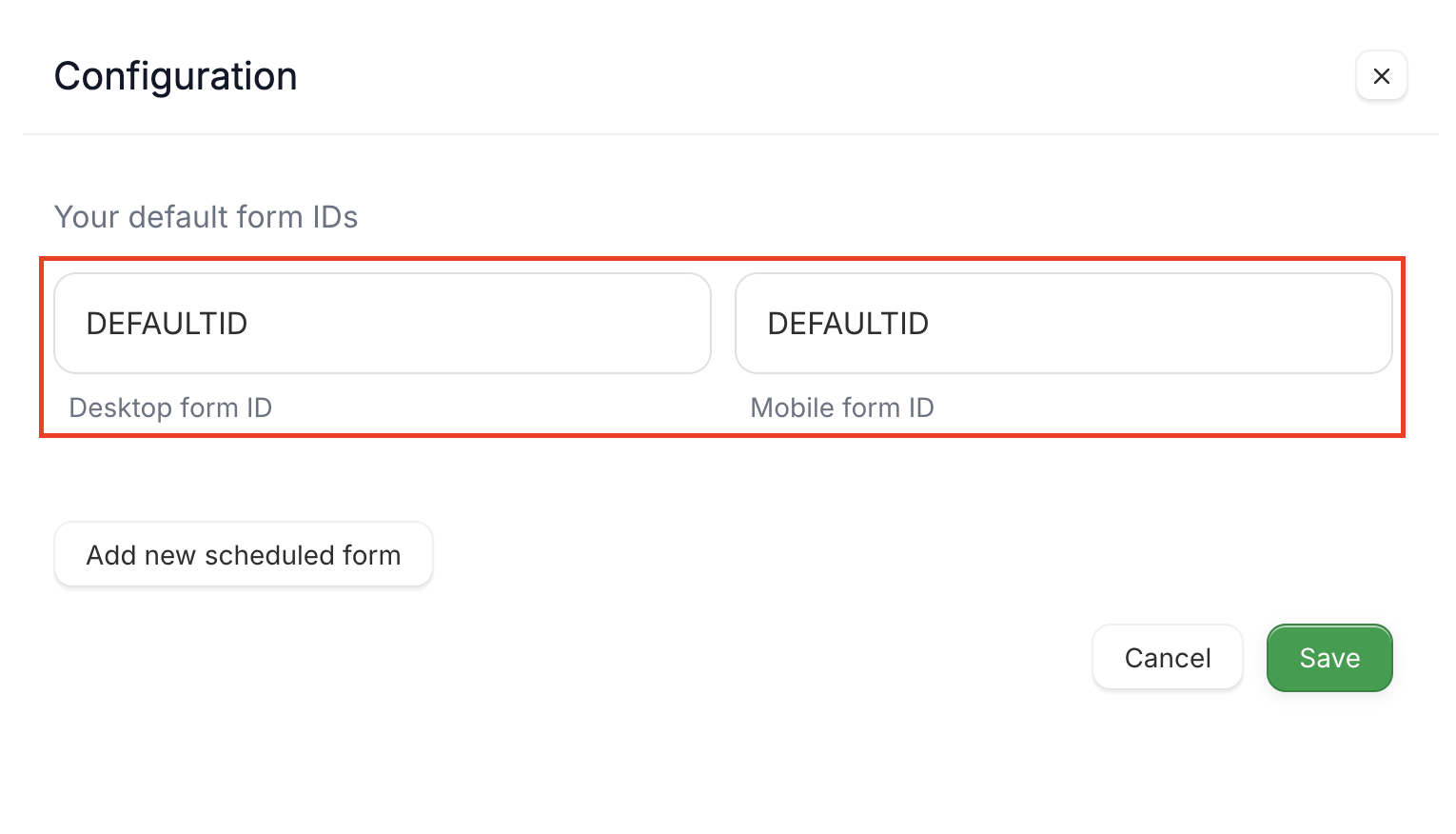
Step 3: Modify the default form IDs for Desktop and Mobile.
Update the form IDs in the fields highlighted in red below with the Klaviyo Form IDs that you now want to use with predictive opt-in. If you use the same form ID for desktop and mobile, add your form ID to both fields.
Once done, click save!
Alia Integration
Follow these remaining steps if you are using Alia with Predictive Opt-In.
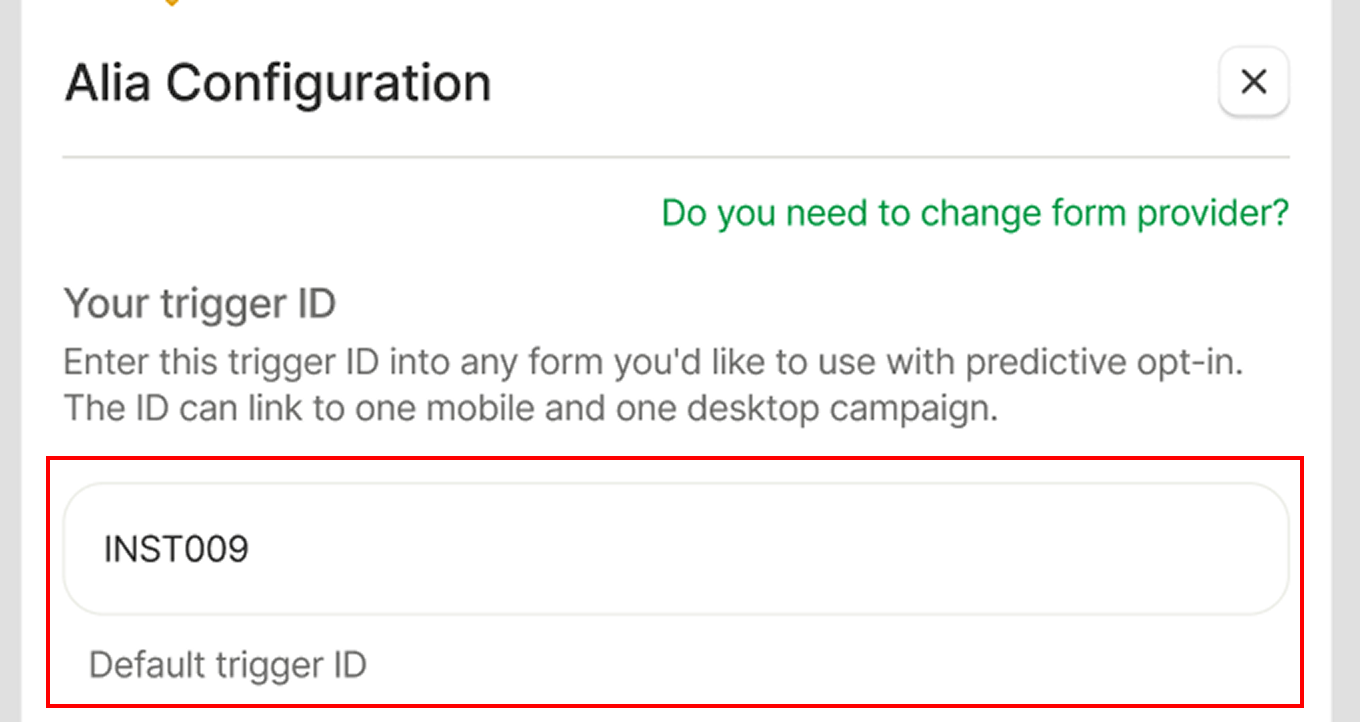
Step 3: Copy your Trigger ID.
Copy the default trigger ID from the field highlighted in red below. This ID will be used by Predictive Opt-In to programatically trigger your Alia pop-ups.
Step 4: Add your Trigger ID to your Alia Campaigns.
Alia only supports showing one campaign to a user at a given time, so one Trigger ID can be used across multiple forms, as long as it is only applied to one desktop and one mobile form simultaneously.
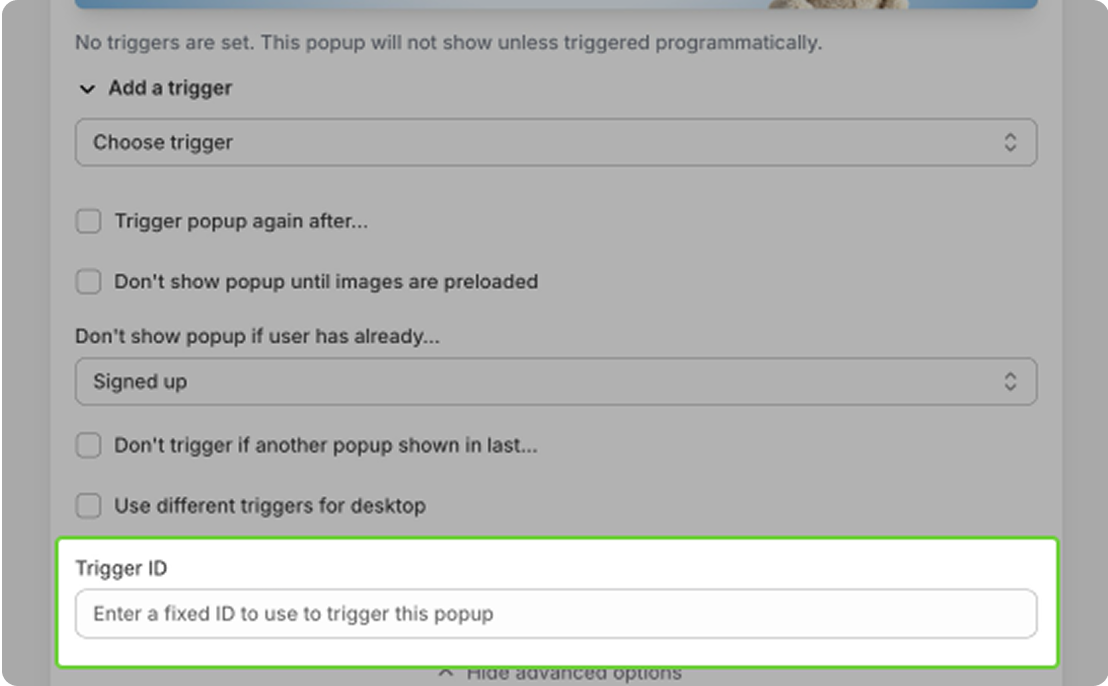
After opening the campaign and pop-up you wish to use with predictive opt-in, remove all triggers underneath your “Secondary Popup” and click on “Show Advanced Options”. Enter your Trigger ID into the relevant field.
Step 5: Remove your Trigger ID from your old Alia Campaigns.
To ensure that Predictive Opt-In is triggering the correct forms, navigate to your old campaigns and ensure that the trigger ID field is empty.
Predictive Opt-In will now open the new forms!
FAQ
Why do I have cloned forms on top of my native forms?
Predictive Opt-In is a second, re-targeting form, so it needs to exist as its own form. Instant creates an approved clone of your form to act as the re-trigger pop-up. Your native form still governs the first visit. The clone only opens when Instant’s re-trigger fires, so the two are meant to sit side by side.
Does the re-trigger respect my Klaviyo display rules, like “don’t show again if submitted” and frequency capping?
No. Those native rules apply to your original form. The re-trigger fires from an Instant custom event, and because Klaviyo supports only one trigger input, that event cannot also be governed by your native suppression or frequency settings. When the re-trigger shows is decided by Instant’s timing algorithm instead. If you are seeing the pop-up more often than expected, submit a ticket so the team can check your setup.
Can I limit Predictive Opt-In to only new or never-purchased visitors using my form provider’s targeting rules?
No. Because the re-trigger runs on an Instant custom event, you cannot add native audience or targeting conditions to it. Native targeting rules can only be applied to native events.
Need more help? Submit a ticket.